

WordPress bloggers love to share their photos and images with each other, so perhaps it shouldn’t have come as a surprise that when we removed the boring, old image icon that you wrote to us lamenting its disappearance.
But if you haven’t noticed already, there’s nothing to fear, for in its place is the Add an Image button in the Media Toolbar, which has been around for a bit but is now more robust than ever — making it the only thing you’ll need to add and organize photos.
Among its newest features is an easy-to-add caption tool. Just write your caption in the caption field before inserting an image and, voila, the caption displays below the photo inside a tasteful frame.

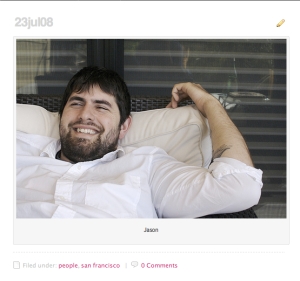
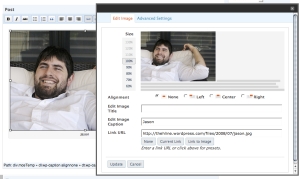
To add captions to an image you’ve already uploaded, select the image in the Visual Editor and click the landscape icon for Edit Image. You’ll be presented with the Image Editor, which lets you resize, realign, edit the title, add a caption, and change the image link URL.
Prefer the HTML editor? There’s a shortcode* for it, too.
*(Check out this page of the FAQ for a definition of “shortcode” and a list of more handy embeds.)
 WordPress.com News
thanks
I love it, I love it, I LOVE IT! Thanks Much!
ok
nice article.
Cool! By the way, who’s that person??? 😛
I understand that if people want to add captions, this is very pratical!
But I don’t, and I wish the “resize” option was in the first step too… I’m really sad about having to do things twice now, it’s too slow for basic linked-picture adding… It bugs be a lot! 😦
I think this is great. Tried it out the other day, and was pleasantly surprised 🙂
gee thanks for the updates! really cool !
It’s one good step towards user-friendly design interfaces, for those who don’t bother embedding some html, which can be fastedious. Still the text interface should be improved much more, as I encountered problem with line-spacing being automatically suppressed by the wordpress text-interface, NOT so WYSIWYG! Apart from the “heading” modules for text style and size, it would be nice to just have a text-size tool! Thanks. JM
Very good!
This is a fantastic feature, and I’ve been using it on my hosted blogs. I’d like to recommend it to a client, but I’m advising him to host his blog himself. Is this feature available in a plugin?
huh?!!?!
I wish you would kill that or make it optional. Now there is more work to place photos in the blog since you have to remove the caption that automatically is generated under the photo. Thank you if you’ll think about it. This is annoying at the moment.
Oh my…
I’m soooo late then.
Btw, nice feature and I like it 🙂
thanks for this, guys! much needed and appreciated!
Thanks Heather!
Hey guys its me mikkeygirl i got to say that was awsome i thought will this every change cp clubpenguin
~Jokes I Tell
Very cool! Ever since WordPress allowed its users to store images as part of the blog its been awesome and a great help!!!
I like it ato – easy to use and good-looking results. Thanks.
Thanks a lot!
thx a lot 🙂
Great, Thanks!!
whats a major pain in the butt is waiting for your entire gallery to load before you can find the code to a particular image you want. A better gallery browser is needed
WOW!!!!
Yea, it is great. Thx
thank u……… ^_^
We need to be asked before improving the chages wich can afect all!
Its nice! I already use it.
Awesome Awesome Awesome
When I set the border to “0” in Advanced Settings, there’s still a border, but it’s just not gray in color. Any ideas on how to eliminate the border completely?
Also, the front doesn’t change size for the caption… it should be smaller, but it’s the same size and style as my regular text in the post. How do I fix this?
Thanks for the caption option, it is much appreciated.
And on the topic of one more thing…
please allow us to align captions right or left OR center.
Centered doesn’t always suit the graphics-conscious blog.
I had some initial skepticism about the new image uploading system but having used it a fair amount now I am really starting to like it.
Thanks for all the cool features. Keep up the good work.
I’m cool with the new toy … 🙂
Nice going !
being a tad dim with the jargon and blogging i’m really
glad you’ve added visuals to demonstrate what yr talking about!
a nifty thing you have put together!
a rare bread – a female super geek!
Good job!
Great Heather. Why do you have to ruin my friggin life by changing the image thingamabob!?
Actually, I take it back.
I don’t mind it so much. It might grow on me.
works for me.
Really nice. But while yo are at it [making things nicer], can you update the MistyLook template so that the search thing disappears from the upper left corner? …because the grey page bookmarks disappear underneath…cf. my blog….
CHRIS JAKOBSON: can’t you change it yourself in a HTML tag? It does work for me. I just add “border=0” manually
The cute little frame doesn’t appear on my theme (Blix)…
Nice Job
AWSUME
I like it, very, very much.
nice
Goooood!
It looks like a potrait of old machines
Thanks for this. I think it’s much better and easier, especially for us who do not have enough time online
cool
First you should fix the image loader so that it works properly (like it used to), not add more fancy unneccessary features :-(((
very koool….thnks for this
I don’t want captions (because I am using your photoblog theme Monotone with just a title and a picture (noticeboards.wordpress.com)) but I like alt text, so I have to specify a caption and then edit the html. Also the caption text is what appears under the heading “Description” in Dashboard->Manage>Media Library while the description text is visible nowhere.
If you click on the image in the editor and then click the image button on the toolbar that pops up, you can click over to the Advanced tab and set the Alt text.
cool, it is the smart way to design my blog
but why didn’t you post a picture of a girl on the beach instead Jason lying in the bed?!?
just kidding, nice feature! 😉
Nice, but slightly buggy.
this one is really cool and clean…thanks a lot…hihi
sweet. now they look so neat. any plans to embed flv movies?
This new uploader puts an ugly blue border/stroke around the image which destroys the appearance of my digital art that I am displaying. It clashes with the colors of the art and of my blog’s design. In addition, a hand appears when the mouse hovers over the image, and if clicked, it opens in a separate window, which is very distracting to visitors to the blog.
How do I get rid of the ugly blue “link” border around my images?
I preferred the previous way by far. It was intuitive and practical. I hope this new method works well for the WordPress administrators, so that hopefully it’s working for someone … because it certainly isn’t working for me !!
I finally found the “advanced tab” hidden away in the visual view of the blog if you click on the image. This is about as unintuitive as a process could be. I never work in the “visual view”, but always work in the html view, where only the image code is visible. So I would have had no way of knowing to go looking in a place so far off the beaten trail. Now the ugly blue border is gone, but the hand still appears when a mouse hovers over the image, making visitors mistakenly think that there is something interesting to click on. But when they click, the image opens into it’s own window, surrounded by vast useless white space. How do I get rid of the hand?
The prior system did not have any of these convoluted problems. The old method was straight forward and didn’t require the user to go hunting all over hell’s half acre to find fixes for bugs that should work from the outset. Good website usability and architecture should be completely intuitive, and not force the user to waste a lot of time figuring things out. The previous method was intuitive. I’d be curious to know why this method was thought to be an improvement.
Thx Heather for the news!
Thanks again
Thanks for the news
nice
Thank goodness for the new uploader. I hated the old way of adding an image – whenever I wanted to mess around with an image, I always had to revert to using good old html to make any major changes.
I noticed this the exact second it was released! Great job I love this one.
Has anyone else noticed that when you go back to edit an image it automatically resets the image size to the largest size? i often upload large images and set them smaller so when they are clicked on the larger image appears. but if i go back and change anything in the advanced settings, tab like the border for example, the image size changes to the largest size and i have to reset it to 430. and 430 displays perfectly in my blog but wp defaults to 450 so my images are always cut off on the right unless i set it to 430. and can the default be set to proper display size?
otherwise i love the new feature and all that you do.
Good work gang. Nice new feature in all!
I can’t figure this new option out for the life of me. I’ve tried it on three different blogs, but the caption appears as normal sized text (same as my regular post text), without any type of formatting at all. Do I need to add additional lines to my CSS file?