


A few months ago we released a new notifications interface on WordPress.com — we made notifications faster and created a more unified visual experience to match what users see in the iOS and Android apps. Today, we’re releasing filters for notifications and a new design for large-screen desktops, both of which will help make managing your notifications easier and more efficient.
Filters
There may be times when you want to see only a certain type of notification, such as just comments or just likes. You can now use the brand-new filter bar to do just that:
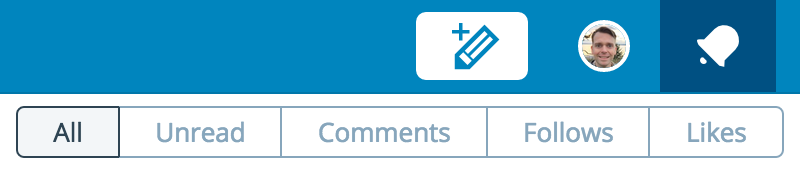
We’ve included filters for Unread, Comments, Follows, and Likes. The Unread filter comes in really handy to make sure you’ve responded to notifications on your site that you may have missed! When you’re ready to view all of the notifications together again, just click back to the All tab.
A two-panel interface for large screens
We’ve also added a great new interface for users on web browsers with large screens. Click on a notification, and you’ll see a detail view slide out in a separate panel, so that you can still view your notifications list and browse to the next one easily:

You can still use keyboard shortcuts to navigate the panel on desktop browsers as well, so make sure to take advantage of that to become a notifications power user!
Both of these improvements arose from user feedback — thanks so much for continuing to share your thoughts on how to make the WordPress.com experience the best it can be.
 WordPress.com News
Is this a new feature? I’ve been seeing it on my dashboard for quite some time.
Good eye! Filters have been out for a few weeks, and the large-screen interface was released last week.
Loving all the updates to the notifications. Looking good on all my devices and browsers.
I personally enjoy this novelty, I find it easy to use and it shows the most important notifications in a handy and efficient manner. It seems quite orderly and nothing too much is there. Thank you.
I was thrilled when the two-panel, large screen interface popped up on my computer! It is easier and more efficient for me to scroll through my notifications now — thanks!
Very Nice looking, I like the interface a lot better than the old one. 🙂
I wonder how you define large screen… it’s still tiny on my 1680×1050 screen. I will continue to use the classic dashboard and stats page. The new UI does still look like a mobile UI.
That should be large-screen. Do you see the second panel appear when you click on a notification?
I really like the interface! So much more efficient!
Tried to post a blog yesterday – did not receive command to size the photo and ended up with a small image – what happened to the interface?
Please can WordPress give us notifications of shares –what’s being shared and to what platform. Probably wishful thinking.
Interesting. Certainly would be a great timesaver for those who manage reader-busy blogs, especially blogs managed by organizations.
Keep those important upgrades coming!
GREAT new additions! LOVE the changes!
New time saving “two panel interface” made the notifications area perfect. It looks so nice. Thanks WordPress for everything. 🙂
How do I enable this new feature?
No need to enable anything, you should see the Filters up at the top of the notifications panel. If you are on a desktop browser, you should see the two-panel interface once you click on a notification.
I am new to WordPress. I used this today love it so easy too
Welcome to WordPress.com!
Just discovered this feature and its shortcuts, I love it!
I use Notifications to read and reply to comments. Sometimes its easy to scroll through all the notifications using the mouse and vertical slider bar which opens on the right hand side of the screen. (I don’t know the technical term for this). Other times this bar does not appear. I can’t figure out why it pops up sometimes and not others. Its annoying
– this comment probably is too because I lack the technical expertise to explain the problem very well. 🙂
I have the same problem on my Dell desktop – the vertical slider either doesn’t appear or doesn’t work when it does (clicking on it makes it disappear!)
I’m glad my weird description made sense to someone but not that you have the same problem. 🙂
Nor a solution for either of us 😒.
We can investigate this. Which web browser are you using?
Dan, i’m using Internet Explorer Version 11.0.9600.17728. Thanks for checking into this! Sammy
No unfortunately 😦
I think I may found the solution. If I access Notifications from my WordPress Reader the slider doesn’t work. If I access Notifications from my blog it does! Hope that works for you too.
I noticed this feature this month & found it very useful. Thank you WP, for all the fancy bells & whistles.
I was pleasantly surprised to see the two-panel notifications return. That was my single biggest problem with the new interface, so thanks for listening to our feedback.
I still wonder why you’re trying so hard to make the website look the same as the app, though. They are two completely different platforms used, to a large extent, by two completely different subsets of users. I know Google has decreed that mobile is the new black, but that doesn’t mean we’re all just going to abandon our PCs with all the advanced features that platform offers.
I still wish you’d figure out how to let us see the comment we are replying to while we are typing our reply. Or at least a way to click back to it without losing the portion of our reply we’ve already typed.
Or instruct me if there already is a way to do this.
Love the new features – keep ’em coming! ❤
Good one there! WordPress rocks…
Thanks for the update! I hope you guys keep rolling out fantastic updates that aren’t only visually appealing but also ones we can make use of. Sincere Thanks!
Wonderful and thank you Dan. 🙂
While I am still settling down with the recent interface, can we have the option of forwarding blog-post notifications to an alternate email id?
Thanks for the update. Good to know.