


Have you given the WordPress mobile apps a try lately? We’ve been working hard to make sure our iOS and Android apps are simple to use and have the features you need to blog right from your phone or tablet. Here are a few recent additions and updates that make blogging on the go easier:
Add Categories and Tags
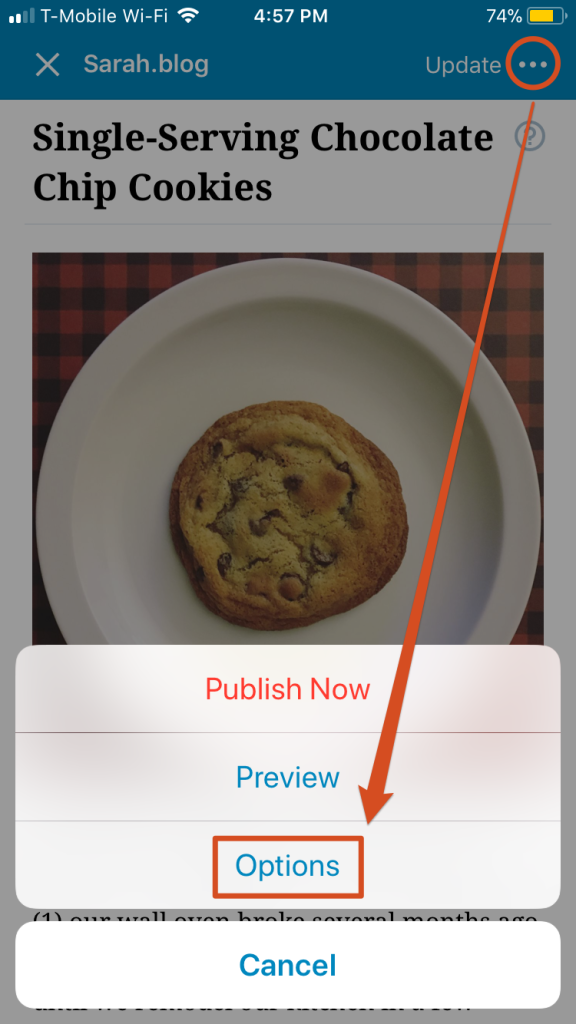
Before publishing a blog post, you can add categories and tags right in the app’s post editor. To add categories and tags to a post in the iOS editor, tap the … at the top right, then Options. On Android, tap the gear icon at the top right.
(Need a refresher? Categories allow you to group related posts together on your site, and tags help people find you in the WordPress.com Reader. Keep in mind that the Reader will filter out posts using more than 15 categories and tags total, so stick to 15 or fewer.)
Edit Post Slugs and Excerpts
A post slug is the part of a post’s URL after the .com (or the .blog, .org, .net, or whichever kind of address you use). WordPress generates one for you automatically based on your post’s title — but if your post has a very long title, it will also have a very long URL. Now, you can edit your slugs in the apps to shorten them.
You can also add and edit excerpts — little summaries of your posts — in the app. Some themes display post excerpts on your home page; if yours does, you’ll want to add one to each post. They also display in the WordPress.com Reader, giving you more control over what appears there.
To find the slug and excerpt in the apps, go back into your post’s settings: head to a post and tap on … → Options (iOS) or on the gear icon (Android), Scroll to the bottom of the screen to find the slug and excerpt options.
Add a Featured Image
Lots of themes use Featured Images to draw readers’ eyes to your posts and pages. And when readers share your posts, the Featured Image is often used by Twitter, Facebook, and other networks. It’s the first part of a post most people see, and plays a big role in whether people decide to read.
To add a featured image to a post, open a post and go back to — you guessed it! — …→ Options (iOS) or the gear icon (Android). You can change an existing featured image there, too.
Easier Reading and Accessibility

The apps have seen several changes to make them easier to use, including better button and image descriptions for screen readers and improved zooming to increase text size. If you’ve had trouble with small text in one of the apps before or found something to be inaccessible, give it another try and be sure to let our support team know if you see areas where we can improve further.
In-App Support
If you have any questions, you can reach our support team right in the apps by going to Me → Help & Support → Contact Us. We’d love to hear your feedback!
Don’t have the WordPress mobile app yet? Download it here.
 WordPress.com News
I love the app, I use it daily. I still prefer to write my post from a desk top but I have written at least 3 post this month alone on the app. The only thing I haven’t been able to figure out is how to make my blog sticky for the front page. Any suggestions?
Great for me who is operating the blog from android phone.
There isn’t an option to center photos or text… everything else is great.
I am new and have found the mobile IOS app very easy and user friendly. Thanks!
I am going to try this out, I desperately need that while on the go.
I downloaded the app first before I even set foot on the desktop version of WordPress. I use it on a daily and I think it’s been smooth so far. Great post, I was wondering what slugs were.
I use it and I truly do enjoy the app, truly very convenient
Very helpful because I use the mobile app.
Nope. I’ll stick to desktop. Thank you very much.
I used to blog solely from my Android device for almost a year and a half, this is a great post – thank you.
I am new and I confess I am not technically gifted. Having a difficult time editing my profile with a profile pic. I’m further along with this then I was yesterday. Learning grounds.
2 Thumbs up from me. The app is user friendly and has so many ways to navigate through. Thanks.
Thanks for the insight! 🙂
I love the app, but my biggest complaint has been where to find the drafts. I love editing better on the computer because on the app it switches formats and posts it incorrectly. So if you’re used to the old format under the “view site” and clicking where the create new post icon was next to the number, try that again but close the new post and you’ll find it laid out similarly to the old update.
I’ve been at this for a year, and I welcome the advice! I hadn’t realized the power in the slug or the excerpt…..thank you.
Hi! 🙂
Please make the wordpress app for java phones too.
Neither do I use Android nor iOS.
I love the app! Thank you so much.
I will definitely try this!
Thanks for sharing this..
Hi,
WordPress.com is the best place to crete a website. Thanks for that post because it makes me learn more. Thanks to WordPress.com, it has helped our business “SimpleWay.com” get bigger and bigger, daily!
Thanks!
I only ever post through the WordPress app! #PhoneAddict
Thank you for sharing. 👍
I love it!!! Thanks 🙂
Thank you soo much
Thanks for bringing back support on the mobile apps!
Thanks for the post
Thanks for sharing this useful info.I would go for it.
Very interesting. I usually update my blog by my smartphone. Thank you for this post 🙂
i love wp android app! its so smooth!
I tried it. It is really helpful.
Several month I used this app and I really enjoy it. Nice post!
Been using apps for iOS and Android for a while now. Great for reading though I’ve found that it’s still been easier to code it all directly.
I use it ヾ(*´∀ ˋ*)ノ
It’s not letting me add a new category in the IOS app 😦 keeps saying that the category needs a title, but I am typing in the title.
Hi! If you have a moment, please contact us in app support: Me > Help & Support > Contact Us. This appears to be a bug in a recent update that we’re working on. We can check it out and make sure you get updated so it works correctly. 🙂
I just downloaded the app today and am having the same issue so was looking for the answer! Thanks!
Thanks for this! I have been using my phone a lot for my blog.
I already tried it and it is super convenient for me especially i always update in my phone. thank you so much
Thank you for working to improve the app. I use it a lot, and it’s already better than it used to be. Love being able to blog from the comfort of my sofa or from a café table!
Thank you so much for this!!
Thanks for giving so much information plus i love the app
It would be nice if the app let us center the text.
We’re working on more features in the editor, so you may see that one in an upcoming update. 🙂
I use the app religiously. But your post made my life easier! Thanks…
Great and thank you for your hard work … I really write a lot on my android even though I always publish them when I touch my desktop. But maybe the time for me to blogging only by smartphone will come true considering the app now is getting better and better. ♥
Great ideas to keep blogging through mobile devices.Great stuff! Now I am Learning how to do this with my tablet.
I have been trying to balance a blog with other social media so I was so happy when I found the app today and downloaded it. I was just going to ask how to find draft posts because I need to work on those on the go but a little looking around in the 10 minutes I’ve had to app and I found it. So user-friendly! Can’t wait to explore more.
How can i share directly to instagram from the app
Instagram doesn’t allow direct sharing (like Facebook and Twitter do), so we shared some tips on how to use Instagram with your blog here: https://wordpress.com/dailypost/2017/01/16/extend-blogs-reach-instagram/
Much easier! Thank you x
Wish it was easier to run two blogs from the app. Posting and stats is okay, but also need a seperate reader and commenting for each. Just about to uninstall it to try and set up one blog on phone, one on tablet. Wish me luck.
Great Post, I really enjoyed reading excellent tips, many thanks… 🙂
Thank you so much for the new tips and information 🙂
Does the customizer work on a phone, or is it better to use a computer? Thanks
Great app, I’d like to see a ‘are you sure you want to publish’ dialog. Too easy to tap publish by mistake when tying to add tags to your post.