


Ever since the block editor was introduced in 2018, we’ve been pushing it to do more — and our latest crop of improvements will help you build posts and pages on your site with confidence, no matter what you publish:
- More design tools for dozens of blocks
- More control over lists with our improved List Block
- Easier block-switching
Let’s take a closer look at each.
More Design Tools for Dozens of Blocks
We’ve added a variety of design tools to dozens of blocks. Depending on the block, you’ll now see typography, color, border, spacing, and layout options.
To play around with these new design tools, select the block you want to work with and use the right-hand sidebar to access these sections.
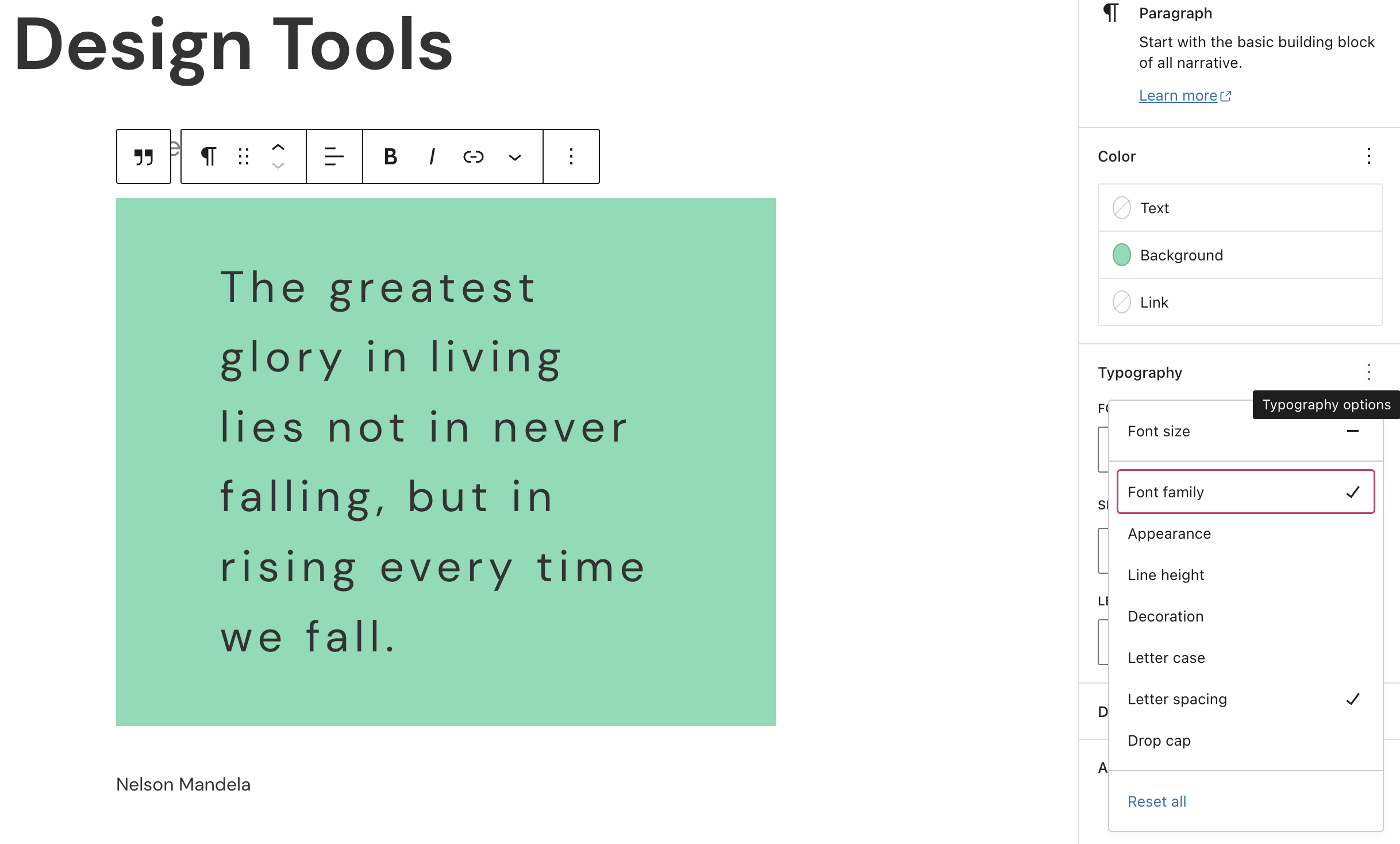
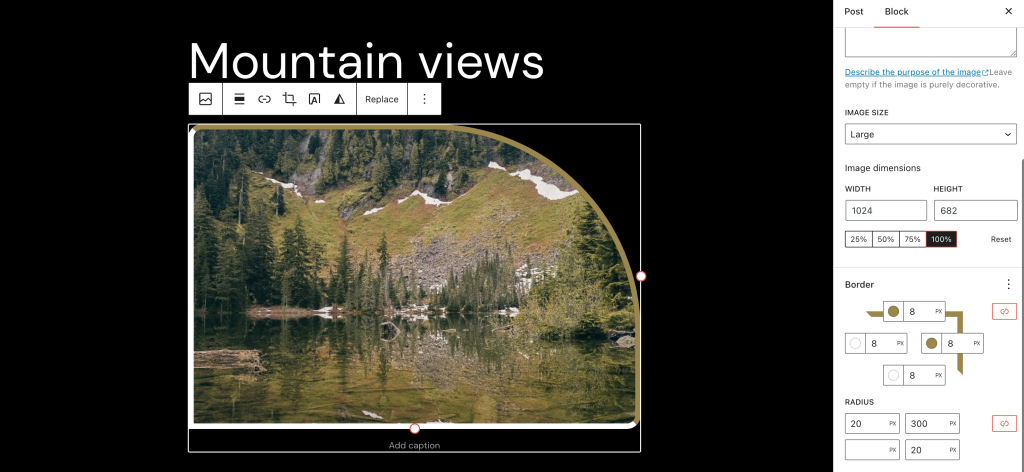
You’ll see a few controls right away, but with just a couple clicks you can go even deeper. Select the three dots on the upper right of each section to find even more options, or hit the red chain link button to allow control over borders and/or padding for each side or corner individually.

Without a doubt, one of the most fun additions is having more border options on Image Blocks:

More Control Over Lists
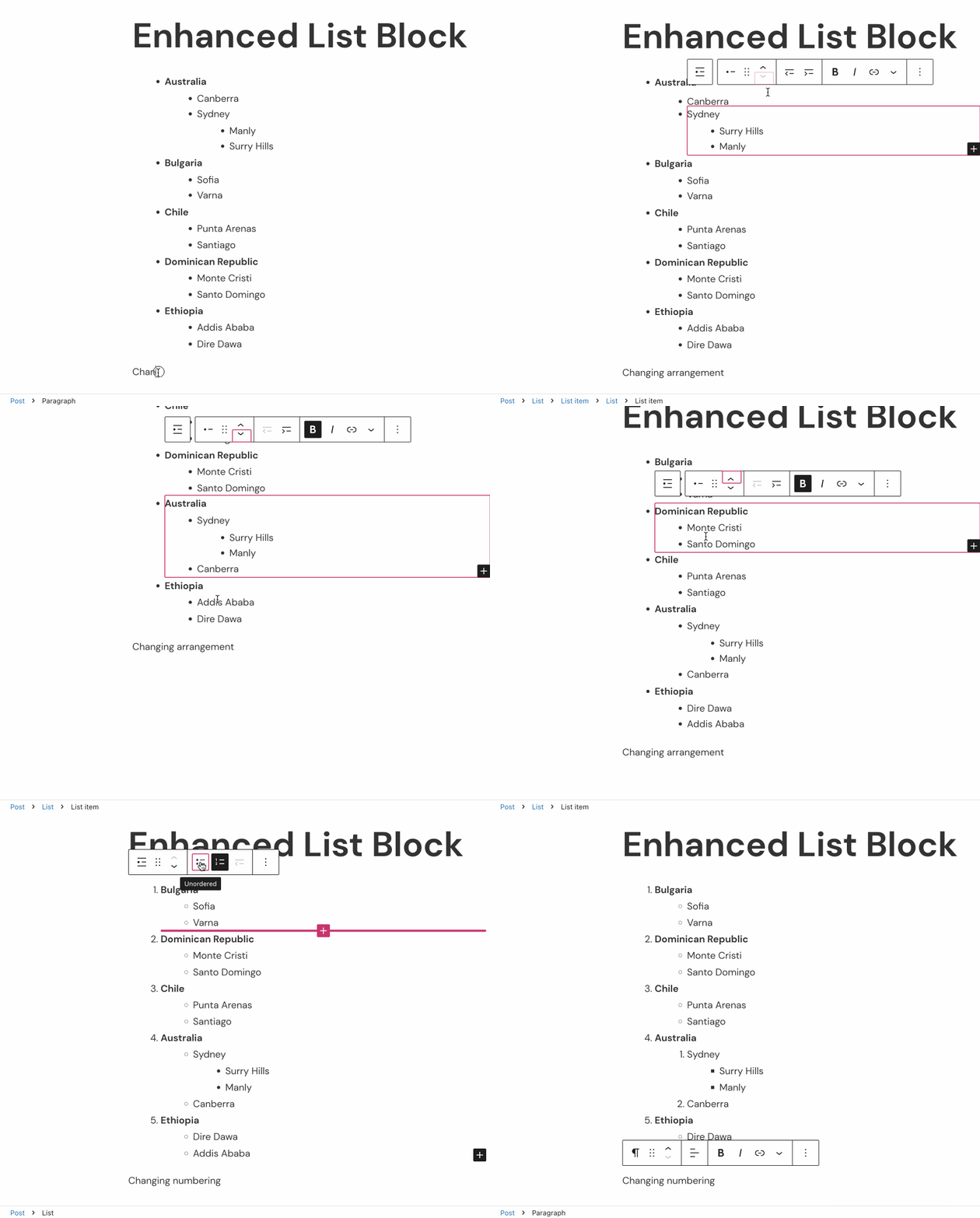
Our improved List Block means that lists are easier to manage from the toolbar. Every item and hierarchy in your list can now be manipulated as its own block. Rearranging, grouping, and nesting items has never been easier:
Easier Block-Switching
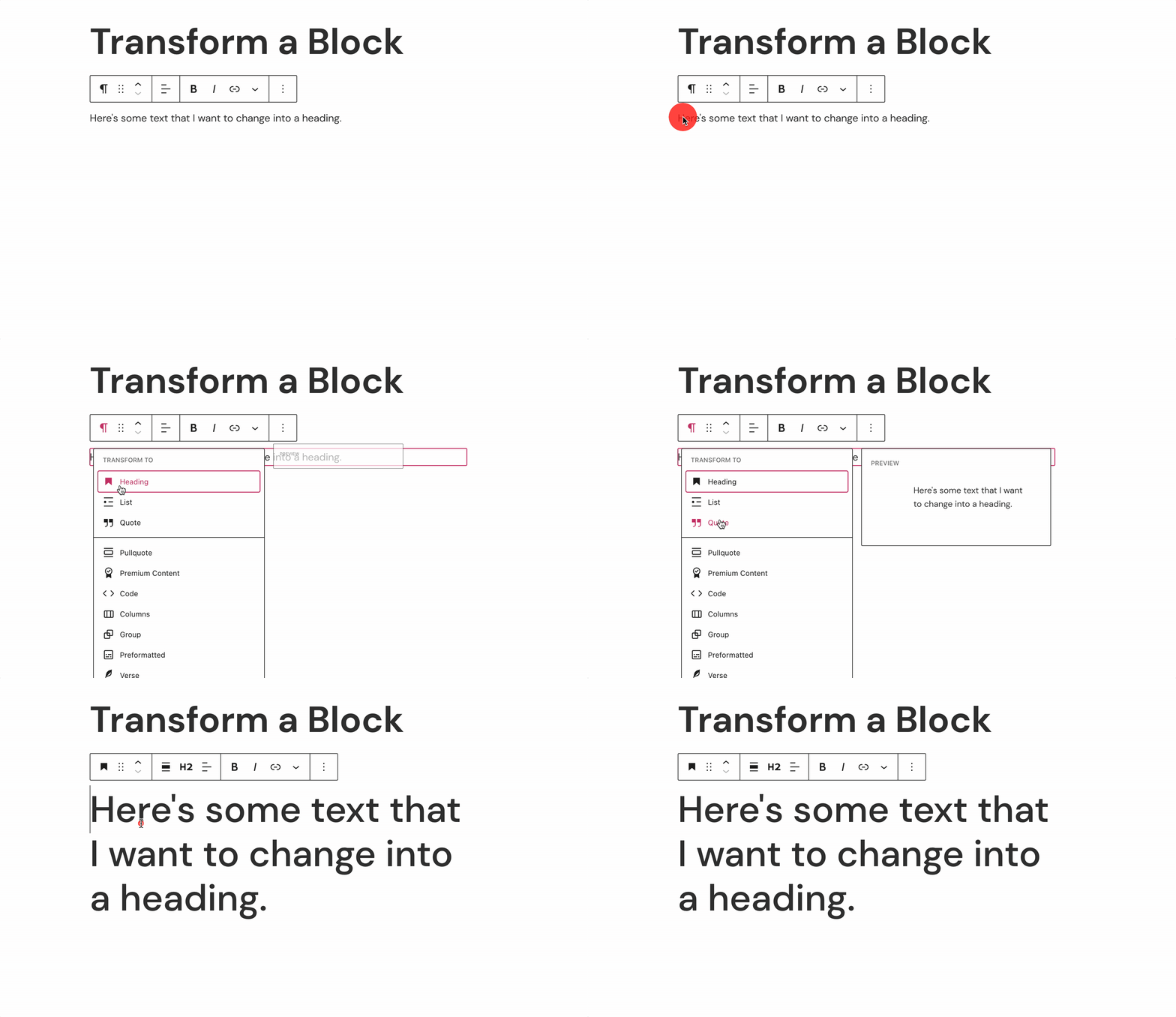
The block transforms menu offers a quick shortcut to switch to a different block, depending on your content. As the number of blocks has grown and you’ve started using this menu more and more, it’s been made more useful by changing the organization of what’s displayed at the top. For blocks that support paragraph, heading, list, and quote transformations — which are, by far, the most used changes — we’ve now emphasized those blocks:
Keep building with the block editor. We’ll keep improving it.
The block editor is always growing and improving as a result of your feedback, so thank you — we can’t wait to show you what we’re building next. In the meantime, we’ll continue working hard behind the scenes, with more updates to come! Have ideas for how to improve the editor? Let us know in the comments.
 WordPress.com News
Thank you for continuing to improve our WP experience!
All this sounds good but also intimidating. I have to play around with it to grasp everything. Good job though.
Before the intro of block editor I liked using WordPress but since then I hate it. Never have been able to figure it out. I am a writer not a designer. I want designing a page to be easy and fun. I used to edit a magazine and I know it can be fun. I really don’t want to spend my time watching tutorials about how to learn it. Just my two cents.
>
understandable
Good additions in the Editor, and will definitely help improve the layout of each blog post. Keep up the good work.
Beautiful
I like it
Great to see you making more improvements to the Block Editor. It’s certainly helped me to become a better blogger. My blog posts look a million times better than when I used to use the Classic editor.
I’m looking forward to seeing what else you have planned.
One suggestion – when clicking on the add a block symbol on the drafts page, is it possible to see the blocks I use the most first, instead of having to search for them?
Yes, you can! When you’re in the Editor, click the ellipsis at the top right and then click on Preferences at the bottom of that sidebar, then Blocks. At the top of that window you’ll see a toggle button to show most-used blocks. That will float those blocks to the top of the Blocks sidebar and the pop-up window that appears when you click the Plus sign in the Editor workspace. 🙂
Thanks so much, Jen. That is so helpful. I’m going to write and publish a post about it as I think many of my readers would like to know this. I’ll credit you with the information.
Nice editions to the editor.
I need to explore more. I stopped blogging about the time this block system came out and now I’m back and it’s all new to me. A bit confusing. I need to find some good basic tutorials.
Hey there! These videos on how to use the block editor are most excellent: https://en.support.wordpress.com/video-tutorials/using-the-block-editor/ 🙂
I have my website set up on a staging site while I try to figure out how to switch from Divi to the Block Editor. I know enough to be dangerous. I have a few questions. Do I need Gutenberg to use the block editor? Do I even need a theme? Is Gutenberg a theme? I look forward to being able to use these new features and get away from Divi. Thanks for any advice.
Hey there! You would need Gutenberg to help power some of the blocks and this is a plugin, not a theme. With regards to the themes, ideally you’d need a block based theme like the ones seen here: https://wordpress.com/themes/filter/block-editor-styles/
Thanks so much Adam! This helps me and points me in the right direction. Much appreciated!
Add a poll/survey block also in WordPress.
Hi there, you can do this on WordPress.com right now by adding the Poll Block to your pages and/or blog posts. More info here: https://wordpress.com/support/wordpress-editor/blocks/poll-block/
Please make WordPress easy to use in other languages too. Like Urdu language
Thanks for the update
Wonderful work, thanks WordPress!
As for suggestions, I’d LOVE to see such granular controls added for Single post display of Featured Images. Rather than force images to abide by wide column widths (which, on desktops and laptops, scales the display of vertical Featured Images in Single post views way too much), it seems reasonable to assume that the Single post display could be adjusted downward, to a size less than the column width parameter. That would be a welcome improvement, IMO. Thanks again!
What was added was simple and enjoyable
Very good I love it
Great work
Awesome!
Awesome 👍
A nice feature would be to be able to place an image anywhere within a text/paragraph block and have the text wrap around it. eg place the image in the centre, left-hand side of the block and have the text at the top, the right-hand side and beneath the image. Currently, the image is placed at the top of the block and it doesn’t always look appropriate.
This new experience will change the way we use WordPress
I can’t get the border options on Image Blocks to show? I am on Version 6.02,
Hi! Is the site hosted here with us? If not, you may need the Gutenberg plugin to access the latest features.
Yes it’s a WordPress hosted site and I have Gutenberg plugin. Does the theme make a difference to what is available in the editor or not?
You are referring to jmcomms.com yes? If so we’d like to take a closer look. It’s not typical that your theme will affect this but we’re happy to investigate. https://wordpress.com/help/contact
This site is great