


Can we all agree that keyboard shortcuts have become indispensable to the experience of using a computer? Just think about where the world would be without copy/paste! We may not think about them much, but these combinations of keystrokes have helped millions of people make their daily—even hourly—workflows faster and more efficient.
WordPress already utilizes a number of incredibly handy keyboard shortcuts:
- When you’re in an individual post or page, typing “/” allows you to quickly search for and insert any of our blocks or patterns.
- “Shift+Command+/” (Mac) or “Ctrl+Shift+/” (PC) brings you right into distraction free mode (one of our favorites around here).
- “Ctrl+Option+O” (Mac) or “Shift+Alt+O” (PC) toggles the list view/outline pane, allowing you to quickly see your blocks at a glance and rearrange them easily if needed.
And now, with the brand Command Palette tool, yet another piece has been added to the ever-growing kit of convenient, time-saving keyboard shortcuts.
We think it’s pretty darn cool, so in this short post we’ll walk you through where and how to use it.
Diving deeper
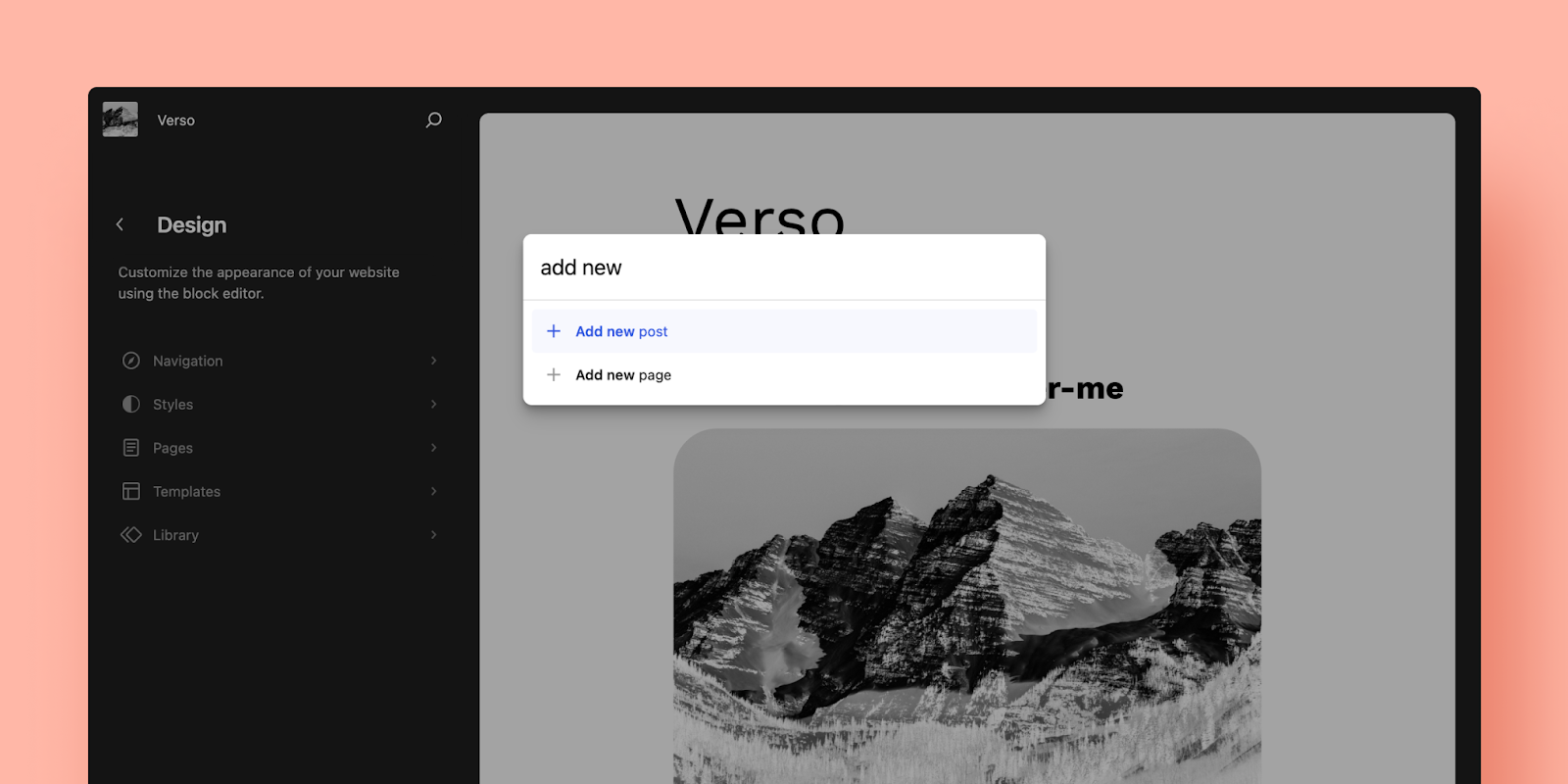
The Command Palette is available across the editing experience, whether you’re switching between templates in the Site Editor or toggling through settings in a post/page, with specific contextual options depending on where you are. While in editing or writing mode, simply hit Command+K (Mac) or Control+K (PC). This will bring up a handy little search box with the instructions: “Type a command or search.”
Type “new” to bring up quick actions for adding a new post or page. Enter the name of a specific post or page on your site to quickly navigate exactly where you want (“About page,” for example). Or access a template in a flash by typing “Header,” “Footer,” “Home,” etc.
Beyond the basics, you can dive deeper into the WordPress experience with the following commands:
- Back to page (to return to editing a page from a template)
- Customize CSS
- Delete template
- Delete template part
- Disable pre-publish checklist
- Edit Template (when editing a page)
- Enable pre-publish checklist
- Exit code editor
- Hide breadcrumbs
- Learn about styles (to trigger the welcome guide for Styles)
- Manage all custom patterns
- Open code editor
- Open editor preferences
- Open keyboard shortcuts
- Open Navigation Menus
- Open List View (in the Site Editor)
- Preview in a new tab
- Show breadcrumbs
- Toggle block inspector
- Toggle fullscreen mode
- Toggle list view (in the Post Editor)
- Toggle settings sidebar
- Toggle spotlight mode
- Toggle top toolbar
- View site
- View template parts
- View templates
Site Editor-specific commands:
- Reset styles to default
- Reset template
- Reset template part
- Open styles
- Open styles revisions
Block-specific commands:
- Group
- Ungroup
- Duplicate
- Remove
- Add before
- Add after
The ultimate shortcut tool
Think of the Command Palette as the ultimate shortcut tool, allowing you to do more with fewer clicks, whether you’re trying to toggle a specific setting or transform an Image Block to a Cover Block.
You can move almost anywhere in the editor from this shortcut box, so play around, get comfortable with it, and make navigating your site even more of a breeze than it was before.
 WordPress.com News
Hello!
I kindly request to unsubscribe my email from your list! There’s no possible way to do it on my own! The “Forgot your Password” doesn’t work at all, so I cannot login to proceed to the unsubscription without your help!
Please take care!
Bet Regards!
Hey there, you should have two ways to unsubscribe. The easiest option is the unsubscribe link in the emails we send, but if you are struggling with that, you can also check your reader subscriptions.
Is this for all blogs including non-paying ones? Also, I don’t know how to set up a template but it sounds useful – is there a previous post about this please? I don’t remember reading one.
This shortcut works on all blogs. And you can read about template editing here, or you might enjoy our webinars on site editing.
Thanks Supernovia!
Thanks for infos…
oooh! Now that is going to be convenient.
I am interested to field and contributed to the development
Thanks
Binay chaudhary
Yet another thing to learn.
You’ll be able to keep using the current options, too, so you don’t have to learn this unless it’s helpful for you.
Oh, this all sounds like double dutch to me! 🤷♀️
Let us know if you need help!
Wow, It’s Going To Very Helpful.
Nice
good
Thanks
UNSUBSCRIBE ME
You can manage your preferences here.
I love your country
Hey
Very useful. I have noted them down
Great job
Now that I’m back to blogging, this will come in very handy. Thanks!
Thanks
Nice
Hi I’m Faruk
Nice
Yeah really
Hey .
Please am new in word press
Can you put me through
Welcome! You can reach out to us here.
Great
Fun
I’m glad you liked it.
Good blog
Good
Splendid
Good
nice
I want to get famous
We can’t make you famous, but we can help you increase your site traffic.
Lol! I can wordpress now has a button that you can use to boost all your posts.
Stupendous
Good
Fun
Nice
Nice!
Fun
Great tool.
cooler
Great
Nice
Great
Great
Very nice information and very helpful thank you
Nice one
awesome
Thanks for the information
Thanks for your information.
Nice
Awesome 🙌
I love this feature!
Love this Feature!
Wow
Nice
Hey guys I’m Drag0 Drag0n. I need help getting my blog popular. Anyone got tips?
We have these tips on getting more views and traffic, and more ideas here in the Digital Marketing tips at WordPress.com/go
Ok thanks alot! This will really help!
Nice
Excellent’
Thank you for the translation
Great work
nice one
nice
Thanks for the very useful information
This is really great going forward
good
As a PC user I don’t find this a friendly intro to keyboard shortcuts. It belatedly recognises PC users after initially starting with Mac terminology, and doesn’t even explain what the PC equivalent of “Option” is.. I’m guessing the Alt key but the instructions should be similarly clear for everybody!
Thanks for the feedback; we’ll pass it along! For now, Alt usually works like Option, and Ctrl typically works like Command.
Cheers.. thank you.
Hi there! Sorry for that initial oversight. I’ve added in the PC shortcuts to the top list. Have fun with the new tool!
Thank you!
Tnks
This is totally helpful! Thanks for sharing