

Accidental theme change wiped CSS and customization – restore?
-
Hello,
Today was my first day experiencing the new theme description layouts when browsing for new themes. I accidentally hit “Pick this design” instead of the less apparent option to “Open Live Demo” in order to eventually get to the “Try & Customize” option. However, “Pick this Design” instantly changed my theme, which I was unprepared for — and wiped my CSS and other customized features (widgets, etc.) in the process. I quickly tried to switch back to my previous theme (Affinity) thinking that everything would still be there, but it’s a clean slate.
Is there a way to restore my CSS and customized features to how I had it? There were quite a bit of updates… I have my CSS stored in a Word document on a different computer, which I won’t have access to for some time.
I recommend having a confirmation window pop-up for others who hit “pick this design” for a free theme, and making the “live demo” option more obvious.
If it’s useful information, I originally had Affinity, accidentally changed to Shoreditch, and am trying to restore all my customizations with Affinity once more.
Thanks!
KelseyThe blog I need help with is: (visible only to logged in users)
-
Hi Kelsey,
Thanks so much for the feedback on the new theme pages – losing your customizations is definitely not fun! I’ve passed the information along to our developers and it would be very helpful for them to know if you simply clicked “Pick this design” by accident, or whether you found the wording confusing. Perhaps you expected the button to do something else, rather than activating the theme. For example, did you expect “Pick this design” to open a preview of the theme on your site, that would give you a better idea of how it looks before actually activating it?
To get back your custom CSS, click the “CSS revisions” link in the Customizer’s CSS panel:

That will lead you here:
https://kelseybaross.wordpress.com/wp-admin/themes.php?page=editcss
You’ll then probably want to choose the most recent Affinity CSS revision, which looks to be dated June 17:
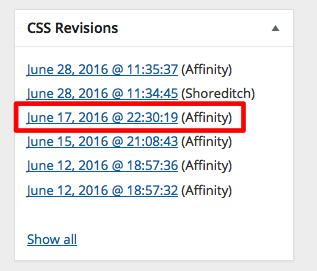
If you click that link, you’ll be here:
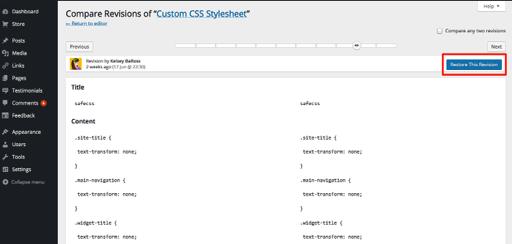
https://kelseybaross.wordpress.com/wp-admin/revision.php?revision=1900
If that looks like the right revision, click the blue “Restore this Revision” button at the top right to reactivate the CSS:
For your widgets, you can visit the WP Admin widget-management area here:
https://kelseybaross.wordpress.com/wp-admin/widgets.php
Scroll all the way down to find the section called Inactive Widgets. You can drag any of them back to your widget areas from there.
Just let me know if you need further help with this.
-
Hi Kathryn,
Wow, super helpful! Thank you so much! Your walk-through led me right back to where I was, and I really appreciate it. Aaaand exhale… ;)
In terms of the “Pick This Design” button, I did think that it would lead me to a preview first, because I didn’t originally see the “Open Live Demo” button — which I know from past theme exploration would eventually lead me to the “Try and Customize” preview window for my own blog. I think that it would be beneficial to have that preview window come up first after clicking “Pick This Design”, or to make it clearer that you can indeed preview the theme first on your blog somewhere. It was a bit scary being told that it instantly went live without me seeing it on the blog first, or hitting a second layer of confirmation.
So, in an ideal world, I think WordPress should either:
1. Have the “Pick This Design” button open up a preview window (that is easy to cancel, just in case!), or…
2. Have a separate, equally prominent button next to the “Pick This Design” button that leads to a demo/preview on your own siteOf course, I say this just based on my experience, and without having the same hardcore experience as WordPress’ skilled developers. But that would be my suggestion. Alternatively, I think that perhaps the wording “Activate this design” sounds more definitive for the action that happens right after. If I saw a button that said that, I definitely wouldn’t have clicked it if I was just exploring!
Thank you so much, again, for your help. I hope that my two cents about the new theme activation has helped as well.
Best,
Kelsey -
Glad your site is back to the way it was!
I appreciate your thoughtful feedback about the button’s wording and the button’s expected vs. actual behaviour. I’ve passed it all along to our team. Feedback from thoughtful users like you is extremely valuable, so thank you very much. :)
-


- The topic ‘Accidental theme change wiped CSS and customization – restore?’ is closed to new replies.
 WordPress.com Forums