

Blask theme – turning off comments on portfolio items
-
I would like to remove the comment boxes from my portfolio items, but I can’t find where to do that. Previous answers to this question include using the “quick edit” menu, but I don’t seem to have that. I can’t find the option in the portfolio section, the media section, or the global settings (and yes, I have “future comments” unchecked, but that doesn’t get rid of the boxes that are already there). Thanks.
The blog I need help with is: (visible only to logged in users)
-
Hello there,
If you access your site using the wp-admin area you should have an option in the left side bar menu for “comments”. This is where you can remove any past comments left on your site.
You can access your wp-admin area here: https://rebeccalegates.wordpress.com/wp-admin/
Please let me know if you need any more help with this and I will be glad to :)
-
Hello again,
I should add that you can delete all comments in this area by checking the boxes and then using the “bulk actions” button to “move to trash”
-
Previous answers to this question include using the “quick edit” menu, but I don’t seem to have that
When you access the wp-admin area, and select posts or portfolio, this is where you will find the “quick edit” area if you hover over a portfolio or post. Once the quick edit is selected, on the far right you will see an “allow comments” box. https://en.support.wordpress.com/posts/edit-posts-screen/#quick-edit
Here is a link about managing comments in the wp-admin area as well: https://en.support.wordpress.com/manage-comments/
-
Thank you. So I’m not trying to delete comments, I’m trying to remove the comment option altogether.
I finally found it: in the WP admin area (thanks!) under Media, edit -> scroll to the bottom and uncheck the “allow comments” box. I don’t know how to do this in bulk, but I can go through each image individually and fix it. A bit of a pain :/
Thanks for all your help.
-
You can turn off comments in bulk on your already-published portfolio projects by going to WP Admin > Portfolio > All Projects.
https://rebeccalegates.wordpress.com/wp-admin/edit.php?post_type=jetpack-portfolio
Click the checkbox at the top left to select all your projects, then choose the Edit link from the dropdown.
Click Apply.
Next to “Comments” choose “Do not allow.”
Click “Update” to save.
Screenshot:
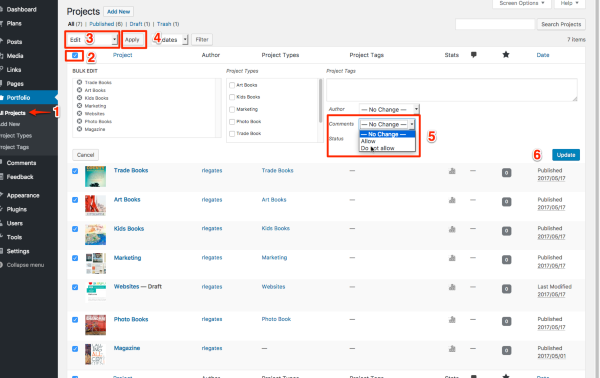
Let me know if you get stuck at any step.
-
I finally found it: in the WP admin area (thanks!) under Media, edit -> scroll to the bottom and uncheck the “allow comments” box. I don’t know how to do this in bulk, but I can go through each image individually and fix it. A bit of a pain :/
Hmm – I’m not sure where this is but perhaps I’ve misunderstood what you’re you’d like to disable comments. :) Just let me know if I can help further.
-
So when somebody clicks on one the images in my portfolio, it pops up in a black background, with a comments box below. I’m trying to get rid of the comments box.
Comments for Projects, Portfolios, Pages, and Posts are already turned off.
It’s comments for Media that I need to turn off, and I don’t see a way to do it in bulk. The only place I could find to disable the comments box for an image is under WP Admin -> Media -> make sure images in List view, then click “edit” for each image (if they are in thumbnail view, you get to a dumbed-down edit box). Scroll down to the bottom of the page and there is (finally!) an “Allow comments” box that I can uncheck. When I uncheck each image individually, the offending boxes are gone. Whew!
Hope that makes more sense?
-
Ah – thanks for explaining, I understand now that you want to to turn off comments on carousel images. The only alternative I can think of to editing them the way you are is to hide the comment box with some Custom CSS, which you’d be able to do with the Premium or Business plans. Without a plan, the method you’ve found is the right one!


- The topic ‘Blask theme – turning off comments on portfolio items’ is closed to new replies.
 WordPress.com Forums