

Cropping Error
-
Every time I try to add an image in the header of a theme it always give me the same error in red “There has been an error cropping your image”, and this way I can’t customize my page.
How do I solve this?
Thanks
The blog I need help with is: (visible only to logged in users)
-
I see your current theme doesn’t include custom headers, so perhaps you had this problem with one (or more) of your previous themes.
If you send me a link to the photo you were trying to add in the header as well as the name of the theme you’d like to use, I’ll be happy to figure out what’s going on for you.
-
Just for you to know, I’m new to wordpress and I was just trying to figure it out a little how it works. Now I’m pretty happy with this theme.
Anyway, in case I decide to change it, I tried to crop this picture
https://unclechain.files.wordpress.com/2015/01/dc_wallpaper_by_jesterjnr3.png
with this theme
https://unclechain.wordpress.com/wp-admin/customize.php?theme=pub%2Fshine-onand I don’t remember which one I tried before but it wasn’t working with another one either. I think this one
https://unclechain.wordpress.com/wp-admin/customize.php?theme=pub%2Ftwentyfourteen
but I’m not sure.Thanks for reply :)
-
I’m glad you are happy with your current theme :)
I tested the image you linked with the Shine On theme and was able to get the image to crop correctly, so I’m not exactly sure what was happening.
If you decide you want to switch your theme later and have the problem again, let me know and we can test it on your site.
Let me know if you need anything else as you set up your new site!
-
Ok, I’m trying to set everything up as good as I can to be able to get started with announcing my blog to the world and I have a couple problems:
1. I wanted to add a couple pages on the top menu not letting only “home” there alone. And one I wanted to create was a page called “Blog” which basically shows a blog stream of the last 5 posts, showing only the first 3-5 rows of the post with a “continue reading” or something like that at the end and I really can’t find the way to do that.
a. Oh and on this matter I also don’t understand how to “activate” a page, cause for example right now if I go on the menu “Pages” there’s the one called “Blog”(which basically is the one I was trying to do as explained above) but it’s marked as “Draft” and you can’t actually see it on the blog page.
2. I made a few changes on the dashboard menu “widgets” to move some of the links as I liked more, therefore I moved the widget “search” to the “Sidebar 1” where there was only “archives” before… now if you go to visit the blog the “search” widget is there, but the widget “archives” has disappeared even if in the dashboard is there.That’s it…for now
I’m sure you’re asking yourself “why this damn newbie to me” so I thank you in advance for your patience and answers :D
cheers
-
I’m happy to help you get your blog ready for the world!
I wanted to add a couple pages on the top menu not letting only “home” there alone.
There are a couple of ways to do this. New Pages (not posts) will automatically be added to your top menu when you publish them. Right now you only have one published page (your about page) and you’ve set it as your front page, so there is nothing else to add to the menu. Once we get your blog page up and running, you’ll see how pages get automatically added to the menu.
There are also advanced menu creation options available through the custom menu feature. You can read more about that here:
I’m happy to help you get a custom menu set up if you’d like one, but to start I recommend the first option.
Oh and on this matter I also don’t understand how to “activate” a page, cause for example right now if I go on the menu “Pages” there’s the one called “Blog”(which basically is the one I was trying to do as explained above) but it’s marked as “Draft” and you can’t actually see it on the blog page.
In order to get your blog page to appear on your site, all you have to do is click publish.
If you are using the classic editor, the publish button is the blue one you see on the right side of the page here:
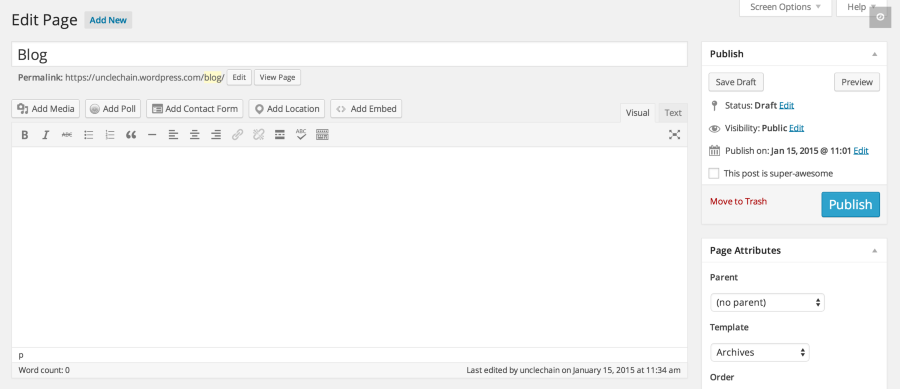
which basically shows a blog stream of the last 5 posts, showing only the first 3-5 rows of the post with a “continue reading” or something like that at the end and I really can’t find the way to do that.
Once you’ve published your blog page, you can assign your blog posts to it in the customizer. Click customize in the “my sites” dropdown in the top left corner of the page, to open the customizer view. From there click “front” in the blue menu on the right side of the page.
You’ve already set your about page to be your front page. The next step is to set “blog” as your posts page.
In order to get your posts page to show the beginning of the post rather than the whole post, you’ll need to use the “more” tag in your posts. Here’s the explanation of how that works.
If you want to use it, but need help getting it to work the first time, let me know and I’ll be happy to walk you through it.
now if you go to visit the blog the “search” widget is there, but the widget “archives” has disappeared even if in the dashboard is there.
It looks like you added some visibility options to the archives widget in your side bar that are causing the widget to be hidden. If you open the widget by clicking the small down arrow at the top, and then click the delete link next to both of the “conditions” listed on the widget, it will start displaying again.
That’s it…for now
I love helping people get started with WordPress, so if you have any more questions, please don’t hesitate to ask.
-
ok… almost there :D
but I basically have the same problems as before.
Because:
1. now there’s the blog page, but it’s not shown as I meant to. Because I don’t want a page that separates again the posts in two menus like it is right now, I just want the posts to appear from the most recent as they appear when you click on one of the two menus directly on the page.
2. there’s really a problem with the “search” widget because it is supposed to appear like it is right now ( without the “search” widget at the moment just for showing it to you ) PLUS the “search” widget. but as I add it to the sidebar 1 the others ( archives) disappear without touching anything else, I swear ! :D . is it kind of a bug or something?thanks again
-
now there’s the blog page, but it’s not shown as I meant to. Because I don’t want a page that separates again the posts in two menus like it is right now, I just want the posts to appear from the most recent as they appear when you click on one of the two menus directly on the page.
The problem here is you haven’t set your blog posts to go to your blog page. Here’s how you do that. First open the customizer view of your site. I’ve included a link below.
Next click the word “Front” in the blue menu on the right side.
Under “posts page” you’ll see a menu that says “select.” Choose blog from the dropdown menu and save your changes.
After that your posts will start to appear the way you want them to.
2. there’s really a problem with the “search” widget because it is supposed to appear like it is right now ( without the “search” widget at the moment just for showing it to you ) PLUS the “search” widget. but as I add it to the sidebar 1 the others ( archives) disappear without touching anything else, I swear ! :D . is it kind of a bug or something?
I added the search bar and removed the visibility conditions I mentioned in the archives widget and it all seems to to be working now. Could you take a look and see if you need anything else?
-
solved! i just needed to add another widget “categories” to have it how i wanted… I don’t know why I didn’t think about it before, shite. :D
Same for the blog page, I don’t know why I couldn’t see the “post page” dropdown before, probably I was in the wrong place. Thanks a lot, that’s it for now, thank you for your patience and your availability ( not sure if you can use it like that in english, anyway thanks ;) )cheers
-
-
Here I come again. I feel almost set :)
Another 2 questions:1. is it possible to change somehow the font of the posts? I can actually only change them by selecting paragraph but it changes a lot one with another. I only want the font to be a little bigger than it is right now.
2. is it possible to choose the order how the categories are shown where there is a widget “categories”? because right now they are shown alphabetically, and I don’t want them like that.
thanks again in advance :)
cheers
-
1. is it possible to change somehow the font of the posts?
You have WordPress.com premium, so it is possible for you to use CSS to increase the font size. Based on your question, it sounds like you want to increase the font size of the regular text in your posts. Just paste the following code into the CSS box in your customizer and you’ll be set.
.entry p{
	font-size: 1.5em;
}
If I’ve misunderstood where you wanted the font to be larger, let me know and I’ll give you different code :)
2. is it possible to choose the order how the categories are shown where there is a widget “categories”? because right now they are shown alphabetically, and I don’t want them like that.
This one is a little harder. Tell me more about how you do want them to appear and I’ll see if we can figure something out.


- The topic ‘Cropping Error’ is closed to new replies.


 WordPress.com Forums
