

Edin Theme Main Image Has Grey Overlay
-
There is a grey overlay on the main image in the Edin theme. Why is it there and how do you remove it?
http://johntrippdesign.wordpress.com/
The blog I need help with is: (visible only to logged in users)
-
If you have not purchased the custom design upgrade note that no changes you try out aside from those such as Custom Background, Custom Header, etc. which are stated on the theme description pages in the features column (right hand side) will be visible to visitors.
http://en.support.wordpress.com/custom-design/
http://en.support.wordpress.com/custom-design/editing-css/
http://en.support.wordpress.com/custom-design/custom-fonts/ -
Sure, I get that. So, why put a grey film over the image which dulls it for no reason? This is silly.
-
I don’t know why. I do know that you cannot hide or remove anything without a CSS upgrade. I’ll tag this thread for a Themes Staff follow-up. Please subscribe to the thread so you are notified when they respond and please be patient while waiting.
-
Hmmm…are you saying that you put a regular image in and you get the faded look on it? I had to actually add the whitewashed look to my image to get it to look “faded”! Otherwise, it would be sharp and clear, which was not what I wanted.
-
-
John, have a look at my site (still building)…I didn’t get the grey washed-out effect you’re getting. I didn’t do anything different…just uploaded images as per normal. Which page template are you using? In my case, I’m only using the front page and full width versions.
I don’t get what you’re getting.
-
I looked at your site, it is there. If you want to see the difference, take the same image and feature it on the column pages below the main one. You’ll see what I mean.
-
Hi John – I took a look at one of your posts with a featured image:
http://johntrippdesign.wordpress.com/2014/07/19/logos-and-identity-design/
The featured image appears at full opacity by default, and when I put my mouse over it, there is a translucent overlay. If you don’t have your mouse on the image, it should be 100% opaque.
Here’s a screenshot: https://cloudup.com/cdl2haIW_y3
If I compare the screenshot to the image on its own, the opacity looks the same to me:

If you’re seeing something different than me, it would be very helpful if you could upload a screenshot to help in troubleshooting.
Here’s a guide on how to make a screenshot, if you’re not sure: http://en.support.wordpress.com/make-a-screenshot/
You can upload the screenshot – in a graphic format like JPG, PNG, or PDF – in your Media Library so I can see it.
Let me know in what browser/version you took the screenshot. Thanks.
-
If you go to my home page and view the top image, then view the cropped form of that same image that says “always fresh design”, you’ll see what I mean. It’s the exact same image, yet the top is greyed out. My mouse is off of the image, it doesn’t effect it in any way.
-
Thank you for describing exactly which image you mean. That effect comes from the opacity line defined in the CSS here:
.hero.with-featured-image:before {
    background: none repeat scroll 0 0 #000;
    content: "";
    height: 100%;
    left: 0;
    opacity: 0.3;
    position: absolute;
    top: 0;
    width: 100%;
}
I spoke with the theme’s designer about this, and he explained that the reason the featured image is darkened here is to ensure that the white text in the post content area is always legible against any featured image.
To account for situations where this legibility isn’t a factor – such as in your case, where you’ve opted not to have any text in the post – the designer will be adding a theme option to remove the darkening effect.
This new option should appear in the Customizer within a couple of days – I’ll keep you posted here once it’s live.
-
-
Edin now has an option to turn off the darkening filter on the featured image. You’ll find the new checkbox in the Customizer under Theme Options, next to “Featured Image: remove filter.” Here’s a screenshot:
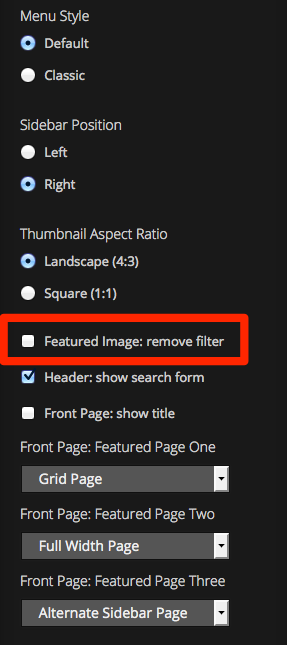
I hope you like it, though I notice that you’ve switched themes. :-)


- The topic ‘Edin Theme Main Image Has Grey Overlay’ is closed to new replies.
 WordPress.com Forums