Editor Feedback
-
@heckenwicke, it’s possible, although I did a quick search and didn’t find anything about recent BBCode issues.
@thejuicenut, thank you for the additional info.
-
Oh, re BBCode:
Sorry, I was unclear! Totally. :P
I don’t mean the [bbc]-stuff (eg. [img][/img] and such).
I mean the FF plug-in BBCodeXtra that inserts html, xhtml, markdown and my own tags. -
@heckenwicke and @designsimply re: the no copy/paste: I have found that more often than not I cannot do either when using Windows 10 Edge. I don’t know why this is but Microsoft support is, to put it bluntly, severely lacking
-
All your post creators for so-called improved writing/editing are useless for me as I use a premium theme (like Outspoken) which has certain features which can only be accessed from classic editor.
-
Hi
Having successfully edited a post with the update button working, I went on to compose a new Page – and lost it all again because no autosave and the Save button doesn’t respond! It says it’s still a New Draft, the Publish button doesn’t work, nor the Schedule calendar. -
I have been watching this develop from early on. I am no longer interested in relating my issues to the old editor vs. new editor vs. classic editor. I instead want to tell you what I feel is important to me. It is an extremely simple thing that even the classic editor can not do. I want to be able to easily add pictures, medium size, left justified, with a border of 2. I want to be able to add text to the right side of the image. I want to be able to start a new line, and do it again. That’s it!
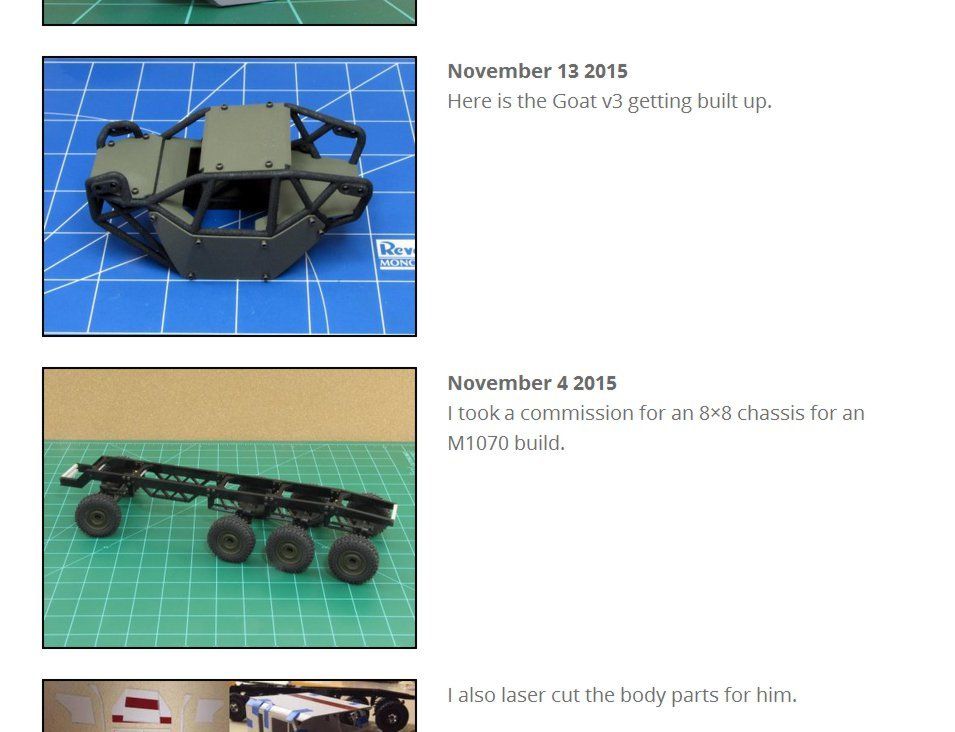
Page looks like this.
Link to picture of page
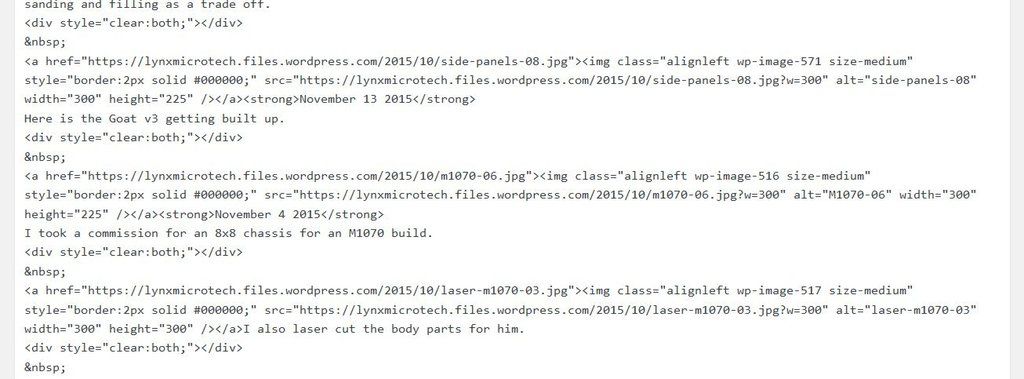
Code looks like this.
Link to screencap of code
There is currently no way to easily do this with any editor. The only way to do it right now is to use the classic editor. You add in the pictures, edit them to include the border, in visual mode. Then go into the HTML mode and add the, div style=”clear:both;” /div ?nbsp; after each picture/text. Then update while in HTML mode. If you click back to visual mode it erases the ?nbsp; and they all have to be put back in. None of this is user friendly and I can’t be the only person who thinks that it should be easier. Please respond to this message. -
@heckenwicke, aha! I see. I downloaded and installed the BBCodeXtra Firefox Add-on to test it, and I found that it has several example types of code that it inserts based on a contextual (right-click) menu. I tested a few things in the htmlXtra menu, and those look okay to me—however, you must be in HTML edit mod for those to work.
Earlier you said:
I used to work a lot with BBC-code, mostly with my own tags. Most times the code I paste this way disappears after a few seconds.
Can you tell me one of two of the examples of your own tags? My gut feel based on my testing so far is that they should be working if they were working before. Again, make sure you are in HTML mode when adding them (if you weren’t already).
Hiya, haven’t read everything that’s new (heck I really did read the first 20 pages of this thread…), just wanna say thanks for the info re Open Source et al.
No need to read all prior comments before posting. :)
The open source announcement was made after this thread was started! It’s newer, but something we’ve been working toward for a while and begins to tie together a lot of reasons behind these changes (i.e. infrastructure, scalability, API-driven, open source) to setup WordPress.com for success in the coming years. It is a bold move, and the transition and helping everyone here through it is a part of that.
-
re: the no copy/paste: I have found that more often than not I cannot do either when using Windows 10 Edge.
I can help test. It would help me to know exactly what kinds of content you are copying and pasting though, because some content can be troublesome to copy/paste in any web editor, and it can also definitely be different for some browsers compared to others (because each browser sometimes has it’s own way of handling those kinds of things). It’s also definitely possible it’s a bug in the editor. The more I know about the specifics, the better chance I have of coming up with some steps to reproduce the problem so I can file a more detailed report that will be more likely to be reviewed and fixed. May I please ask what type of program you are copying and pasting from and what kind of content it is?
-
@designsimply
Thank you for your reply. I use Chrome.
For now, I will use the classic editor which, thanks to this thread, I discovered is accessible through the WP Admin/Dashboard. This has always been my preferred method. You did not address my main concern which is the absence of spell check. Perhaps I missed this if it was elsewhere in this thread.
But I say again: spell check is essential! (I notice even this space I’m using to type this has a “Check Spelling” button. But the new editor does not?) -
@wp365wp, in your case, you will need to use WP Admin until theme-specific modules such as the “Display post in” module for the Outspoken theme can be added. I’ve made sure the issue is filed (720), and from there we will need to wait for the issue to be reviewed. In the mean time, you should be able to find a link to WP Admin at the bottom of your My Sites menu.
-
@thejuicenut, I understand that you are using iOS 8.3. As I mentioned earlier, we will need to wait until the start of the week to ask the developers how far back iOS support is expected for.
-
Most of the stories I write are in g-docs. If I’m using Edge the copy/paste does not work no matter what I’m doing or what site I’m doing it on, sometimes it will but more often it doesn’t so I think it’s a Microsoft problem rather than a WordPress problem.
I mentioned it more so that you and the other person were aware that c & p was an issue in Edge since I don’t have an issue with it as long as I’m in Chrome (what I’m using now) or Firefox.
Thank you though.
Oh, one thing which is more about forums: If one of us is mentioned in a reply it would be nice to be notified specifically instead of having to read through all the replies in the notifier.
-
@veryfungi, thank you very much for including screenshots.
I want to be able to easily add pictures, medium size, left justified, with a border of 2. I want to be able to add text to the right side of the image. I want to be able to start a new line, and do it again. That’s it!
There is currently no way to easily do this with any editor. The only way to do it right now is to use the classic editor. You add in the pictures, edit them to include the border, in visual mode. Then go into the HTML mode and add the, div style=”clear:both;” /div ?nbsp; after each picture/text. Then update while in HTML mode. If you click back to visual mode it erases the ?nbsp; and they all have to be put back in. None of this is user friendly and I can’t be the only person who thinks that it should be easier.
I’m so sorry but there is not an easier way to easily setup left aligned images with text on the right like you’ve described. As you have correctly mentioned, this is a problem in every version of the editor, including WP Admin, and is not specific to the new editor changes. The workaround you mentioned is the best solution, but there is one edit I can offer which may help you. Instead of putting an empty div on its own line:
<div style="clear:both;"></div>Try wrapping each set (one image and one line of text) in the div and add bottom padding instead of using &npsb;
<div style="clear:both; padding-bottom:1em;">[YOUR IMAGE AND TEXT GOES HERE]</div> -
I just wanted to say that I like having upgrades, but please, please, please do not ever change or remove the old “classic” WP Admin page! I usually use the WP Admin page to write and edit posts because it seems to have more of the options I’m seeking for my blog.
With the new wordpress post editor, I can no longer access the advanced options when I click on images in my post. So, for example, I can’t choose whether to link the image to a media file, attachment page, or custom url.
When I put links in a post, I can no longer simply see a list of previous posts and choose one to be the link, instead I have to draw up my blog in another tab on my computer, go to the post I’m wanting to link, copy the url from the top of the window, and then go back and paste it as my link. This is definitely more time consuming when I wish to interlink my posts.
Also, it would be nice to have a simple box in which to write a title attribute for a link, rather than having to switch to text in the editor and add the html manually to the link.
I’m not trying to indicate that the changes WordPress made are all bad. I do like the clean look and the fact that when you preview a post, you have the option of seeing it in different formats (desktop, tablet, and mobile). The way it automatically saves is great, too.
Thanks for your efforts to make WordPress more user-friendly. I hope you will consider adding my suggestions to the new editor page.
-
@pattyblake, my apologies for missing your question about spell check earlier. The proofreading option is no longer maintained and so it was not moved to the new editor interface, but something similar will be added to the new editor in the future. In the mean time, if you find the spell check button essential, then using the WP Admin editor as you have mentioned, is the best route for you in the short term until that issue can be addressed. Thank you for your feedback.
-
@merryheartsmedicine, thank you for your feedback. The WP Admin interface does change from time to time, but at a much slower pace, and it is managed by the open source project. There is no guarantee it will stay exactly the same and it does receive upgrades separate from the editor that this feedback thread is primarily about. I don’t think it will change any time soon, but I also wanted to make sure you know it’s possible that it may change a little from time to time.
When you add a link for an image, the full image will be the default filled-in link and you can delete that one and add a custom link if you’d like. The attachment page link option was found not to be used very much when usage stats were reviewed and so it was not moved over. In the feedback I have seen so far (here and in blog comments and email I’ve been working on myself), I have seen it mentioned very few times—maybe three. It is unlikely we will add support for attachment page links back since it was used very infrequently.
Link search for interlinking posts is going to be added.
Thank you again for your feedback and suggestions!
-
-
I’m not entirley sold on the new editor.
I’m particularly not pleased with what’s going on with regards to photo uploading and scaling.
Up until now, I’ve been able to upload images directly from my computer into my media library and I was given the option when inserting them into my post for the image in the post to show smaller than the image in the library. The larger library image could be seen by simply clicking on the smaller image in the post.
After reading through some of the posts in this thread, it sounds like if I want this ability through the new editor that I have to have my full size images uploaded to an online image holding site and upload them to my media library from there and create a link from the smaller blog post image to the full sized image at the hosting site.
Do I understand it correctly?
If so, it seems a quite inefficient and redundant way of getting that function when it was so simple in older editor forms.
-
After reading through some of the posts in this thread, it sounds like if I want this ability through the new editor that I have to have my full size images uploaded to an online image holding site and upload them to my media library from there and create a link from the smaller blog post image to the full sized image at the hosting site.
Do I understand it correctly?Here’s how it works now:
To add an image, just drop it into the edit area or use the Add Media button. To make so clicking on that image opens the full-sized version of the image directly, click on the image then click the link icon in the toolbar. The image URL you want will be pre-filled automatically.
-
@designsimply Thank you for trying to help. I tried your code and it does not appear to work. I used the following code.
Test1

<div style="clear:both; padding-bottom:1em;"><img class=" alignleft" src="https://lynxmicrotech.files.wordpress.com/2015/10/truck-04.jpg?w=300" alt="truck-04" width="300" height="225" />Test2</div>

Test3
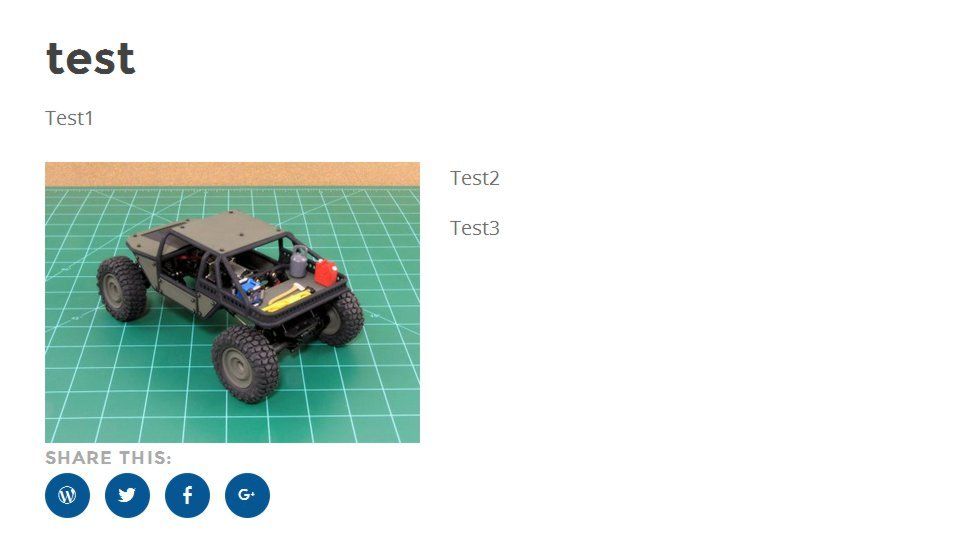
I got the following results. Link to screen cap
I hope you are not disqualifying my problem as not being pertinent to the new editor. It is currently impossible to add a picture with a border, and changing from visual to HTML is causing code to be tossed out. This needs to be addressed. The code should not change if the mode of working on it changes.


- The topic ‘Editor Feedback’ is closed to new replies.
 WordPress.com Forums