

front page title image & text on the Motif Theme
-
I cannot get the front page title image and text to show correctly on the Motif Theme. I want it to appear as it is displayed in the front page template example. Can you please advise on how to do this? You may use any picture in the gallery as an example.
Thank you,
StefanieThe blog I need help with is: (visible only to logged in users)
-
Hi Stefanie!
In order to get your image to display like the theme example, you’ll need to set a featured image for the front page of your site:
Can you give that a try?
-
Thank you for that help. I was able to upload the featured image. However, now I have three follow up questions:
1. How do I add the front page title text and graph for a call to action – as shown in the theme demo: http://theme.wordpress.com/themes/motif/ and in the example of a good working motif theme blog: http://gcdance.com.au/
2. How do I eliminate the white space above and under the featured image?
3. How do I center the featured images on the grid pages? (see the black house outlines, on the grids on the homepage)Thank you again for your assistance. We are looking forward to officially launching our WordPress blog.
-
How do I add the front page title text and graph for a call to action – as shown in the theme demo: http://theme.wordpress.com/themes/motif/ and in the example of a good working motif theme blog: http://gcdance.com.au/
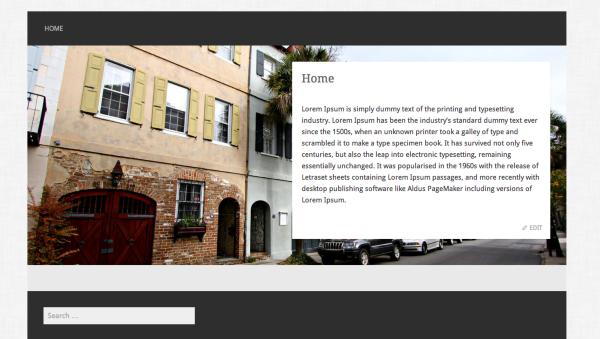
I believe you’re referring to the portion on the theme demo that overlays the photo and reads “This is the front page title”. If so, you’ll just need to add a title to your front page here:
https://cooperativetitle.wordpress.com/wp-admin/post.php?post=50&action=edit
Currently, that page is untitled.
The text within the box is created by adding text to that page like you would a normal post or page.
How do I eliminate the white space above and under the featured image?
That should be eliminated when you add a page title and some content. Here’s an example of what it will look like:
How do I center the featured images on the grid pages? (see the black house outlines, on the grids on the homepage)
Your best bet for doing this is to actually center the icon within the featured image prior to upload. For example, here’s how the icon is currently set within the featured image now:
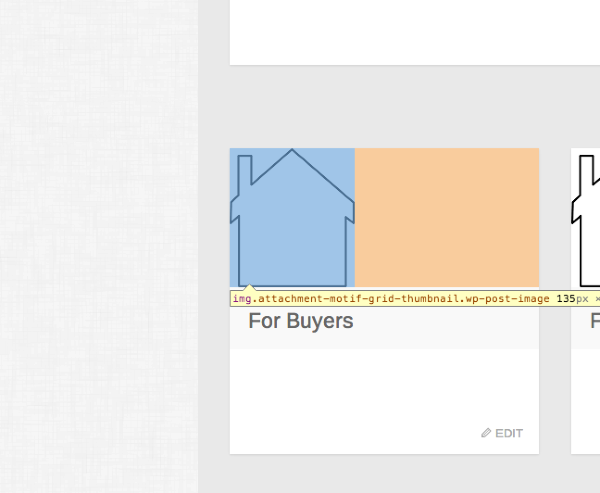
See how it’s aligned all the way to the left? If you center the icon within the page before uploading it to your site, it should be centered when you set it as a featured image. Does that make sense?
-
Thank you again for being so helpful. I feel like I’m almost there. Just one more question:
1. When I put the text in place to overlay on the photo, it appears on the top and bottom of the photo. http://wp.me/P4NTFo-O. I’d like for it to appear all together on the right, like it is in the template. http://theme.wordpress.com/themes/motif/
-
Ah – for that, you will need to switch the template for your front page from “Grid” to “Front Page”. The layout you’re looking for is only available on the Front Page template.
-
Ok, last questions – hopefully…
1. Where are my posts going, and how do I attach them to a page? For example, I would like to create posts on the Client Resources page.
2. Is it possible to set up a feed/page that can search for South Carolina Real Estate news that can auto populate?
3. Is there someone I can contact at WordPress to put in a good word about your service? You have been most helpful!Thanks again.
Stefanie -
For example: I have three categories created, and I have put a post into two of those categories. However, both posts are showing in both front page widgets.
Also: how do I delete the widgets that are inside the pages? I don’t want the search bar, archives, or meta showing on the right side of the pages.
-
Hey Stefanie,
Please see below!
Where are my posts going, and how do I attach them to a page? For example, I would like to create posts on the Client Resources page.
It looks like you’ve set your default blog post page to be the Client Resources page here:
https://cooperativetitle.wordpress.com/wp-admin/options-reading.php
All new posts will automatically appear on that page when they’re created. If instead, you would like to set a page up titled “Blog” and have posts appear there, you would just need to create the new page and then change the page listed at the link above under “Posts Page”.
Say you wanted to have posts appear on one main archive page, but also on separate pages depending on topic. The easiest way to do that would be through using Category Pages. This support page gives a good rundown on how those work:
http://en.support.wordpress.com/category-pages/
Is it possible to set up a feed/page that can search for South Carolina Real Estate news that can auto populate?
There isn’t a way to set this up to automatically search for a specific term and populate a page. However, if there’s a certain site you would like to populate the posts from, you could do that using the Display WordPress Posts widget here (this would live on your sidebar, not in the body of a page):
Note, in order for this to work, the blog you’re looking to display would need to either be on WordPress.com or connected through Jetpack. If you have any questions about a particular blog, let me know, and I can check.
Is there someone I can contact at WordPress to put in a good word about your service? You have been most helpful!
Oh that’s not necessary! I’m just happy to help.
For example: I have three categories created, and I have put a post into two of those categories. However, both posts are showing in both front page widgets.
The widget you’re currently using in that widget area is the Recent Posts widget described here:
http://en.support.wordpress.com/widgets/recent-posts-widget/
Unfortunately, you can’t delineate that widget by category, so it will only display your last three posts overall on your blog (not in a certain category).
The best way to accomplish this would be to remove those widgets and place a text widget there instead. In the text widget, place the following code:
[display-posts category="CATEGORY NAME HERE" posts_per_page="3"]There are more modifiers on using that widget here:
Can you just give that base code a try and see where we end u?
how do I delete the widgets that are inside the pages? I don’t want the search bar, archives, or meta showing on the right side of the pages.
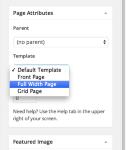
Those widgets are displayed by default since you have no widgets in the “Main Sidebar” area. The easiest way to get rid of this on pages is to set them to full-width when you go into the Edit Page screen as shown here:
For blog posts pages, you could either A) place a widget in their with information you want readers to see or B) remove the widget area entirely with the following code:
div#secondary {
display: none;
}

@media only scree (min-width: 600px) {
main#main {
width: 1075px;
}
}
Just place that under Dashboard -> Appearance -> CSS.
Phew – that’s a lot to digest! Please let me know if you have any questions about any of the above or if I can clarify anything at all.


- The topic ‘front page title image & text on the Motif Theme’ is closed to new replies.
 WordPress.com Forums