

Gallery Slideshow – Buttons
-
Hi,
I am trying to customize the gallery slideshow feature and got a bit stuck when it comes to the controls. Is it possible to modify the forward/backward/pause buttons to look differently?
I was hoping it was a matter of replacing an image, but it looks (from the code I found using “inspect element”) that these are actually href attributes somehow?
Is anyone else more familiar with how these buttons are set up in the code? The page that I am trying to modify is this: http://annascherman.com/made-in-birmingham/
The blog I need help with is: (visible only to logged in users)
-
Hi there!
This is a little bit complicated.. All of the buttons for the player are set with one image. You can set your own image by adding your custom URL into this code:
@media only screen and (-webkit-min-device-pixel-ratio: 1.5)
body div div.slideshow-controls a, body div div.slideshow-controls a:hover {
    background-image: url('URL_HERE') !important;
}
Once you do that, you’ll probably need to modify the sizes and hover behavior. These are going to be the selectors to use:
body div div.slideshow-controls a, body div div.slideshow-controls a:hoverGive that a try and let me know if you need more help manipulating the new image. :)
-
Hmm, well, I am excited to know that it is possible.
Should the image show all 3 buttons? Or Just a single button and I need to do this three times? I tried adding the CSS code you gave me and nothing changed!
-
You’ll want 1 image with all three buttons on it. Once you have that image, upload it to your media library and grab the image URL.
Paste the image URL in where it says “URL_HERE”, then you should see a change. :)
-
Hmm, thats exactly what I did…
I am hoping that I can just have a backward and forward button, so that is what I uploaded. The image I placed is here: https://annascherman.files.wordpress.com/2015/10/arrows.jpg
-
Thanks! You’ll want to add a bit more space between the two arrows to make it easier to get them into the buttons, but here’s the code you’d use for this image:
@media only screen and (-webkit-min-device-pixel-ratio: 1.5)
body div div.slideshow-controls a, body div div.slideshow-controls a:hover {
    background-image: url('https://annascherman.files.wordpress.com/2015/10/arrows.jpg') !important;
}
Here’s the code to hide the center button:
//hides the pause/play button
body div div.slideshow-controls a.paused, body div div.slideshow-controls a.running {
    display: none;
}
And I grabbed the wrong code before. Once the background image is set, you’ll want to change the ‘background-position’ property on these two selectors:
body div div.slideshow-controls a:first-childbody div div.slideshow-controls a:last-childHope this helps clarifying things! Let me know if you need more help one you have an image with space between the two arrows. :)
-
Hi Shawna,
I don’t really need clarification, but the code that you have given me is not working. I modified my image and used the new html (https://annascherman.files.wordpress.com/2015/10/arrows1.jpg) in place of the old. I also added the code you gave me to hide the play button…still no change! Is it possible that there is something not right with the code?
-
Oh gosh. Sorry Anna, it looks like I lost a set of curly braces in my copy/paste. Try this:
@media only screen and (-webkit-min-device-pixel-ratio: 1.5) { body div div.slideshow-controls a, body div div.slideshow-controls a:hover { background-image: url('https://annascherman.files.wordpress.com/2015/10/arrows.jpg') !important; } } -
Ok. I made the fix, but still no change!!
I am trying to read what I can about media queries…something just isn’t quite right.
-
:( I’m sorry. I’m having trouble making sure the code will work before I send it to you because I can’t switch pages in the customizer for some reason.
Could you add a link to that page to your Menu so I can work on this some more?
-
Sure, thank you!!!
I’ve added a menu item under the heading “architecture”-it is called “test.”
-
-
Alright. I see what’s happening now. The custom styles are being set before the styles from the player itself. And with CSS, whatever comes last wins.
Because of this, I believe we’re not going to be able to modify those buttons further. (However I was able to fix the bit of code to remove the pause/play button.) I apologize for the run around there.
I wanted to mention also, with this bit of code:
.center-vertically {
	position: absolute;
}
Your footer credits are ending up in the middle of the page sort of half behind your slideshow.
-
Hmmm. When you say custom styles, is that part of the theme or something that I have prescribed within the code? In other words, you are saying it is completely impossible to modify the buttons?
And I do realize that…I haven’t figured out a way to fix that yet.
-
Sorry! Yes, they styles that you’ve added in the Customizer. We’re able to manipulate the HTML pieces (like hiding the center button), but the CSS of those pieces can’t be modified because it’s loading afterwards.
I’ve asked our theme developers to take a look, since I think this shouldn’t be happening. Or they might have a work around for customizing it. The folks who are in charge of the slideshow are offline for the evening, so they’ll take a look first thing in the morning and I’ll report back. :)
In the meantime, let me know if you’d like some help with the footer credits. Positioning can be hard. :)
-
Thank you SO much for your help. I can’t wait to see what they say.
I am not at a computer to work on the footer issue at the moment, but I may bother you when I get to it! Thanks again!’
-
Alright! I got a theme developer to take a look. These buttons are pretty difficult to modify, but here’s some code to get you started, and a tip on how to make the image easier to use:
@media screen and (-webkit-min-device-pixel-ratio: 1) {
	html body div div.slideshow-controls a, body div div.slideshow-controls a:hover {
		background-image: url('http://annascherman.files.wordpress.com/2015/10/arrows1.jpg') !important;
	}
}

html body div div.slideshow-controls a, body div div.slideshow-controls a:hover {
    background-size: 60px 20px !important;
    background-color: rgba(255,255,255,0.6) !important;
}

html body div div.slideshow-controls a:first-child {
    background-position: 0 0 !important;
}
Something that would make the image much easier to work with is if it had a transparent background. Converting it to a PNG will let you do that.
Once it’s got a transparent background, we can center just the arrow in the circle and fix the colors & hover state. :)
-
-
NICE! I am so excited that they were able to figure this issue out!
Ok, replaced the code and I can tell we are closer. For some reason, only one of the two arrows is showing up, and there is definitely something weird happening with the hover state…
-
Fixing the second button is going to be tweaking the positions. The latest code I gave has this selector:
html body div div.slideshow-controls a:first-childYou’re going to have to create a similar selector, but using ‘last-child’ instead of first child, and setting the position of the image.
Do you know how to simulate the hover state using the inspector in your browser? In Chrome, if you have the element selected, look above the CSS section on the right and find the pushpin icon:
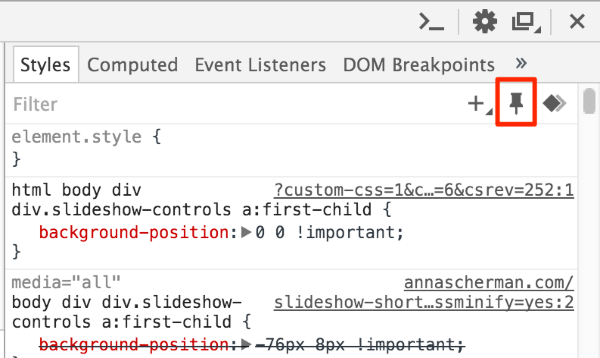
When you click on it, you’ll see 4 different states that you can toggle. Check the box next to hover to see the hover state. The CSS below will also display the CSS particular to the hover state.
Give that a try! If you get stuck, let me know what code you’ve come up with and I can take a look. :)


- The topic ‘Gallery Slideshow – Buttons’ is closed to new replies.
 WordPress.com Forums

