

Gateway. Where is my blog post?
-
I have the theme Gateway. I have just published a blogpost, and when I go onto my blog it is nowhere to be found. You have to put in a good searchword for it to pop up. Where on my blog are people supposed to click for my blogpost to appear?
I chose Gateway because I like the picture with the headline in the top there, and then having the little previews of the posts lined up under it for people to click on to get to the actual post. But now that I’m using it, it doesn’t look like that at all. Where is the post? It just says on the website that there is nothing there.
The blog I need help with is: (visible only to logged in users)
-
Hi there,
Go to your blog’s Customizer > Static Front Page and under the “front page displays” select the “your latest posts” option. Click Save at the top and now all your blog posts will be displayed on the front page of your site.
Here’s a direct link to your Customizer:
https://wordpress.com/customize/natesaddiction.wordpress.com -
Hi @natesaddiction!
You can use the setting @fstat described for a traditional blog layout on your homepage – if you’re looking for the same layout as the Gateway demo, you’ll want to follow these steps:
https://wordpress.com/theme/gatewaySummary:
– Create a page to serve as your home page. Use the Page Attributes section of the editor to select the Home Page template.
– Set this page as your Static “Home” Page (Front Page)You now have a page in place to display the same layout as the demo – the info page I’ve linked to will have details on how the rest of the page works :)
Let us know if you run into any more trouble!
-
When you set your front page to display your latest posts (instead of the Gateway Home Page template) it pulls up a list of your posts.
At the moment, two of your three blog posts are hidden. Under My Site > Customize > Featured Content, you’ve set Style as your Featured Content tag. Gateway’s Featured Content is the three posts you see under the main image on the demo of the Home Page template.
Two of your three posts have that tag: Style. Because of this, they’re hidden – that way they only appear on the Featured Content section, and don’t get listed twice.
Three possible solutions:
– Set up the Home Page template (from your initial posts, it sounds like this is your goal – make your site look like the Gateway demo
– Remove the Style tag under My Site > Customize > Featured Content (this would be wise if you don’t plan on using the Home Page template, or the Featured Content section
– Check the box to Display tag content in all listings. This will let posts marked for the Featured Content appear in other listings, like the one you’ve described above :) -
Just one quick question before I go on:
You say that “featured content” are the three posts under the main image. Then you say that the posts with the “style”/”featured content tag” gets hidden because they are only in the “featured content section”, and therefore don’t get featured under the main image, which you just said is where the “featured content” appears. I don’t see how these two statements work together. Shouldn’t the tagged ones be the ones that does show??However, when I removed the “style” tag like you told me to, the “your latest posts” actually started showing my latest posts, so that’s nice, even though I have no idea why that happened.
Now, if I want the featured posts to be next to each other (like in the demo) instead of above and below each other, how do I do that?
PS. I’m sorry about the bitchy tone, by the way. It’s nothing personal. I’ve been wanting to throw my laptop into the wall many times today simply because the “my site” section is a freaking jungle.
-
Nothing to apologize for :)
The problem is that by assigning that tag, and putting it on your posts, they get marked as Featured Content. Without checking the Display tag content in all listings box I mentioned, they’ll only appear as Featured Content.
But: You aren’t using a Static Front Page with the Home Page template that I described. That’s where you’ll see the Featured Content section. Without that template there is no Featured Content section, so the posts in it are completely invisible.
You’re essentially telling the theme “These posts should only go in the Featured Content section. But don’t show that section anywhere”.
You need to create a Static Front Page, and assign the Home Page template to that page under Page Attributes in the editor.
Try doing those two things and let me know what you find :)
The Gateway info page will have examples (see the Featured Content section). It also outlines the other elements of the demo site and how to use them (see the Homepage Template section)
-
I see. I’ll give it a go later. It looks kinda OK now, and i need to brace myself before I start making pages and screwing it all up again x) Thank you for the help.
I’ve noticed that my published posts tends to change the spacing, which kinda ruins the layout of the post. The text moves to another place so it’s not beside/under the right picture anymore, and the space between pictures is different from how I put it. Is there anyway to fix that? If I go back to the published post and click on edit, it all looks fine again, like when I made it in the first place, but when it’s posted it’s all off.
-
If your site’s theme is wider than the width of the editor, it can cause some differences in where things land, yes.
For example – if you add an image and align it to the left, your text can then sit beside it. In the editor, that text might be long enough to run past the end of the image (or not). If your theme is a different width than the editor, there will be more (or less depending on the them) space on each line next to that image. This changes how many lines the text takes up.
Similarly, two images that fit side by side in the editor may not fit side by side on the actual site – Galleries are a good solution to that problem.
If you have a situation where you have one image that goes with one bit of text to the side, then a separate image for a different bit of text, but you don’t want them to run into each other at all, you can use a trick called “clearing.” It’s done by editing your post’s HTML.
First, add your image, and set the alignement the way you want it. Then add your text so it sits where you’d like it to related to the image.
Then click over to the HTML tab of the editor and find the end of that part of the text. In the HTML tab, add this at the end of that section:
<div style="clear:both"></div>That HTML tells the page “stop floating things up past this point, even if there’s room for them.
Depending on how familiar you are with HTML, this can be tricky the first time around, so I made you an example:
There’s a BEFORE section (no clearing) and an AFTER section with the clearing. Try pasting each into the HTML of test post and previewing it to see the difference in effect :)
-
I have no idea where to put it. I’ve tried some different places and all I can do with the text is move it to underneath the picture. That is the only difference that appears in the preview. If I put it in a place where it creates more space between the picture and the text above it, it still doesn’t do anything in the preview.
-
Also, I’m sorry, but when I pasted that example the only difference in made in “write” was one more spacing between some text and a picture. In the preview, however, both examples are really messed up. None of them actually gets the texts next to the right pictures.
-
-
-
Hello again.
I’m trying to use the <div style=”clear:both”></div> spacing tool you gave me, but there are some problems:
It’s very hard to know where to put it.
It has a tendency of just going away on its own. I paste it, it starts to save, and it just poofs.
If I go into the HTML place now and I just look at it for a few seconds, not touching anything, and then I go back to “visual”, everything has been marked. Like, when you mark a bit of text coz you want to make it bigger or something. Everything is marked and some of the text is gone and some has been moved.
-
Hi Nate,
Try using this instead of the div:
<hr style="clear:both; visibility: hidden;" />The editor will sometimes remove divs if they have no content, but the above code will insert a horizontal rule that won’t be visible on the actual page. The editor tends to “respect” the hr tag more than a div that has no content.
It’s very hard to know where to put it.
If you’re looking at the HTML view and getting confused by the code, then a trick you can use is to enter some text in the Visual tab first. Maybe something like “CODE GOES HERE”.
Then when you flip over to the HTML tab, just search for that text, and replace it with your code.
Aside from the empty div tags being removed, you shouldn’t be losing content. Let me know if that helps with the issues you’re seeing. If not, let me know of a specific post or page you’re working on, and I’ll have a look. Keep in mind that you can use the post or page revisions if you ever need to quickly get back to prior saved content:
-
-
-
Hmm, could you let me know which post or page you’re working on, and give me a brief description of how you’re trying to use the hr tag to separate things there?
I’ll take a look at it and see what I can find for you.
-
https://wordpress.com/post/natesaddiction.wordpress.com/849
I want it to be like it is in the visual, but if you look at the preview you will see that the text jumps up two pictures. I don’t know what the hr tag does, coz it goes away and rearranges/takes away the text in the process.
I try to put the tag before the text in the HTML, hoping that it will perhaps take it down a little so I can see if it’s the right place, but I can’t even try to figure that out before it goes away and fucks (in lack of a better word) everything up.
-
Hmm ok. So I’ve looked at the post in the editor and in the preview.
You have currently five images and two paragraphs of text.
Right now it looks like you are trying to lay the content out as follows:
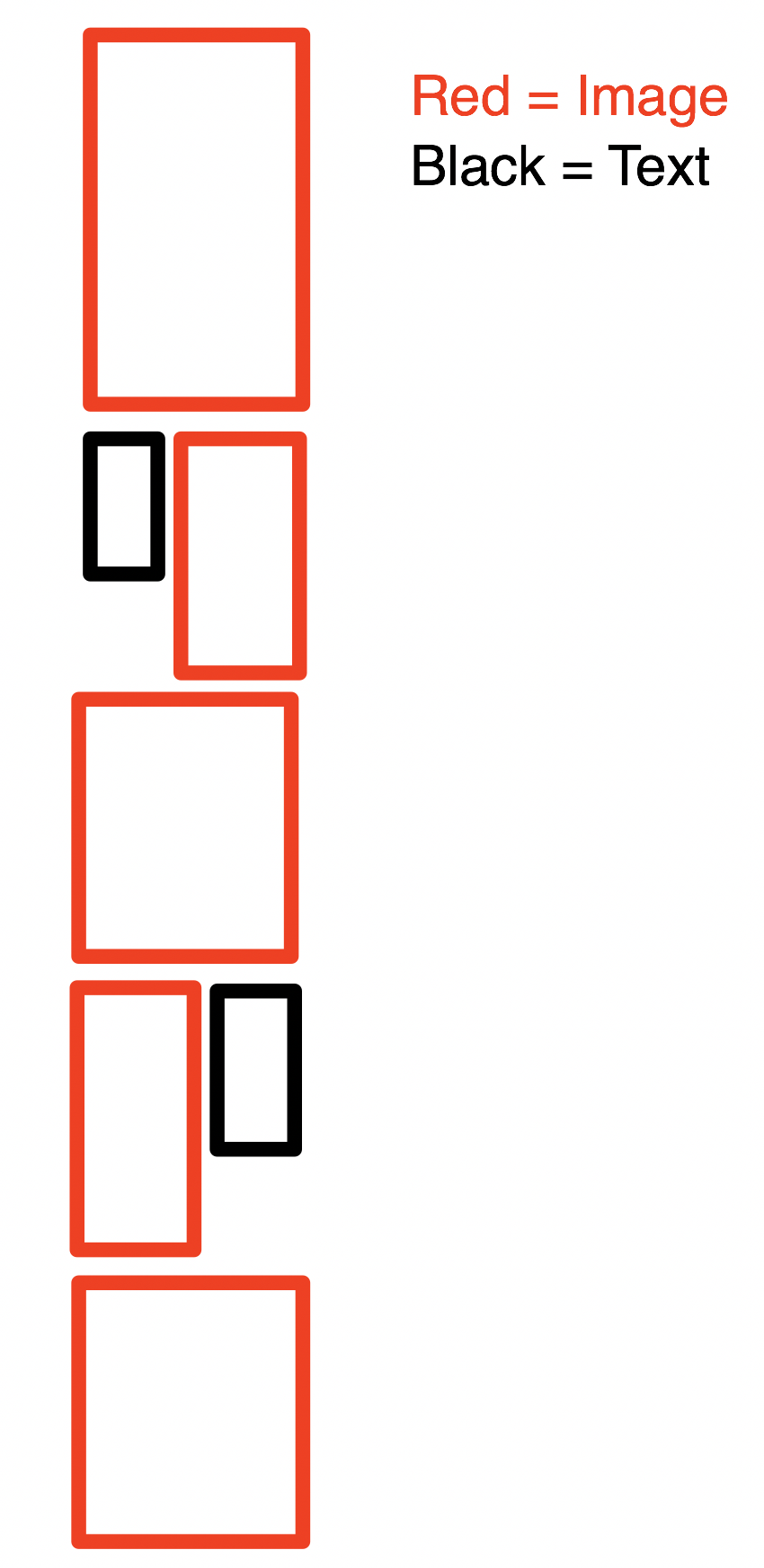
Could you let me know if I have that correct, in terms of how you’d like to display the different pieces on this post?
I want to make sure I have the right understanding of the layout so I can help from that point.


- The topic ‘Gateway. Where is my blog post?’ is closed to new replies.


 WordPress.com Forums