

How do I fix my picture uploading problem?
-
I cannot upload pictures to my blog anymore. I click insert picture and it will sit at 0% and never upload the picture. This has been for two weeks now. Thank you
The blog I need help with is: (visible only to logged in users)
-
Howdy!
I just tested the upload process on your site, and I was able to successfully upload an image without any problem. It also looks like you have uploaded three images successfully since 6/8/14. Are you still having trouble with this?
If so, can you make sure you’re using the most up-to-date version of your browser? Browser versions can be found here:
Also, can you try using another browser like Google Chrome or Firefox?
-
Thank you for responding!
Maybe it’s my computer then if you uploaded successfully. I did upload those three images but I have to edit them in after I submit the blog post. I am using Internet Explorer 9. I downloaded Google Chrome and still nothing. Must be my computer. Thank you.
-
Can you potentially try another computer to be sure? Just to confirm, when you use Google Chrome, you still experience an upload error. Is that correct?
-
Yes sir, no upload even with Google Chrome.
The only other computers I have are my tablet and my phone. I tried on the tablet. It did say 100% instead of 0% but there was still no picture. Any idea of what the problem with my computer might be? I know that’s not your job to fix but if you had an idea it would be appreciated.
Thank you for your time.
-
Well, it’s affecting your experience at WordPress.com so it’s definitely our job! When you’re trying to upload photos, are you trying to upload them via dragging and dropping them into the upload box like when you try to add media to a new post? Or, alternatively, are you uploading via Media -> Add New -> Select Files and using the manual file selector? Can you let me know if it makes any difference which method you use?
Also, if you could complete the following steps when trying to upload a media file, that would be terrific (instructions for Chrome).
- Navigate to the following page:
- Right-click the screen and select “Inspect Element”
- From the pop-up screen, click “Console”
- Refresh the page leaving the “Console” screen up
- Try to upload a photo using the “Select Files” interface
Can you take a screenshot of the console (including any strings of text that pop-up there) as well as the uploaded photo and any error messages? Instructions can be found here:
It should look something like this:
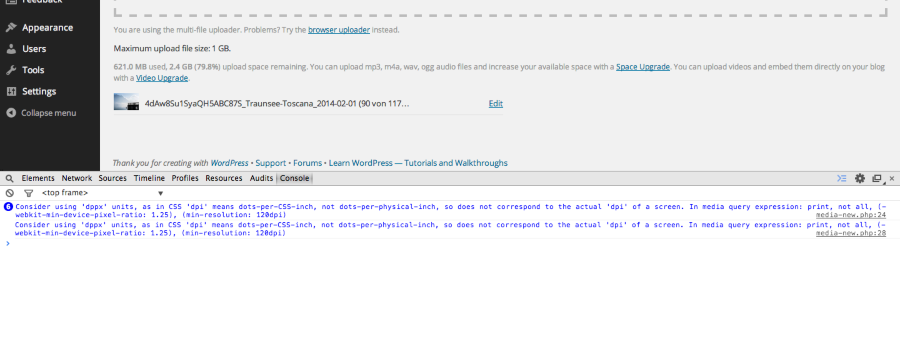
If you could upload that screenshot to your Media Library so I can take a look, that would be terrific!
-
Good Morning! Sorry so late getting back.
No, I always blog with the “text” option. I just click on the “insert photo” icon and then choose my picture. I don’t have to drag it. Should I be dragging.
So, I am doing something wrong. When I navigate to that page and right click there is no “inspect element” option. The page is a bunch of my uploaded pictures. Is that the right one? I clicked on your link.
Once again, thank you for your patience and your time.
-
Hi there,
No, I always blog with the “text” option. I just click on the “insert photo” icon and then choose my picture. I don’t have to drag it. Should I be dragging.
Nope! It should work either way.
So, I am doing something wrong. When I navigate to that page and right click there is no “inspect element” option. The page is a bunch of my uploaded pictures. Is that the right one?
I’m sorry – I pasted the wrong link. Can you try the following steps below? I’ve pasted example screenshots in the form of CloudUp links. Those are examples of what you should be seeing on the various steps. Also, can you make sure you’re using Google Chrome, not Internet Explorer?
- Navigate to the following page:
- Right-click the screen and select “Inspect Element”
- From the pop-up screen, click “Console”
- Refresh the page leaving the “Console” screen up
- Try to upload a photo using the “Select Files” interface
-
Hello again,
I guess I did not install Google Chrome. When I try to install it nothing happens. Is there something I am not doing? I clicked “install now” and it said thank you but I never saw the screen that shows it installing.
Sorry! -
Hi!
Clicking “Install Now” likely downloads the files to your computer. However, you’ll still need to “run” the installer to actually install Chrome on your computer. When you click “Install Now”, there are two thing that may occur:
1. The files will be downloaded and will appear either at the bottom of your screen or in a “Downloads” folder somewhere on your computer.
2. The download may be blocked due to a pop-up blocking function. In that case, you would likely see a notification somewhere in your address bar that “A pop-up has been blocked”.
Can you let me know if either of those two things is happening?
-
Hi again, sorry again for the late response.
I found it in the downloads folder
I don’t see anything about pop ups being blocked. I clicked on it and hit run. I don’t know if anything happened.
-
Hi,
If you clicked “Run” from the application link, it should have been installed on your computer. Can you check your Start menu (probably under Applications) and let me know if you see Google Chrome? Instructions for your operating system can be found here:
-
YES!!! It finally installed. I had to right ckuck on the download and the cluck set as administrator. Its says Google chrome is your default browser. Now I’ll try the blog.
-
-
-
-
-
-
Hi Jeremy!
It’s Angela again. I am confused with the new set up. How do I insert photos? It seems to just want me to make a gallery.
Sorry to bug you again. Thank you! -
Hi Angela!
You’re not bugging me at all! I’m here to help. I believe you’re referring to the new post editor, which can be found here:
That’s a new editor we recently rolled out. Currently, that editor is limited in image adding and editing capabilities. It’s something we’re working on improving at the moment. For now, it will be easier to edit and add images through your Dashboard here:
https://thekeenpeach.wordpress.com/wp-admin/edit.php?post_type=post
When you click “Edit” on a post, you’ll be taken to a window like the one below where you can manipulate images a bit easier:
https://thekeenpeach.wordpress.com/wp-admin/post.php?post=3440&action=edit
The Edit Post screen is broken down here:
http://en.support.wordpress.com/posts/edit-posts-screen/
Can you give that a shot?


- The topic ‘How do I fix my picture uploading problem?’ is closed to new replies.
 WordPress.com Forums