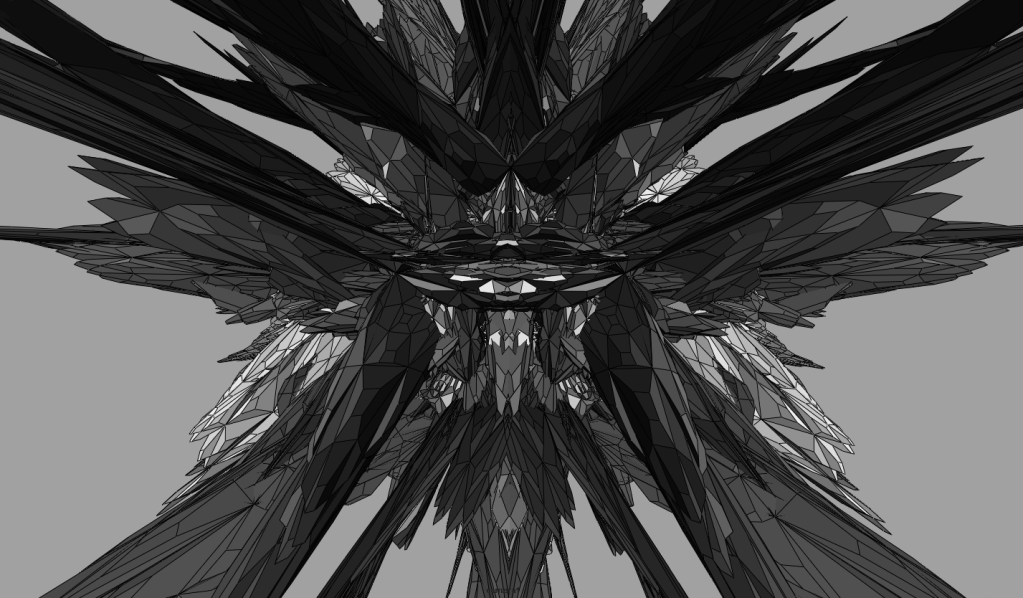
image autoscale link to large
-
trying post basic images on the site, because I have a photobucket account I am thinking of using that to host the images and then just use url link to put them into the blog. I’t would be nice to not have to worry about the size of the image, and have wordpress just scale it down proportionally so it fits. but at the same time allow user to click on the image to open up the original size. is there a way to do this. I have used other forums where I link my photobucket images and it seems to do that, so should be possible right?
The blog I need help with is: (visible only to logged in users)
-
Yes, if you click the Add an Image tool of the editor, click “From URL”, paste the direct URL [*] of the image, and click “Link to Image” before inserting it.
[*] in the case of your test example, this URL:
http://i245.photobucket.com/albums/gg54/bradonwebb/recursiveStructure_Cleanup_web.pngBut your page will load faster if you upload the images to the blog instead.
-
ok well that sort of worked. I could not do it from the add URL function. using the link to image function it still seemed to keep the large image that ran outside the table of the blog and into the menu. I did try it another way from the insert from media library so in this case i did have to upload the image to wordpress server. then I can specify “full size” which is 640x 374. Im guessing that is the maximum size of the center table in a wordpress blog. maybe that is customizable? then you can still click the image and get the full size. so im still trying to get the hang of all the settings. thanks for the help.
-
ok well that sort of worked. I could not do it from the add URL function. using the link to image function it still seemed to keep the large image that ran outside the table of the blog and into the menu. I did try it another way from the insert from media library so in this case i did have to upload the image to wordpress server. then I can specify “full size” which is 640x 374. Im guessing that is the maximum size of the center table in a wordpress blog. maybe that is customizable? then you can still click the image and get the full size. so im still trying to get the hang of all the settings. thanks for the help.
-
That’s a problem with the theme you’re using, I’m afraid: some themes correctly auto-resize images hosted elsewhere, some don’t. What you can do, if you don’t prefer uploading the images to your blog, is switch the editor to HTML, change the width to 640 and delete the height command (so that the image will downsize proportionately without your having to calculate te aspect ratio).
Yes, 640 is the maxium width in the theme you’re using, no it’s not customizable (unless you have the paid CSS upgrade and experience in CSS editing).
-
ok wonderfull. thanks for the advice, so I have went ahead shelled out the 15 bucks to edit my css, picked a new theme, edited my width on my forms so everything is looking pretty nice now, images all auto-scale if i insert them in full res, no matter if i use links or wordpress server. thats all good. only problem is the header image width seems like its hard coded into this theme? anytime i go to edit the header it asks me to crop at the 600 width that was the default that came with the vostok theme. however I have made my width in my css to be 900 so not sure how to get around this?
-
yep seems kind of rediculous :( now that I think about it… I tried a few themes and none of them seemed to work out. couldnt find one that I liked that was wider.
i did try to add
#branding img {
width: 900px;
}however the issue is that when i upload via the header menu it bakes in the header crop at whatever the default creator set it to. so even though i try to upload an image that is 900px wide it will crop it to 600. but now i can overide the css however it scales up the 600 image up to 900 so it looks soft and blurry.
i guess i can try to upload the header via css. not sure exactly how to do that.
-
ah super much thanks, I had to add in the img width and height but that seemed to work out ok. only weird thing is that the site title is now overlapping the image that might be another hard coded distance somewhere hidden? it’s kind of tucked in at the top so its not the end end of the world , would be nice to bump it up.
thanks for the list of templates ill check them out.
-
Sorry, didn’t think of that! Change the above to this:
#branding img { display:none; }
#branding { width:900px; height:Npx; background:url(‘IMAGE URL HERE’) no-repeat bottom; }where N = image height plus 50.
Of course an alternative, if you use an image like the one you’ve got now (with the title on it), is to hide the actual blog title and tagline, by adding this:
#site-title, #site-description { display:none; }


- The topic ‘image autoscale link to large’ is closed to new replies.
 WordPress.com Forums