

Image Manipulating in a Post
-
When adding a picture I am unable to change the size. There used to be an icon on the top left corner (can’t remember what it was, it looked like a mountain I believe). The icon has disappeared. Now when I click on the image to change size, on the right side is a Pencil Icon to edit or an X to delete, but these functions are not what I need. Where is the Icon that allows me to manipulate the image size?
The blog I need help with is: (visible only to logged in users)
-
-
Yes, what has happened? All my post images have post borders, it’s part of the styling of my blog. Now no border options, nor the margin padding that used to be available.
-
aussiesouthlander, what is your blog theme? Mine is Adelle. Maybe something is wrong with our theme?
-
They are making changes to the photo editor…Changes to Visual Editor
I hope they fix some of the issues that are popping up.
-
-
I’ll tag this thread for a Staff follow-up. Please subscribe to the thread so you are notified when they respond and please be patient while waiting. I notice not everyone here has the same issues. It may be useful if those posting here specified clearly which theme they are using and exactly what changed.
-
-
It is so simple. The option to specify image size and add a border has gone. Removing functionality isn’t progress!
-
How do I remove a photo border on this new editor. All my posts have no phot border and now I cant remove that. Need help in this blog: misscheck-in.com
-
Hi everyone!
There have been recent changes to the image editor. You can read more about these changes here:
Editing image size in a post:
You can edit your image size by dragging the boxes that appear around the outer edge of your image when you click on it:
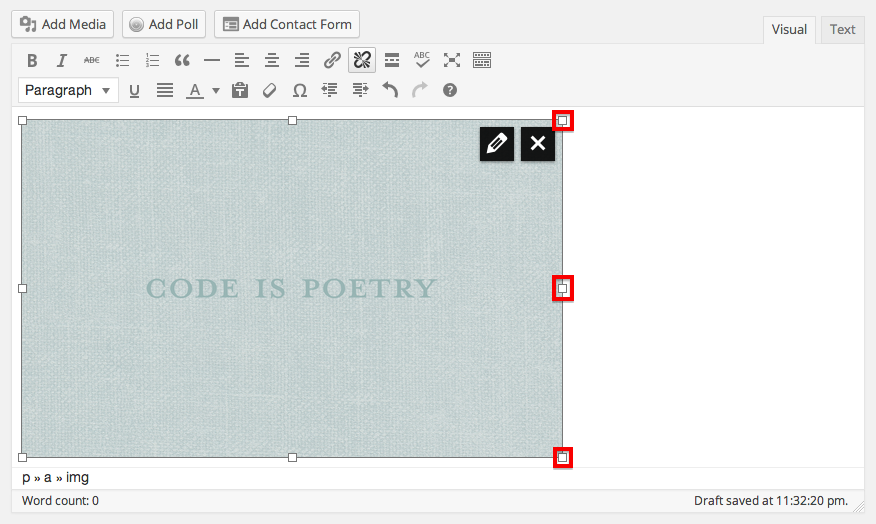
Or by selecting one of the various options that are available when you click on the pencil in the upper right hand corner of the image:
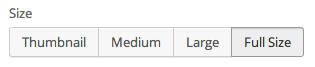
You can also edit your image with precise pixel count. Once you’re in the image editing menu through the pencil in the upper right hand corner of the image, click on Edit Image:
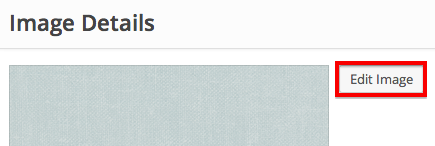
Then you can crop or scale the image:
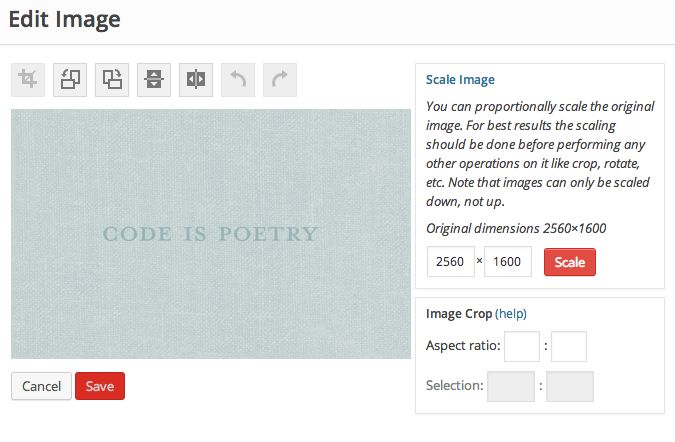
Adding or removing a border:
You can remove or add the border by inserting border=0px in the HTML as shown here:
<img class="alignleft size-large wp-image-15039" src="URL" alt="Featured Image -- 15038" width="584" height="389" border="0px" />Just adjust the number 0 to how thick you want the border to be. To be clear, you will need to adjust the image code in the Text Editor. This is explained here:
If you’re interested in sharing your thoughts on these changes, you can post a response in this thread:


- The topic ‘Image Manipulating in a Post’ is closed to new replies.
 WordPress.com Forums