

Maisha Theme Top Content Block
-
Hi, I am working with Maisha theme and there is something not working with the top content block on the front page. When I go into Customizer and set Page Attributes to Top Level and select Page Template; Front Page then update I see the content I want. But when I go to view my site it shows some repeated text from the Front Page-First content block instead. Can you tell me where I have something incorrectly selected?
The blog I need help with is: (visible only to logged in users)
-
I think the problem is that you’ve set the same page as your Front Page and your First Content Block. Try making sure those two pages are different and let me know how it goes.
-
Hi, I have set “Front Page-First content block” in the customizer Theme option “Front Page” to the content block Custom Design. In “Pages” I have Front Page with page attributes “Top Level” and page template “Front Page” though when I change it to “Default Template” it gets worse and loses the front page format with the 3 content blocks ;)
-
Let me try to explain more visually.
You currently have the page titled “Custom Design” set at your front page, and its content is being displayed in the large “hero” area at the top of the page, as you can see here:
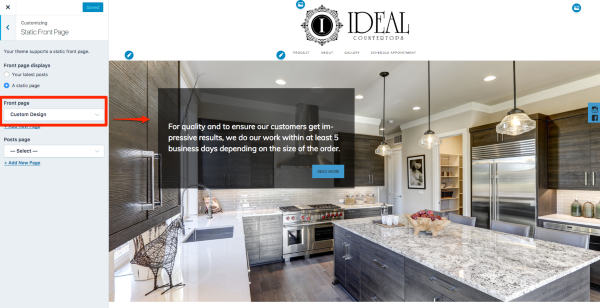
But you also have this same page set as the First Content Block in the Customizer’s Theme Options panel.
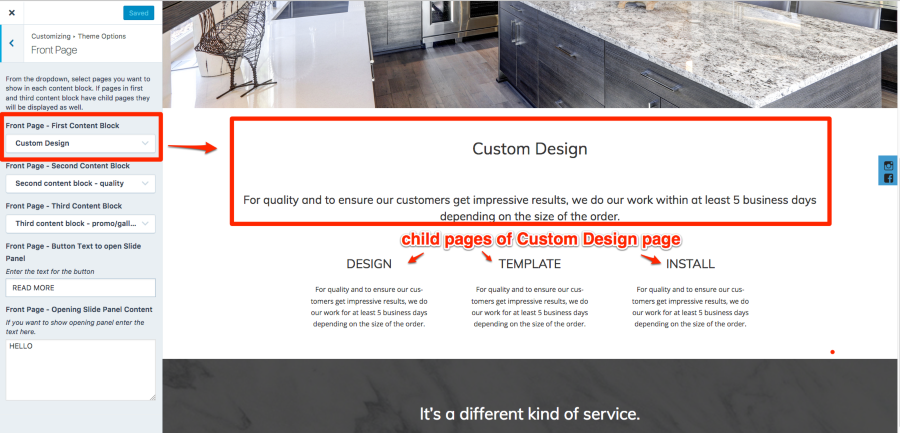
If you want to leave the First Content Block (the panel with the white background) as is, and display different wording in the “hero” area at the top of the page, what you’d need to do is:
1. Create a new page and call it Home or Welcome, or something else. Add the text you would like to appear in the box in the “hero” area.
2. Assign the page the Front Page template to the new page you just created.
3. Remove the Front Page template from the Custom Design page, since it’s no longer the homepage.
Let me know how it goes.
-
I also noticed you have no site title displaying in the browser’s title bar. The site title is a very important element for both search engines and usability. I would suggest you add it in the Customizer’s Site Identity panel, and then uncheck the box next to ” Display Site Title and Tagline.”
-
Hi Kathy, Thank you. I actually have a page called “Front Page” assigned to the front page with the image of the countertop and text that says:
Individualized. Signature. Unique.
Everyone has their own exquisite vision. We take your dreams of a functional kitchen, or an updated bath, and make it a reality.
I do have Page Attributes: Front Page and that may be the issue, but when I switch to Default Template it goes really weird. Also, I have been using the Maisha tutorial/demo page and a lot of the menu interface on that looks different. I am not sure if that is WP versioning?
Thanks for the note on the browser title. I really appreciate any tips. I am a seasoned graphic designer and have taken web classes here and there including WP, but for some reason my brain just doesn’t want to get it. My frustration level of not being able to move something where I want it within a millimeter is extreme! ;) I do get the concept and code etc, but have never mastered it; even with these new “easy” template websites. – Bridget
-
Individualized. Signature. Unique.
Everyone has their own exquisite vision. We take your dreams of a functional kitchen, or an updated bath, and make it a reality.
-
-
Glad you sorted it – looks good! Sorry I forgot to mention the step of assigning your new front page to be the homepage in the Customizer, but glad you figured it out!
-
Thanks. I still need to do a lot of edits just getting used to it.
On a more general WP subject I am logged in as administrator on this client’s site. I also see my free WP site on the dashboard. When it says sign up for a business plan to download plugins, is this reflecting both sites? I am confused if it is showing my plan only or both of our plans are basic. I also have a different site that is separate (http://visualmacrame.com/).
THanks,
Bridget -
idealcountertops.net has a Premium plan on it (not Business) so that may be why you’re seeing the upgrade prompt.
-
Hi,
Can you tell me how to get the Yelp widget into the social media icon are for this theme (Maisha)?
Thank you,
Bridget -
The social menu used by Maisha does not include a Yelp icon.
As a workaround, you could find a Yelp logo and upload it to your media library, and then add some custom CSS to display it on the right menu item:
.social-navigation a[href*="yelp.com"]::before {
	background-image: url(FULL/PATH/TO/IMAGE);
  height: 24px;
  width: 24px;
  top: 5px;
  left: 5px;
  color: transparent;
}
This is just approximate code – you may need to adjust it once you add the real image. Grab the URL of the image from your media library:
-
-
I am a little confused still. I uploaded image and grabbed image “name” I think from Media, but is that the correct path to use? I also added the custom link for their Yelp page in Custom link in the SM menu. There is a blank space there now…
.social-navigation a[href*=”yelp.com”]::before {
background-image: url yelp-logo-icon-72273;
height: 24px;
width: 24px;
top: 5px;
left: 5px;
color: transparent;
} -
Looks like you took the image title instead of the URL, which is:
https://idealcountertops.net/wp-content/uploads/2017/11/yelp-logo-icon-72273.pngThe URL also needs to be between brackets. All that said, I think we can do better with the CSS I gave you. Give this a try instead:
.social-navigation a[href*="yelp.com"]::before {
  color: transparent;
}

.social-navigation li.menu-item-688 a {
   background-image: url("https://idealcountertops.net/wp-content/uploads/2017/11/yelp-logo-icon-72273.png");
   background-repeat: no-repeat;
   background-size: 25px 25px;
}
You may want to change the colour of the Yelp graphic so it matches the grey of the other icons.
-
Oh, that was silly of me. I will try this as soon as I get back.
I did the color in CSS with the online chat support. I will try to figure that out too apply to the Yelp icon.
Thank you.
-
You’ll need to change the colour of the Yelp icon in a graphics program, since it’s a PNG image. Let me know how it goes or if you need further help!
-
Does that mean I can’t create the hover state like I have on the others using this:
#menu-social-media a:hover {
color: black;
} -
You could add a hover state by creating a second image in the colour you would like, and then add this:
.social-navigation li.menu-item-688 a:hover {
   background-image: url("https://idealcountertops.net/wp-content/uploads/2017/11/my-new-image.png");
}
Replace the media URL with the real one, of course. :-)


- The topic ‘Maisha Theme Top Content Block’ is closed to new replies.
 WordPress.com Forums