

Media full-up
-
Dear blogger friends, I would like some feedback on what other bloggers would do please. My media library is almost full-up, I have78.9% of 13GB used on my premium membership and want to continue my blog as it is. Should I invest in upgrading to the business option which gives 200 GB storage. I use many photos in my blog posts but I am not a business, I just like to write and use my own photos to illustrate my writing.
I hope to receive some replies of what other bloggers have done in this instance.
Many thanks.
Agnes
https://gaiainaction.blogThe blog I need help with is: (visible only to logged in users)
-
Hi Agnes,
The only way to free up space in your media library, is to delete some images. What some people do is to create a new free site in their account, export their older posts to that site, and then delete those posts and their associated images from the primary site. That way the content is still available online, but you have extra space on the site you actually use.
But you can also take some steps to make your remaining 3GB of storage last much longer than you expect.
I took a look at your media library, and see you upload high resolution images, 3 to 4000px wide, with file sizes up to 5MB. That is entirely too big for the web.
The Sketch theme you’re using can display images at maximum 764px wide, and even if you were to switch to a different theme, very few are wider than 1500px, as that’s the widest at which most computer monitors will display it. By uploading images bigger than what can even be displayed on a computer screen, you’re really just wasting storage space.
An image that’s 5MB big at 4000px wide, would be only be a few hundred kilobytes at 1500px wide – by halving the dimensions of the image, you can reduce the filesize to less than 20% of the original file in most cases. And you can then use special software like JPEGMini to even further reduce the filesize without it affecting the quality of the image itself.
This process is called image optimization, and if you do that with your images before you upload them, you’ll use your remaining storage space much more slowly. I know of photo bloggers who’ve been blogging here for years who haven’t even used up their 3GB free storage yet, by following these steps:
Let me know if you have any questions about this process.
-
Thank you Kokkieh, that is very useful information and I am going to give it my full attention and work it out. I am beginning to understand although it’s not totally straight forward. (I think at this moment)
Would you be able to direct me to how I can access the free new site in my account that you are referring to? Then I already start to export older post in there while I figure out how to change the size of my photos. It does make sense.
Very much appreciated.
Agnes -
You’ll need to create it first. :)
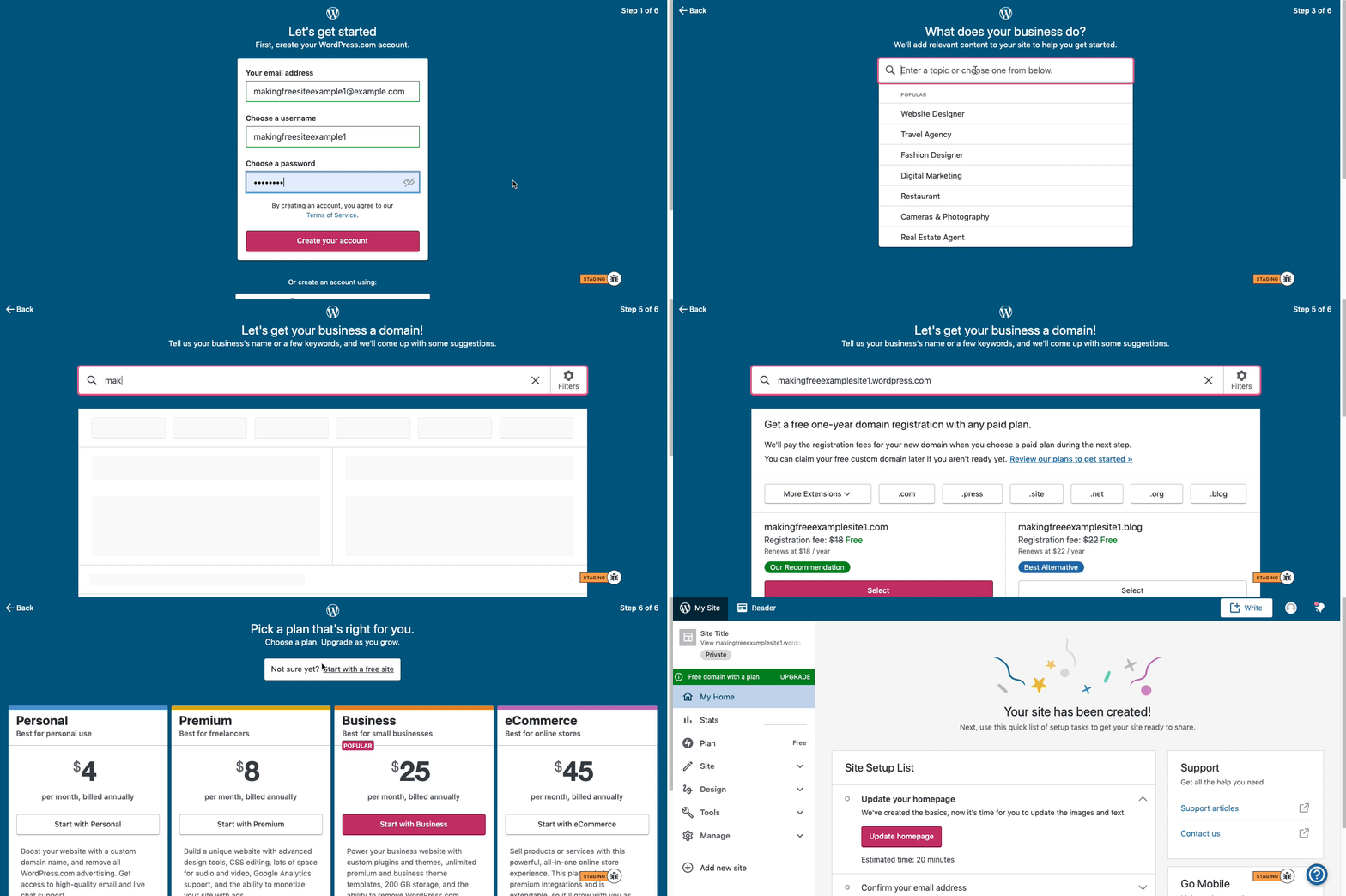
Here are visual instructions on how to create a free
.wordpress.comsite:Step 1: Select email, username, and password.
Step 2: select Blog for a.home.blogfree site or Business for a.wordpress.comsite.
Step 3: Select the Topic of your site.
Step 4: Type in the Title of site (optional).
Step 5: Type in the full, exact site address you want including the.wordpress.comor.home.blogsubdomain (ex:freeexamplesite.wordpress.com,freeexampleblog.home.blog). The first option should be the free site that you manually typed in. Click select next to that option.
Step 6: At the very top, click the link that says: start with a free site.Then, your free site should be created! Please follow those steps and if you have any questions, let us know. Thanks!
-
Hi Macmanx, Thank you for this information. My primary domain is gaiainaction.blog So I have a domain already pay €22 per year for it but I don’t quite understand why I have it to be honest. But is this domain what is talked about in this video? I am a little confused about this. I also have a premium membership not a business one.
What I cannot see on the video is where do I access the information so that I can follow the 6 steps? Where in my WordPress blog site do I start with the 6 steps?
Your help is much appreciated.
Agnes -
Hi Agnes,
the new site you would be completely independent from your current site, it will have a different address. To add a new site, you would click on My Site>Add a new site. Then you would follow the instructions on the screen. You can make that site free or purchase a paid plan if you wish.
As for your domain, it is just a custom address for your site. If you would cancel the domain, your site would go back to the free address gaiainaction.wordpress.com.
Please note that you can also chat with us, reaching from https://wordpress.com/help/contact – that way you can get the answers faster.
-
Thank you Fresatomica,
Ok so in order to add an extra site to my already existing WordPress blogging site where I can export some of my blog post to I will do the following :I click ‘My Site’…then ‘Add New Site’… and so on… and this will get me a linked site so that all my followers can access both that site and my regular blogging site at gaiainaction.blog – am I right? I think that I understand now.
Thank you, but please let me know, if you don’t mind, if I got that information right now.
Kind regards
Agnes -
Hi there,
Yes, you are correct! Once you add the site, let us know if you have any further questions.
Thanks,
-
Ok Darnelidibbles I have set up my extra site on my blog. I have not launched it yet. I would like to export some of my present blog posts on my gaiainaction.blog to this new site but cannot find out how to do this. Would you be able to point me in the right direction please.
Thank you
Agnes -
Hi Agnes, you can use this export tool if you’d like:
Since the new site is private, you’re welcome to remove any posts you don’t want there prior to publishing.
-
Many thanks Supernovia, I think that I am slowly getting there, it has been a great learning experience and I wish to thank all the staff for your help.
I will continue tomorrow with my site.
Kind regards
Agnes -
Hi, I have successfully exported some of my blog posts to my new site. Actually I imported them once they were exported and am happy to do that. I took the photos out of each post in order to make them smaller and put them back in. It should make my media library last longer again I think and that is what I hoped to do. I learnt a good few things during this exercise and wish to thank you all for your help. I might still have to contact you in the future to tweak a few things if needed. It made me have a good look at my WordPress blog and I am improving it all the time.
Many thanks and have a nice weekend.
Agnes




- The topic ‘Media full-up’ is closed to new replies.
 WordPress.com Forums