Menu Customization – Background and Font Colors
-
Hi there!
I just upgraded one of my sites and I am using BLOCCO theme.
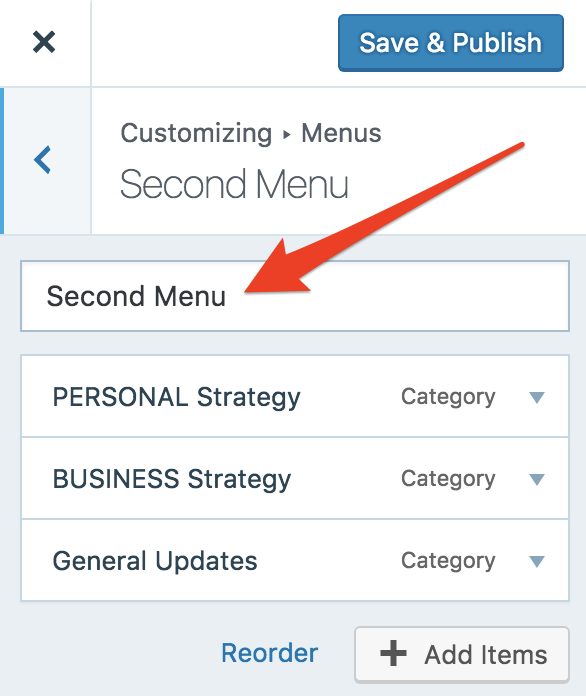
Have read on the Theme support forum that they do not offer customization so I need your help with CSS for the following:The Theme offers the possibility to have 4 Menus (3 on the right, as the ones now on my site + 1 for mobiles). The menus are divided by ‘location’ on the right of the site as First Menu, Second Menu and Third Menu).
I am referring to THIS SITE: https://ralphglobal.com/
What I would love doing:
Customize COLORS for Each of the Menus (First Menu, Second Menu and Third Menu).
And, if it is not possible to customize each menu, at least, to customize all of them at once for the following:* Background Color
– Default
– On Hover
– When Selected* Font Color
– Default
– On Hover
– When SelectedI appreciate your help and guidance
My best and thank you!
Ralph(aside note: by the way, I am not able to change the theme name on “Select the blog you need help with:” section on this form. It is stuck on asiaespecialista.com but that is not the theme I am asking help with).
The blog I need help with is: (visible only to logged in users)
-
Hi Ralph,
You can use this for the first menu:
/* Link background */

#menu-first-menu a {
    background-color: #D74F38;
    border-color: #D74F38;
}

/* Link hover background */

#menu-first-menu a:hover {
    background-color: yellow;
    border-color: yellow;
}

/* Link active background */

#menu-first-menu a:active {
    background-color: green;
    border-color: green;
}
For the other menus, just use #menu-second-menu or #menu-third-menu instead of #menu-first-menu.
Adjust the colors to your liking.
-
Ohhh this is great!
Thanks!
What about the link text/label COLOR for each behavior? Is there a way to it?Let’s say, when the background is RED, the font to be WHITE, and when the background is WHITE, the font to be RED.
MANY THANKS!!!
-
Im applying the codes to the second menu to test it out.
All is fine, only the Active is not working…/* Link active background */
#menu-second-menu a:active { background-color: #FFFFFF; border-color: #FFFFFF; }
You can see it on the site for: Personal Strategy, Business Strategy and General Updates links. The active one should appear WHITE as per the above code.
Thank you!
Ralph -
What about the link text/label COLOR for each behavior? Is there a way to it?
You can just add the color property in any of those instances:
color: #ffffff;Here it is added to the first bit of CSS I sent yesterday:
#menu-first-menu a {
    background-color: #D74F38;
    border-color: #D74F38;
    color: #ffffff;
}
All is fine, only the Active is not working
Sorry about that. I should have mentioned that the IDs are based on the names of the actual menus. Your second menu was recently changed to be called menu-second-menue, so I changed it back. This is the title I’m referring to.
It looks to be working now, but let me know if you don’t see it correctly on your screen.
-
Thank you @dcoleonline
Actually, what I can see is that, for all menus, the
/* Link background */
/* Link hover background */
are working fineWhat seems not to be working, for all menus, is
/* Link active background */All active menus items should look the same for all menus
White background and white border
Bold and red text, without shadowI just need to fix the active items for all menus
Thanks! -
Hi Ralph,
Could you try clearing your browser cache, and let me know if that changes things?
This is what I see on your site at the moment in Chrome/Firefox/Safari when I click the links:
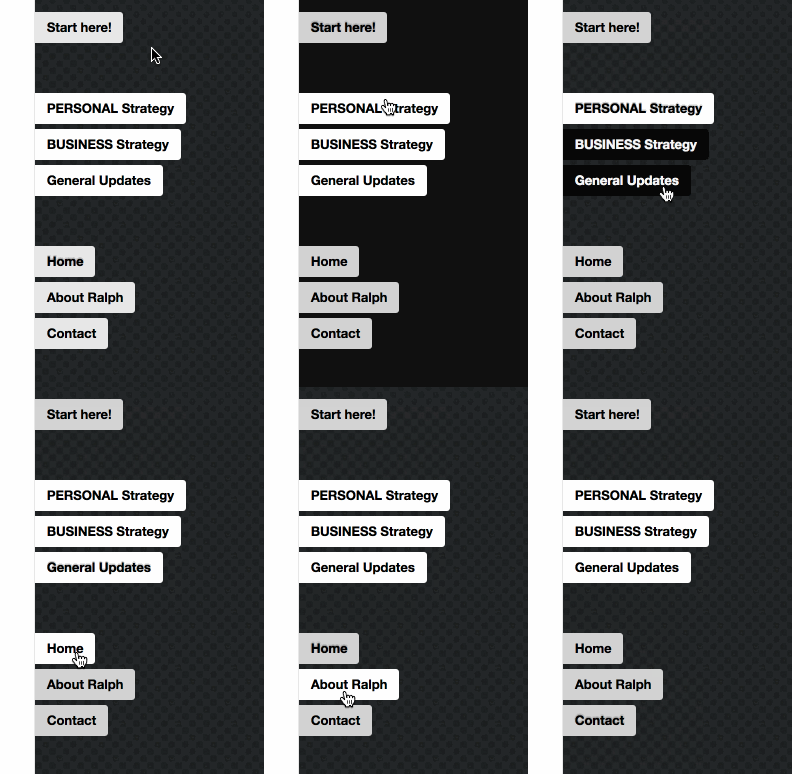
Let me know if that isn’t how it should look.
-
Thanks again!
I see the same. But…
After your click on a link, the link should remain active with white background and red text without the shadowIs that possible?
Many thanks!!! -
Ok, I think we have this part:
the link should remain active with white background and red text
Here is a closeup of the first two items in their active state:

The page I’m visiting for this is:
https://ralphglobal.com/category/personal-strategy/You’ll see a shadow behind the PERSONAL Strategy text because the theme sets a text shadow for the active menu item. We don’t haven’t added any CSS added to remove that just yet.
To remove the text shadow from the current menu items, you can enter this CSS:
#pageinate .current,
.nav-menu .current_page_item>a,
.nav-menu .current_page_ancestor>a,
.nav-menu .current-menu-item>a,
.nav-menu .current-menu-ancestor>a,
.charcoal,
.green,
.dark-blue,
.light-blue,
.orange,
.pink,
.red,
.twitter,
.vimeo,
.facebook,
.google-plus,
.dribbble,
.subscribe,
.youtube {
    text-shadow: none;
}
Let me know if that is what you’re after.
-
It also just occurred to me that what you might be trying to do is get the white background/red text/no-shadow to remain on the menu item once you’ve been taken to the page you clicked on.
If that’s what you’re wanting, let me know. It’s not the same as the CSS :active state, but we can still make that work.
-
@dcoleonline … Wow, that code is amazing, removed the shadow completely, thanks
You said:
“…It also just occurred to me that what you might be trying to do is get the white background/red text/no-shadow to remain on the menu item once you’ve been taken to the page you clicked on…”CORRECT. That is what I’m trying to do.
Thanks for helping out indeed!
Ralph -
CORRECT. That is what I’m trying to do.
Ah ok.
So it seems I made the prior CSS with the menu IDs a bit too specific as that code is overriding what’s needed to highlight the current page in the menu.
So let’s fix that :)
First, take this out:
/*first menu color customization*/
/* Link background */
#menu-first-menu a {
	background-color: #ffffff;
	border-color: #ffffff;
	color: #000000;
}

/* Link hover background */
#menu-first-menu a:hover {
	background-color: #000000;
	border-color: #000000;
	color: #ffffff;
}

/* Link active background */
#menu-first-menu a:active {
	background-color: #ffffff;
	border-color: #ffffff;
	color: #EA412C;
}

/*second menu color customization*/
/* Link background */
#menu-second-menu a {
	background-color: #D3D3D3;
	border-color: #D3D3D3;
	color: #000000;
}

/* Link hover background */
#menu-second-menu a:hover {
	background-color: #ffffff;
	border-color: #ffffff;
	color: #000000;
}

/* Link active background */
#menu-second-menu a:active {
	background-color: #ffffff;
	border-color: #ffffff;
	color: #EA412C;
}
Next, replace it with this:
/*first menu color customization*/
/* Link background */
.menu[id="menu-first-menu"] a {
	background-color: #ffffff;
	border-color: #ffffff;
	color: #000000;
}

/* Link hover background */
.menu[id="menu-first-menu"] a:hover {
	background-color: #000000;
	border-color: #000000;
	color: #ffffff;
}

/* Link active background */
.menu[id="menu-first-menu"] a:active {
	background-color: #ffffff;
	border-color: #ffffff;
	color: #EA412C;
}

/*second menu color customization*/
/* Link background */
.menu[id="menu-second-menu"] a {
	background-color: #D3D3D3;
	border-color: #D3D3D3;
	color: #000000;
}

/* Link hover background */
.menu[id="menu-second-menu"] a:hover {
	background-color: #ffffff;
	border-color: #ffffff;
	color: #000000;
}

/* Link active background */
.menu[id="menu-second-menu"] a:active {
	background-color: #ffffff;
	border-color: #ffffff;
	color: #EA412C;
}

/* Highlight Current Page */

.nav-menu .current-menu-item > a {
	background-color: #ffffff;
	border-color: #ffffff;
	color: #EA412C;
}
This keeps your original colors, but applies the IDs slightly differently, so that we can override the colors they set. The final bit there makes the current page link match the active styling.
Let me know if you run into any issues with this.
-
@dcoleonline thank you thank YOU!!!
You are a guru, it is being a great lesson to learn from you!
It works perfect nowHugs
Ralph -


- The topic ‘Menu Customization – Background and Font Colors’ is closed to new replies.
 WordPress.com Forums