

No comments when I link to my own site
-
OK, not sure if this is going to support or a forum, but here goes: There seems to have a been a recent software upgrade which have put some obstacles to the way I work, like removing “Edit as HTML” option for my H2 blocks. The anchor option doesn’t seem to support the CLASSIC (i.e H2) block, only paragraphs. Moreover, when I click “+” in the page body, I don’t get the paragraph option and have to search for it. Very annoying. Maybe I work differently than everyine else. But I also notice that when I link to previous posts, I don’t get a notification in my COMMENTS section. Which is fine, I always hated these self-reference notifications, but now I wonder if notifications about comments work at all? I got my girlfriend to leave a comment and I didn’t seen any notification icon.
The blog I need help with is: (visible only to logged in users)
-
Hi there, it looks like you’re having issues with a few things, so let’s break it down:
- Anchor links in the Heading Block: I’m not sure I understand what you mean by “Classic” here. Regardless, this is the current method for creating anchor links https://wordpress.com/support/page-jumps/
- Adding a Paragraph Block via the Plus sign: Strictly speaking, you don’t need to add the Paragraph block separately. You can just start typing because the Paragraph block is the default block in the Post and Page Editor. https://wordpress.com/support/wordpress-editor/blocks/paragraph-block/
- Pingbacks and Comment notifications: Every once in a while this feature seems to have hiccups. Usually it’s a temporary issue, but you can check your site notification settings here https://wordpress.com/me/notifications Also, here’s more info on pingbacks https://wordpress.com/support/comments/pingbacks/
- Additionally you mentioned that you’re not seeing notification icons in your site dashboard or the bell icon in the admin bar when there are comments waiting for approval. Is that correct? https://wordpress.com/support/notifications/
-
Hi, thanks for the reply.
Point 1: When I create a page, I add the heading and the index in a html block. For each H2 paragraph I have, I need an anchor. For H2 (which I called “Classic” cause that is the block I use to create a H2 paragraph) I don’t see the Advanced->Anchor option. I only see it for normal paragraphs. Up to now, I have used “Edit as HTML” to replace <H2> with <H2 id=”myanchor”> but now the EDIT as HTML option has gone away. So how do I get the H2 anchored?
Point 2: OK, I see what you mean. I’ve been using paragraphs to create “air” above and below pictures and H2 sections. Could it be that in the past, just adding linebreaks didn’t actually render them in the same way when page got published? Anyway, it does now so that is OK.
Point 3/4: I just noticed that the “bell”/notification icon for COMMENTS in the admin bar stopped working about the same time as I noticed that “Edit as HTML” was removed from H2. Which I assumed was because of a SW release. I haven’t done any configuration changes in years. -
OK-for the record I’m using Firefox latest on a Win10Pro PC.
Point 1. Edit as HTML can be found in the Block toolbar, but the best way to create an anchor link is to open the Advanced module in the Post Editor sidebar when the Heading block is highlighted. This is what I see in my Post Editor (temp screenshot) If you see something different in your Post Editor, please share a screenshot here.
Point 2: If you are working with the Block Editor, the Spacer block will do what you describe “adding air”. You can adjust the height of the block to your needs. https://wordpress.com/support/wordpress-editor/blocks/spacer-block/
Points 3/4: Yes, there was a software update site wide about a week ago to WP v6.9, if that is the source of the issue. Give it a day or two and if it doesn’t shake out, post back here and let us know.
Just for the future, when you post for help, it helps us if you post a separate thread for each specific issue rather than bundling them into one. :)
-
Adding this link about the recent update https://wordpress.com/blog/2025/12/02/wordpress-6-9-for-site-owners/
-
Yes, apologies for that. I tried to build background for the comments question, but it got clumsy and I see it stood out as a bunch of questions. Won’t happen again!
As for the anchor, I am still a bit confused. In the attached screenshot, you can see my layout, just as I want to anchor the selected H2. If you can guide me from this point, that would be great. I don’t work in the layout you described. https://westcoastpeaks.com/DOWNLOADS/screenshot1.jpg
-
Ah, now it’s clearer. Thanks for that screenshot.
From your screenshot, you’re using the Classic block for your content creation and it works differently than the Block Editor’s individual Heading, Paragraph, etc., blocks. Most importantly, it does not have an “Edit as HTML” option.
The only workarounds I can think of is to either convert your Classic block to individual Blocks (YMMV) or to use the old Classic Editor instead.
I’m also going to ping staff here as to me it looks like the Classic Block has reverted to an earlier version than what is shown in the support guide.
-
Excellent! Just to be accurate: “Edit as HTML” option for HEADINGs *disappeared* some days ago, probably related to the SW upgrade. If it doesn’t come back, the easiest thing for me is to add an anchor to the paragraph preceding the H2 (since paragraphs has the anchor option). Not what I prefer, but it will work.
“Convert to blocks” gives me the “Edit as HTML” option, but when I replace <h2 class=”wp-block-heading”> with <h2 id=”anchor”>, this works in the preview, but gives an error “Block contains unexpected or invalid content”. So that’s a no-go. I’ve also tried to add the H2 in a HTML block, but it does not seem that anchors/jump links support that.
I cannot say why I am using this particular editor, but it’s a function of what hasn’t been working in the past + advice from WP support. If my original issues were fixed, I have not catched that, as I have been happy and efficient with the current editor. -
Hi @fjordpeaks
Currently, the “Edit as HTML” option is only available for the content created using the blocks of the Block editor. The recent WordPress update seems to have caused changes in the interface of the editor.
I understand you’re looking to add an anchor to your H2 (Heading 2), to create jump links, in this case please try to:
- Select the H2 text
- Navigate to the Block settings in the sidebar, and click “Advanced”
- In the HTML Anchor field, you can add the HTML ID or anchor value you’d like to apply for the H2 text. – https://share.zight.com/2NuZw5Y1
Just a quick note, any value you added in the HTML Anchor field will be labeled as the HTML ID of the H2 text- https://share.zight.com/E0uQYzG1 - Select any text on your page, and link it to your anchor
Please see this screen recording: https://tinyurl.com/yc68484w
Can you please give this a try? Let me know if it works for you.
Hope this helps!
-
Hi staff, I originally tagged this thread due to the (revert) change in the Classic Block‘s appearance and behavior from what is described in the current support guide, last reviewed November 27. This is how the Classic Block appears in that guide

In my test site‘s Post Editor, the Classic block currently appears like this:
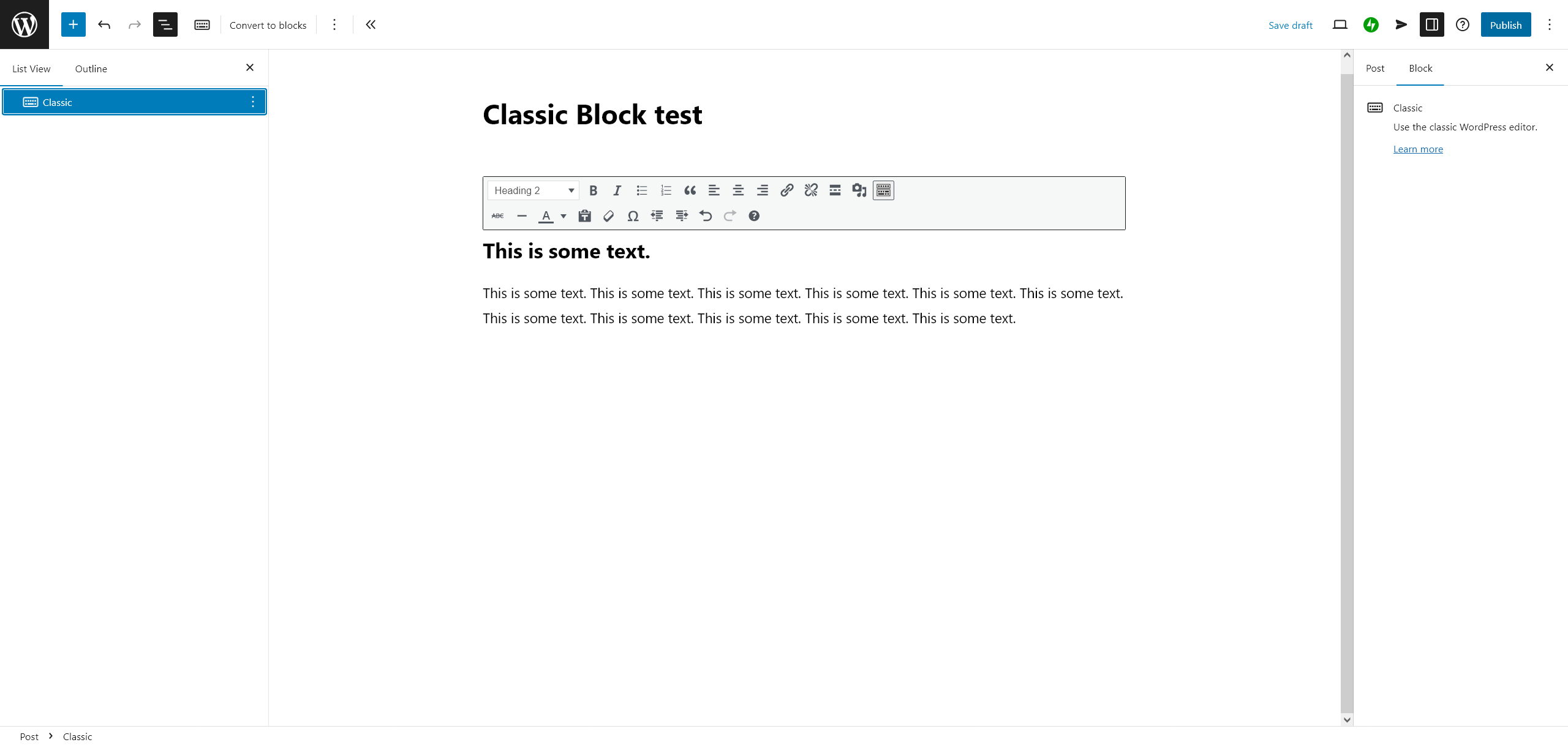
This is not the expected appearance nor the behavior
-
Hi @justjennifer ,
What you are seeing is the Classic Block on your site:
https://wordpress.com/support/wordpress-editor/blocks/classic-block/
It is not the Classic Editor shown in the guide you followed. These are not the same.If you want to switch back to the Classic Editor, you can enable it by following the steps here:
https://wordpress.com/support/editors/classic-editor-guide/Once it is enabled, you will see the Classic Editor on your site just like the guide shows.
Follow the steps and let me know if you still need help with this.
I can check it again for you if anything does not work as expected. -
Hi staff, I have no trouble differentiating between the Classic Editor and the Classic Block. :)
If you look at the support guide for the Classic Block, which I linked to in my above reply but here it is again https://wordpress.com/support/wordpress-editor/blocks/classic-block/ you’ll note that in practice the Classic Block no longer looks or behaves as is shown in that support guide. That was my query here. In order to demonstrate this, I created a post on my test site, which staff are welcome to access here
@fjordpeaks apologies for hijacking your thread to notify staff of this discrepancy. However, I have also now seen another forum thread on the matter of no longer being able to edit the Classic Block as HTML
Staff, please note. Thanks.
-
Just wanted to say thanks for your support, @justjennifer.
@jonalynpuyong if you see this picture: https://westcoastpeaks.com/DOWNLOADS/screenshot1.jpg
then you’ll see that I don’t have the advanced option (or anchors) on the right-hand side for my H2 paragrah. I hope the “Edit as html” option returns – or that the advanced option appears – in the editor I am using.Best regards from Norway…
-
Thank you for taking the time to clarify this for us, @justjennifer and @fjordpeaks.
Upon further analysis, we found that the recent updates made to Gutenberg, which is the name of the Block Editor, removed this option as it never worked as intended. Gutenberg is an open source project and not developed by us at WordPress.com.
The good news is, a lot of WordPress users were unhappy with this change, and the re-introduction of this option is being considered for the upcoming Gutenberg 22.3 update.
-
-
I’ll go head and mark this thread as solved, since all we can do for now is wait for the next release.
If you run into any issues, have any doubts, or simply would like advice on a new idea you have for the site, we are always here and happy to help.
-
Hi staff, is there any update as to when we can expect the rollout of the latest Gutenberg update here on dotcom? The link to github shows that the request was merged but I’m not seeing it reflected when using the Classic Block on my test site. TIA
-
Hi @justjennifer, At this time, we don’t have a confirmed timeline for when this change will be rolled out on WordPress.com.
If you need full classic HTML editing functionality, I would recommend enabling the Classic Editor, which is different from the Classic Block. You can find the steps here:
https://wordpress.com/support/editors/classic-editor-guide/Otherwise, using the Block Editor will ensure access to the latest Gutenberg features as they become available on WordPress.com.
-
OK-Thanks for the update. Looking forward to when we’re again able to edit HTML in the Classic Block following the rollout of Gutenberg v22.3 on WordPress.com.
-
You can also keep an eye on the Gutenberg release notes here:
https://github.com/WordPress/gutenberg/releasesThis page shows when new versions are released upstream.
Once a version is rolled out on WordPress.com, the changes will become available automatically in the editor.


 @staff-porcupine Good to hear!
- The topic ‘No comments when I link to my own site’ is closed to new replies.
 WordPress.com Forums
