

page formatting
-
Trying to create a format on a Page (“My Books”) from my blog where book covers (thumbnails linked from Amazon site) are on the left, with a description on the right. I’ll be adding more books in the future, so it’s imperative that I can recreate the same look for each book. The reader needs to be able to click on THE THUMBNAIL to connect to the Amazon site.
The blog I need help with is: (visible only to logged in users)
-
See here please > http://en.support.wordpress.com/visual-editor/#alignment
The alignment icons in the WordPress editor are for aligning text; they are not for aligning images. They are used to achieve wrapping text around images on either the right or left-hand side, or to display an image that’s centered without text on either side of it.
Align-left means position left, with the rest of the content wrapping around the right side of the image.
Align-right means position right, with the rest of the content wrapping around the left side of the image.
Align-center means position center, with no wrap-around (= the rest of the content below the image).
If the text beside the images does not occupy the same amount of space that the image beside it does then the text wrapping will continue and the images and text that follow will have a staggered appearance.
To prevent the staggered effect what you do is insert the following snippet of code into the Text (HTML) editor after each image/text pair:
<div style="clear:both;"></div> -
-
Howdy JKM!
Looks like Timethief has you on the right track! In fact, she has a better suggestion than the convoluted mess I was leaning towards setting up.
Here’s a screenshot of what we’re ultimately looking to setup (as an example):
The book thumbnail will be on the left. The description will be on the right. There won’t be any overlap between the two.
Now, let’s walk through the steps to setup one of these “reviews” (comprising both the book and the description).
First, start on the Edit page for your My Books page. Let’s pretend you have a blank page.
1. Click the Add Media button as shown here: http://d.pr/i/16Mdu
2. Click “Add Via URL” at the top of the pop-out
3. In the URL field, enter the URL of the image you would like to display. If I remember correctly from our chat, you were pulling these images from Amazon. Here’s an example of one I’m using:
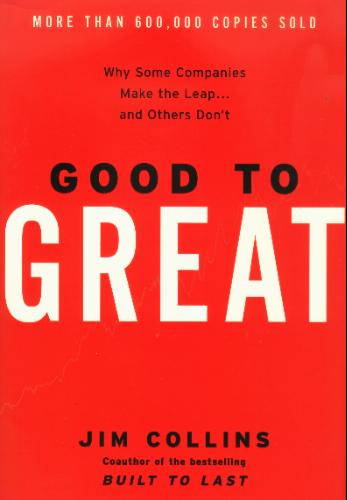
4. Click “Upload”
5. Click “Insert” to drop the image in your post.
Now, we’ll want to change the size of the image (possibly) and make sure it’s linked to the Amazon page.
1. Click on the image in the post and, while it’s selected, click on the Add Link button in the menu as shown here:
2. Paste or type in the URL of the book on Amazon and click “Save.” Here’s an example I’m using:
(Screenshot: http://d.pr/i/14m6z)
3. Click on the image again, and if necessary, use the boxes on the corners of the image to scale it down (mine is a bit too big).
4. Lastly, click on the icon in the toolbar to align the image to the left like Timethief mentioned. (Screenshot: http://d.pr/i/10MKF)
Now, we’re ready to type the review. Type it in as you normally would in a post or page. When you publish it (with just one book), you should see something similar to this:
Now, follow those same instructions again to insert another book. At this point, you’ll have some overlap. It will look something like this:
Click over to the HTML editor. You’ll see the HTML for your two book reviews. The key point we want to identify is where one book review ends and the next image starts. Here’s a picture of how that looks with the pieces pointed out on my side:
In between the two, we want to put what Timethief mentioned:
<div style="clear:both;"></div>Here’s a screenshot of how that looks:
Now, you should have something similar to the original demo I took a screenshot of. Can you give that a try?
Moving forward, you’ll just want to repeat those steps dropping the clear code between each review.
-
Perfect!! Your “tinkering” has resolved the problem. Bet there will be others who use your solution. I’ll give it a try in the morning.
Thanks again for awesome work!!
JKM
-
Still having trouble. I was able to get the images to the My Books page, but little else. Previous efforts allowed me to make the top image “hot:” I can go directly to Amazon. But aligning text with the thumbnails is a problem, plus I can not manipulate the text in any way. Second, I cannot make those other two books “hot.” I really appreciate the step-by-step and I’ll keep trying, but…
-
Looks like Timethief has you on the right track! In fact, she has a better suggestion than the convoluted mess I was leaning towards setting up.
Thanks for the praise. I may print it out and frame it. ;)
-
Hey JKM!
I’m not quite sure what you mean by “hot.” Could you clarify?
To get the book descriptions in for the three books you have already, follow these steps:
1. Start on this page:
https://jkmwednesdaydotcom.wordpress.com/wp-admin/post.php?post=61&action=edit
2. Click into the “Text” editor as shown here:
3. Type the review for each book immediately after the closing anchor tag (
</a>). Here’s a screenshot:4. Update the page.
The layout will look a bit off, but just let us know when you finish adding the descriptions. We’ll get the layout fixed up!
Thanks for the praise. I may print it out and frame it. ;)
:) You’re welcome! Thanks for bringing that suggestion up!
-
Well, frankly, I may be in the wrong theme, and the longer I struggle with the current one the more I think I should try a theme that’s more amenable to what I’m trying to do. Among other things, when you get to Amazon — and its clones — there are sufficient descriptions of what the books are about. And there is this: in one of the destinations all three books are listed, side by side, which means no redundancy. Any suggestions of themes that I can take a look at? Plus, can I carry the widgets over to a new one if I so chose? Again, I am so grateful for the help you’ve sent my way so far, but maybe I’m trying to force Ford parts into a Chevy.
-
Okay: At 5:30 a.m., here’s what I’ve come up with…and I think it’s the ideal solution. Instead of individual descriptions of each of the books, I’ve done that in the copy at the top of the page, with A LINK in the words “all three.” All of the titles share a page on Amazon.
Turns out, it’s a lighter look, which I prefer. One day I may discover a way to arrange the images horizontally, but for now vertical is okay. Just one final question: Can I link that Amazon page with all three together? Can’t seem to find it.
Again, thanks for your patience!! -
Just one final question: Can I link that Amazon page with all three together?
Hmm I’m not sure what you mean here. Could you perhaps clarify? I’m sure there’s a way to do it! Did you mean link to an Amazon page where all three books are listed? If so, I would link to this page:
-
Got it, and it works just fine. You link to “all three are on Amazon” and you go right there, with all three books, along with details on the stories. Plus, there’s a nifty profile of me to boot. Way below it all (on the My Books page) is a collection of stuff I don’t need — extra widgets and such — that I’ll have to get rid of eventually.
JKM


- The topic ‘page formatting’ is closed to new replies.
 WordPress.com Forums