Please disable image CDN for images in my website
-
Currently the CDN/photon is enabled for all images in my website (http://netliuying.wordpress.com):
e.g. I checked the real image url loaded in my wordpress page is like — img alt=” src=’https://i0.wp.com/www.pbase.com/netliuying/image/167317864/original.jpg’, which has ‘i0.wp.com’ inside the image src url. But somehow the image quality through the above ‘i0.wp.com’ url is not as good as the original one ‘http://www.pbase.com/netliuying/image/167317864/original.jpg’, the original one image size is 334KB, but the one with ‘i0.wp.com’ image size is 245KB, seems that it compressed from original image which leads to lower image quality.
So can you please disable CDN/photon for all images in my wordpress site to let it always retrieve/display the images through the original url? Thank you very much!
The blog I need help with is: (visible only to logged in users)
-
hi,
I could not find anywhere in wp-admin to disable CDN.
I will tag modlook for a Staff to help you with this.
Thank you for your patience while they get back to you. -
Hi there,
Photon is enabled by default on all WordPress.com sites, and there is no way to disable it.
Photon resizes images to the size they actually display on your site, and does compress them to help ensure your page loads as fast as possible, but that should not affect the quality of your images in any way. And you can still link your images to the media library URL so someone can view the full size image in their browser when they click the image.
If you are noticing a loss in quality, please give a link to a post containing an image where we can see this. Most likely the original image was created using a color profile that’s not supported in Photon.
If you are hotlinking images from another source, as it appears you are doing, there is nothing we can do about this, as we have no control over the original image in that case.
-
thank you for the reply, yes all my images are from another source, I see another post regarding the image quality loss https://wordpress.org/support/topic/how-to-set-no-image-compression-for-photon-images/ & https://developer.wordpress.com/2015/02/04/lossy-image-compression-with-photon/
So my question: is it possible to change the compress ratio or resize setting for my wordpress.com site so that to make photon to not sacrifice the image quality? -
You cannot turn off Photon or change the settings here at WordPress.com.
You would need to self-host your own site using the software from WordPress.org and then, if you used Jetpack, keep that feature turned off.
Also note that themes resize images to fit in the available space,, so there could/probably will still be a reduction in quality. I looked at my test site with the CDN deactivated, and the image size being displayed (and reported in the HTML) is 648 x 433 while the original is 6016 x 4016 in my Media Library and 4MB file size. There is a slight reduction in quality between the original and the one in the post.
The dance that goes on between keeping images quality as high as possible, and also keeping web pages loading quickly is an interesting one.
I offer the following experiment.
1. Download one of the images from the source that is displaying at lower quality, and make sure the original is at least twice the size as the maximum size displayed in a post, which appears to be 962px in width on your site. The reason I suggest this is that this helps quality when viewing the images on higher resolution monitors.
2. Insert that image into a draft post and then preview that post and compare to the original for quality and see if it is improved.
-
To answer “If you are noticing a loss in quality, please give a link to a post containing an image where we can see this. ”
I copied over one of my wordpress page to blogspot, so that the following 2 pages have exactly same content, but you can see the pictures quality are quite different between them:
a) wordpress page which uses Jetpack/CDN
b) blogspot page which is copied over from above wordpress page
http://netliuying.blogspot.com/2016/08/the-oculus-world-trade-center.htmlSince all my pictures are from 3rd party source (pbase.com) which doesn’t use wordpress.com host disk space, does it make sense to change Jetpack config to turn off CDN for 3rd party image source? So that the images traffic from 3rd party hosts, which won’t impact wordpress.com host performance much. Thanks.
-
Correction on above a) wordpress page, the correct url is: https://netliuying.wordpress.com/2016/08/24/the-oculus-world-trade-center%e7%ba%bd%e7%ba%a6%e4%b8%96%e8%b4%b8%e4%b8%ad%e5%bf%83/
-
I see no difference in quality between images on those two sites. See this side-by-side screen shot:
https://cloudup.com/clr2C2bgg0c
On what device, type of screen, operating system and browser are you viewing the WordPress.com site when you see the degraded quality?
Since all my pictures are from 3rd party source (pbase.com) which doesn’t use wordpress.com host disk space, does it make sense to change Jetpack config to turn off CDN for 3rd party image source?
It has nothing to do with use of WordPress.com disc space or WordPress.com performance. We serve images via the Photon CDN so that anyone visiting your site will have the images load from a server that’s geographically the closest to them, ensuring the site loads as fast as possible for them. So using Photon actually uses more of our resources, as copies of your images, at various sizes, are cached on servers we have distributed around the world, and the images a visitor sees in their browser is loaded from those servers, not from your third-party hosting service.
Photon cannot be disabled on any WordPress.com site, and any images embedded on a WordPress.com site, whether embedded from the media library or hotlinked from an outside source, will be cached by Photon.
-
As I mentioned in my first reply, we do sometimes see issues with incompatible colour profiles, but that manifests in washed out colours, not blurry images, which is sounds is what you’re referring to.
-
To answer “On what device, type of screen, operating system and browser are you viewing the WordPress.com site when you see the degraded quality?”
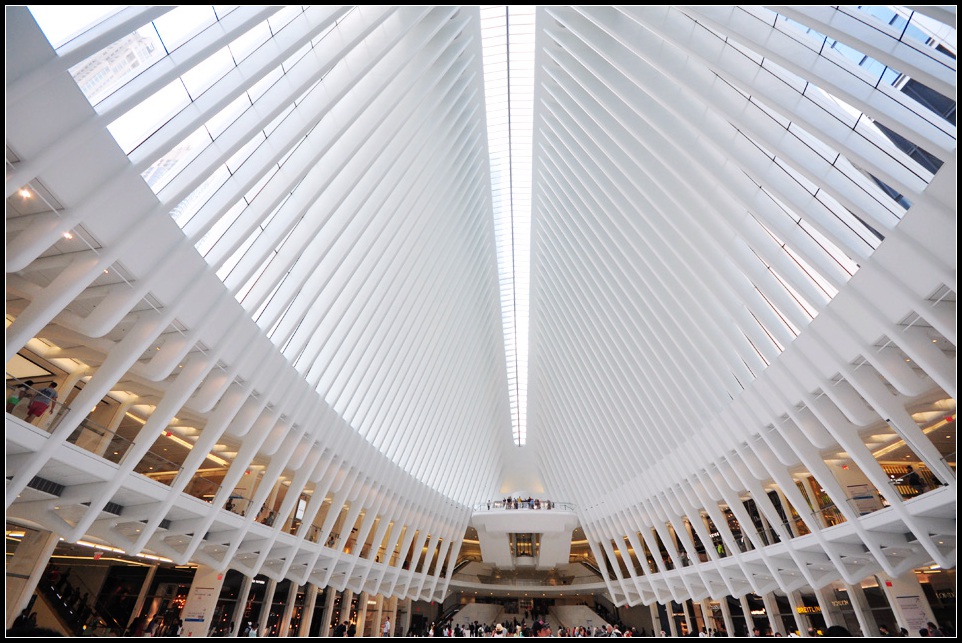
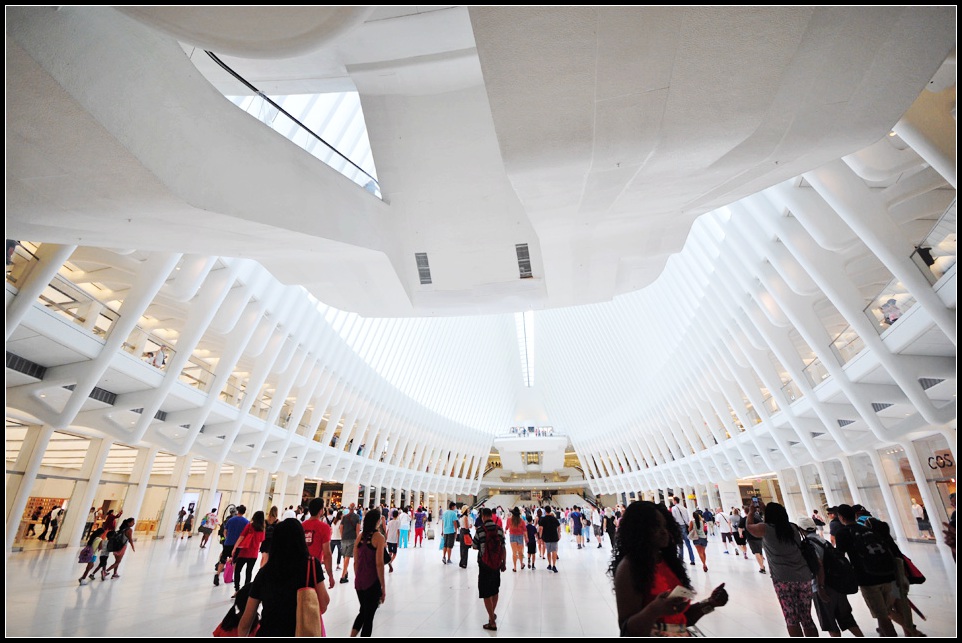
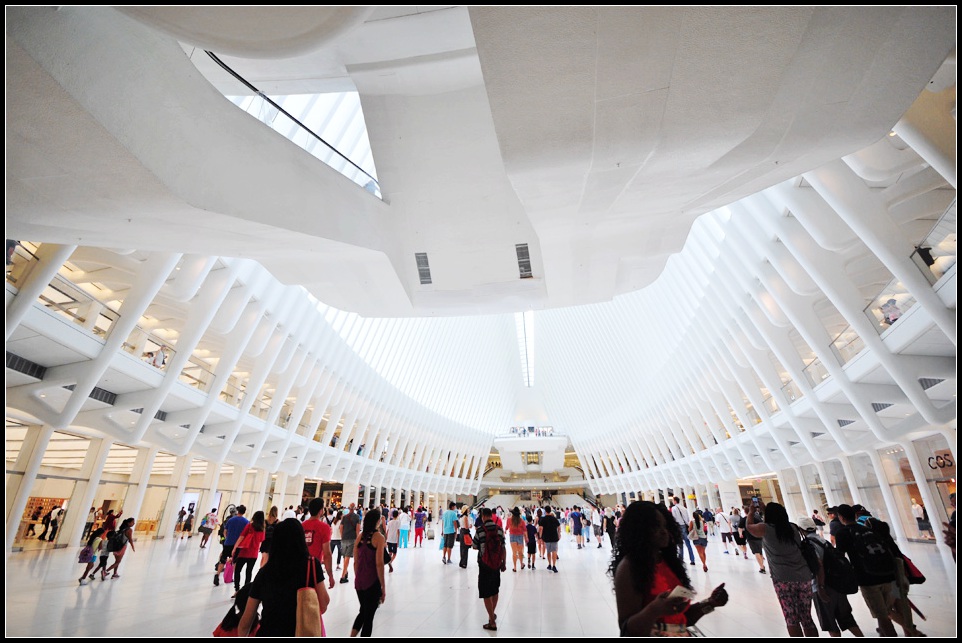
I am using windows 10 PC + 24 inch Samsung LED screen (1920*1080 resolution) + Chrome browser. For images in my above wordpress page (e.g. the 2nd picture), obviously I can see the degraded quality for the image.
1) wordpress jetpack/Photon CDN image url:

2) the original pbase image url:
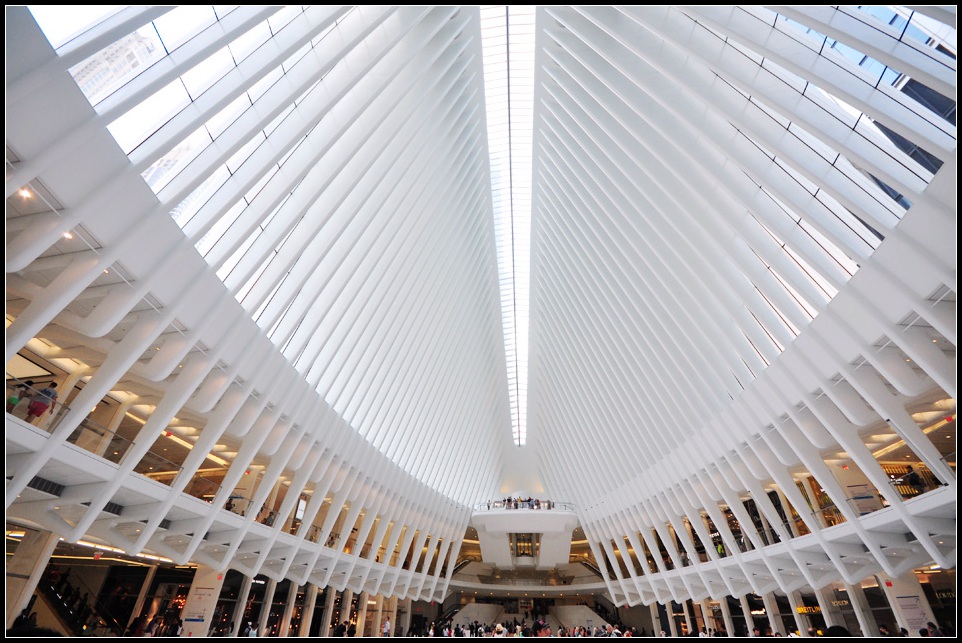
Interestingly if I switch to use Internet Explorer for the same hardware and setting, above wordpress jetpack CDN image quality seems better than it looks in Chrome browser, but still not as good as the original pbase image.
Another thing regarding “We serve images via the Photon CDN so that anyone visiting your site will have the images load from a server that’s geographically the closest to them, ensuring the site loads as fast as possible for them. ” ,
I think the 3rd party image host (pbase.com) in my case, also utilize their own CDN to achieve the same performance as Photon CDN does, so that images load from pbase should be fast enough for anyone visiting my site even with Photon CDN disabled. E.g. the above pbase original image url would be automatically translated into pbase CDN dynamic image url if you open it in any browser.
So I think wordpress.com Photon CDN config should be changed to filter out images hotlinked from some well-known 3rd party source (such as pbase/flickr etc.) that already enabled their own CDN. So that it would save disk space/resources from wordpress.com servers and in the meantime archive the same/similar performance. And most importantly it would not degrade images quality at all! Thanks.
-
Photon CDN config should be changed to filter out images hotlinked from some well-known 3rd party source
We support embeds from some sources. I just tested this one and was able to embed on my test site. Can you try just pasting the URL into your post on its own line, like so?
You’ll need to be sure to use https. If you use http we will automatically load it into our CDN so we can serve it securely.
Of course there are potential pitfalls with hotlinking images, and not every host is okay with it. But that might work for you.
Also, for what it’s worth:
– Our CDN is serving the image up at the same size, but it is slightly more compressed (knocking just about 100KB off the size). So it’s loading faster but at a somewhat lower quality.
– Try uploading images twice as large as you want to display them. Most of our themes will automatically use retina images where they’re supported. I did notice your theme has been retired for quite some time, though, so you might have better luck too if you use something current.
Hoping that helps :)
-
Thank you for the suggestion. I tried above img URL with “https://a4.pbase.com/…” in my post and it works great. The https img src bypassed the wordpress photon CDN and has the exact same quality as the original one.
But the problem is that I have about 300 posts in my wordpress site, which totally have more than 10,000 images inside the posts. If I replace each original image URL to the translated https one (e.g. change img src from “http://www.pbase.com/netliuying/image/163918021/original.jpg” to “https://a4.pbase.com/o9/74/796374/1/163918021.Ti74kZ2k.DSC_8920_1.jpg”), that will be a lot amount of work.
Is there any automation/systematic way to change all existing 10,000+ img src in my posts to the translated https img src and re-post them? Or if you can change your server Photon config to filter out “http://www.pbase.com/netliuying” to stop automatically load images from “http://www.pbase.com/netliuying” into your CDN? The help is much appreciated, thanks!
-
Okay, so yeah if you were hotlinking all 10,000 of them, we’re getting your already compressed image and compressing it just a bit more, so that would explain things.
I don’t know whether your image host will be okay in the long run with you hotlinking all of those images.
If you’re not worried about the risk of the host blocking the site and therefore causing the images to break, you could export all of your content, search and replace instances of http://www.pbase.com with with correct https url (assuming it’s not been changed in the posts themselves…), and then re-import.
Another option would be to choose a newer theme that doesn’t display the images at that width. Most of them use retina images now, so they should appear sharper.
-
My image host should be fine with hotlinking all of those images, as it is paid service and they officially support hotlinking from anywhere for paid members.
Regarding “you could export all of your content, search and replace instances of http://www.pbase.com with with correct https url”, this is not that simple as each image needs unique url replacement, so it is definitely not a simple search and replacement.
e.g. 1) http://www.pbase.com/netliuying/image/163918021/original.jpg –> https://a4.pbase.com/o9/74/796374/1/163918021.Ti74kZ2k.DSC_8920_1.jpg
2) http://www.pbase.com/netliuying/image/163918019/original.jpg –> https://a4.pbase.com/o9/74/796374/1/163918019.vyitPQ9W.DSC_8913_1.jpg
Basically I can only determine the https url after I put the original img url in browser and it then translates to the unique https url.
That’s why I am thinking if you set some filter in wordpress.com photon server config to not CDN/cache my image source (http://www.pbase.com/netliuying), that would be the easiest. thanks.
-


- The topic ‘Please disable image CDN for images in my website’ is closed to new replies.
 WordPress.com Forums