

Remove Image Boarder
-
How do you remove the boarder around an image with the new editor that was recently put in place..?
I added a couple new images to one of my post, and it looks absolutely terrible..!
The blog I need help with is: (visible only to logged in users)
-
Hi Ted,
You can edit this via the Text Editor. Once you are there, you can add this code to an image to remove the border:
<img style="border: none;"So an example of how this would look is this:
<img style="border: none;" class="alignleft size-full wp-image-4883" src="http://dpll.files.wordpress.com/2014/03/call-routing-plans.png" alt="Call Routing Plans" width="584" height="298" />Cheers! Feel free to reach out if you have any questions!
-
So after I change the image tag to meet my needs I simply need to past it into the post itself…? I’ve never had to do this before until the recent changes with the Editor.
Thanks…
-
-
-
Hello there. I’ve just been given this link to help me achieve the same result – i.e. getting rid of the grey border around my post image. When I go into my text editor this is what’s there ;
What do I add and to which bit of the text above? I’m a little confused.
-
Hi there,
So it should look like this:
<img style="border: none;" class="aligncenter wp-image-1008 size-medium" src="http://emmaswritingroom.files.wordpress.com/2014/04/lunch-tupperware.jpg?w=300" alt="Lunch Tupperware" width="300" height="199" />But, please note that add borders has been added to the Advanced Options, so you can use that from now on as seen here:
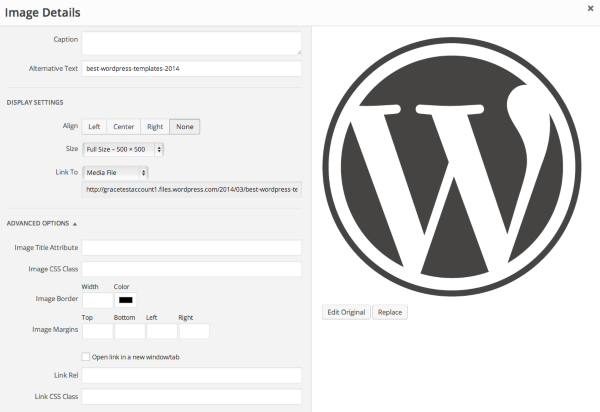
Cheers!


- The topic ‘Remove Image Boarder’ is closed to new replies.
 WordPress.com Forums
