

Removing the transparency and headings color of a header image in ixion
-
I am creating a website for a company and they have a specific image which has already been color adjusted for their website. I’ve uploaded it as the header image in the Ixion design. When I updated the color for the headings in the customizer, it changed the transparency of the image so that it is more faint and, more importantly, not what the client wants.
Is there a code that will either remove the colorization completely from the header image or that can remove the transparency?
The blog I need help with is: (visible only to logged in users)
-
I only need this on the home page (it actually only applies the color on the homepage; it doesn’t do this when I have header images on other pages).
-
I have some good news! Based on several requests, we’ve added a new option to Ixion to change the opacity of the overlays in Ixion, or even remove them entirely.
Go into your Customizer‘s Theme Options panel and you should see the new options. Under “Header Image Overlay” and “Featured Content Image Overlay” – choose “None” if you’d like to completely remove the overlays, like in this screenshot:
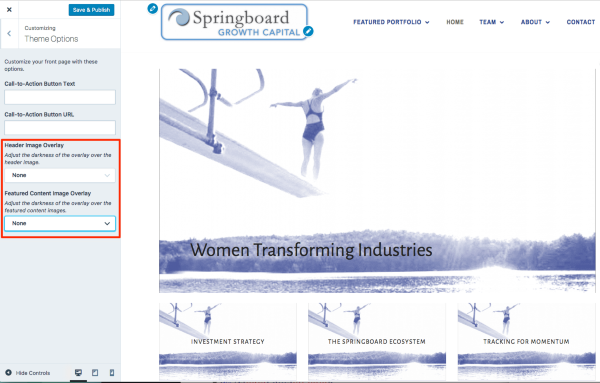
Just let me know if you need any help with it.
-
This is great news being able to remove the overlays. What I would like to do now is put an opaque overlay behind the text on the featured posts so that it is more easily readable. I figured this out for the site description but can’t do it for featured posts.
-
johnwallisfoundation7 – this can be done with custom CSS. If you need help with it, please post in the CSS Customization forum and include a link to your site. Thanks!


- The topic ‘Removing the transparency and headings color of a header image in ixion’ is closed to new replies.
 WordPress.com Forums