

Requesting brief consultation
-
Hi. I’m new at this but getting the hang of it! I like my website so far; however, when I click on Book Reviews or any of the navigation menus, at the top left of the page, you see my site title and tag line. I don’t know how I ended up placing those, unless it’s something that’s done automatically. I don’t want them there, but they don’t show up when editing the page, so I can’t delete them. Any help you can give is appreciated! Lori
WP.com: Yes
Correct account: YesThe blog I need help with is: (visible only to logged in users)
-
Howdy,
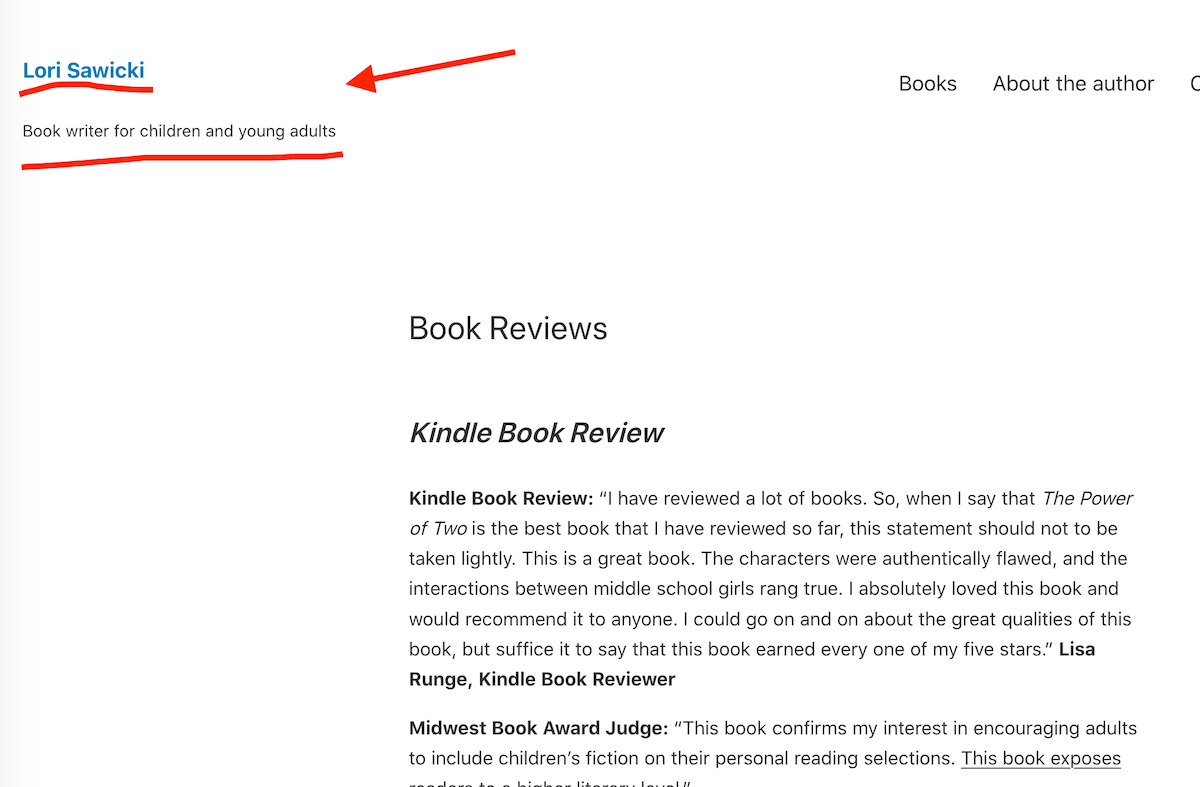
Just to clarify, this (underlined in red) is what you are talking about and do not want to display?
-
Correct. I’m not even sure how/why it’s there. But it appeared one day. Is it something that happens automatically? Or did I create that by accident? Thanks!
-
It would have started appearing if you filled out your site title and tagline. But you can fix this since your site’s theme can use the Full Site Editor.
Go into your dashboard and select Appearance -> Editor (beta). Then, at the top center of the page, you should see “Footer only.” Next, click the down arrow, then choose “Browse All Templates.”
On the next page, you’ll see a list of your theme’s templates. What you want to select is “Header and Footer Only.” Once on that page, click the three lines in the upper left of the Editor – this will display the List View of that template.
Then, you’ll want to drill down by clicking the down arrows in the Header section to find where your site title and tagline are displayed. Here’s a screenshot that should help:

To remove your site title and tagline, you can delete each element individually or the group element with both items in it by hovering over the element, clicking the three-dot menu that will appear, and choosing “remove.” You can also remove the Site Logo in the same way if you’re not going to set a Site Logo on the site.
This should remove your site title and tagline without affecting your navigation menu. When you’re finished, click the blue “Save” button in the upper right and confirm your changes.
That should take care of it! Let us know if you have any questions.
-
And that will delete the site name and tagline from JUST the menu pages
…not from the Site Page itself? -
It worked! Thank you so much for this help! I wish I knew what I did to create this on the menu pages, but your instructions worked perfectly to delete it. Thank you again very much. I love this tool and customer support already! Lori
-
Yay! Glad that worked! :D
I think that information was in a general template that had those elements as a default setting. With the Blank Canvas theme, it’s easy to use templates (like a pre-made header with a menu, site title, tagline, and site logo already built-in) to get started. The beauty of the Full Site Editor is that you can refine and tweak things to look just like you want with a little work.
You should be all set! :)


- The topic ‘Requesting brief consultation’ is closed to new replies.
 WordPress.com Forums