

Resizing. Your explanation does not correspond to what I see on my screen
-
Resizing images. Your explanation talks about scale image or width. When I try to edit a picture I have posted, the only option I see for resizing is Image Margins: top, bottom, left, right. Nothing about scale image or width, as in your explanation. I don’t know how to use this. This seems much more complicated than the way it was.
The blog I need help with is: (visible only to logged in users)
-
Hi armsopenwide,
Are you looking to resize the image once it’s been added to a post?
If so maybe this will help.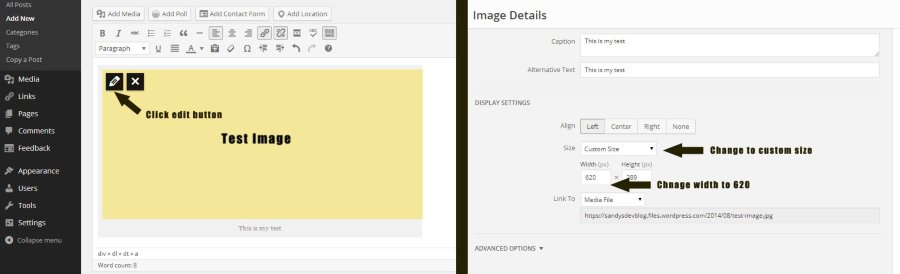
So first you would click the image, then click the edit button which appears. Then set the Size to be custom size. You can then set the width to what you would like (in the screenshot 620).
Hope that helps, if not let me know.
-
Yes, the image is already added. But what you are showing me does not show up on the edit screen. The only thing below image margins is this:
Link Rel
Link CSS Class
And that’s the bottom; there’s nothing for changing width. So I have to say since my edit screen does not match yours, I can’t utilize your help.
My computer is a Toshiba in Windows 8.1 -
Are you able to post a screenshot of what you see?
http://en.support.wordpress.com/make-a-screenshot/
The size setting should be above the margin setting. -
Image Details
CaptionAlternative Text DISPLAY SETTINGSAlign Left Center Right None
Link To Image URL Custom URL None
ADVANCED OPTIONS Image Title AttributeImage CSS Class Image Border WidthColor
Image Margins TopBottomLeftRightOpen link in a new window/tab
Link RelLink CSS Class -
I’m not sure why the size option isn’t showing up for you.
I’ve tagged this for a staff member to have a look. -
Hi there!
To resize a photo already inserted in a post, you can either:
- Click on the image and drag the small white boxes that appear on every corner of the image.
- Click on the image and click on the pencil icon to bring up the Image Details screen. Under “Size”, choose your desired size from the select menu.
You may also resize a photo from your Media Library. Please follow these steps:
- Select an image in your Media Library
- Press the “Edit Image” button in the screen popup
- Under “Scale Image”, enter your desired dimensions
- Click Scale to finish.
For more detailed instructions, please refer to this support page for guidance:
http://en.support.wordpress.com/images/image-editing/#resizing
Let me know if you have any follow up questions. Good luck!
-
I used number 1. on your list and it worked. Thank you! I will save this for future reference..


- The topic ‘Resizing. Your explanation does not correspond to what I see on my screen’ is closed to new replies.
 WordPress.com Forums