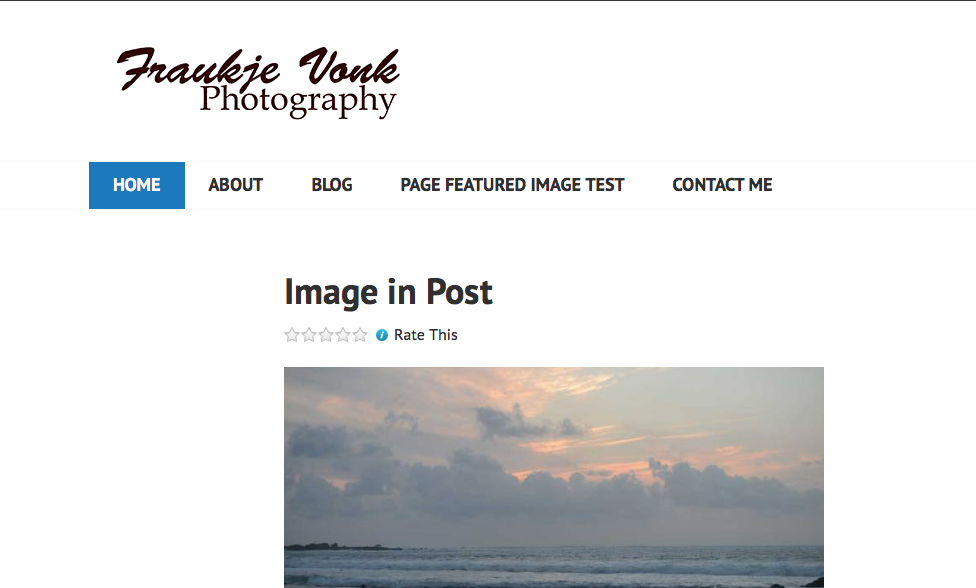
space between header image and featured image
-
Hi! Is there a way to make the space between the header image and the featured image (the white space between the cactus and the iguana on my site fraukjevonkphotography.com) narrower? Thanks!
The blog I need help with is: (visible only to logged in users)
-
Hi, your logo image had a lot of white space on the bottom of it, which is causing the problem. Edit that image in an image editing program and crop out more of the whitespace below the text and then upload that image and insert it as your logo image.
-
Thanks, but I tried that. Cropping the logo image doesn’t change the height of the white space. Any other suggestions? :-)
-
Hi there, there is still a lot of whitespace in the image you are using below and above the text.
I took the image you are using into Photoshop, resized it to 341px in width, which is what the logo was coming in at, and then I cropped it close to the text within, saved it as a png and this is the result I got on my test site with it set to Edin: https://cldup.com/6DsW27t7bv.png.
Here is the file I created: https://cldup.com/2dJIijmm1O.png .
Download that to your computer and go to Customize > Site Title, Tagline & Logo and upload and set that image as your logo and see if that doesn’t take care of the issue for you.
-
If you wish less space above and below the logo, there is 30px of top and bottom margin in the site logo link div. Add this to your custom CSS and then adjust the top and bottom margin numbers as desired.
.site-logo-link, .site-title { margin-bottom: 30px; margin-top: 30px; } -
-


- The topic ‘space between header image and featured image’ is closed to new replies.
 WordPress.com Forums