

Temporarily make blog invisible while changing theme and content
-
Is there any way to hide my blog temporarily while I make changes to it? I’m doing a significant change to a small business website from simply a blog website. I don’t want it to be seen while it is under renovation! Thanks.
The blog I need help with is: (visible only to logged in users)
-
Hello there, Mighty Love!
You certainly can change your site’s visibility while making changes.
To do so, change your privacy settings here:
https://happilyeverafter30.wordpress.com/wp-admin/options-reading.php
Scroll down to see Site Visibility and change your settings to, ” I would like my site to be private, visible only to myself and users I choose.”
Then, save your changes.
That should do the trick! If I can help in any other way, please drop me a line. Cheers :)
-
-
Hey Brianna,
It is my pleasure to help. If you need additional help, please do let me know!
Best of luck with the adjustments! Take care.
-
Glad you said so – I’m stuck again. :) I’ve just switched over to the Sela theme and on the new page I’ve made the static ‘home’, I can’t see the Page Attributes box to use the front page template. Am I missing something?! Thanks!
-
I’ve read the Sela instructions and know it should be under the Publish box but….I just can’t see it!
-
Hey there!
Nice choice. I love Sela. It’s a newer theme, and we’re all fans of the design!
To find your templates, open your Home page in your editor:
https://happilyeverafter30.wordpress.com/wp-admin/post.php?post=4356&action=edit
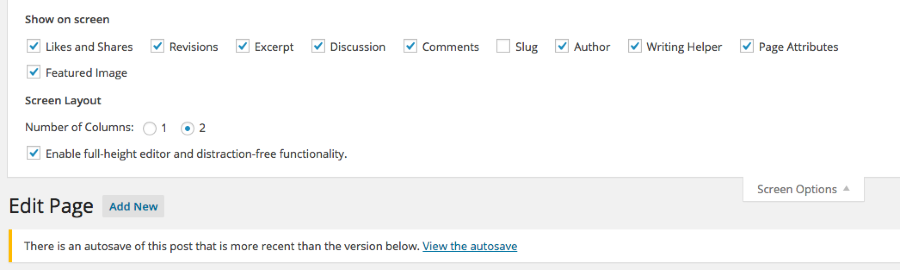
If you don’t see the Page Attributes box on the right-hand side of the page, take a look for the Screen Options tab in the top, right of the screen.
Click that tab. When the Screen Options box opens up, select Page Attributes. Once the box is clicked, it should display on your site.
It should look like this:
I hope this helps! If you have any other concerns, drop me a note. Thanks much!
-
Thanks. I am making some headway!
One thing I can’t seem to get right on the front page is underneath the two testimonials, the ‘like’ button keeps appearing. I’ve un-ticked the ‘show likes’ button on each testimonial page I’ve created, however, it keeps appearing. Is this a widget? If so, I don’t seem to have any footer widgets activated. Thanks!
-
Hey there!
One thing I can’t seem to get right on the front page is underneath the two testimonials, the ‘like’ button keeps appearing. I’ve un-ticked the ‘show likes’ button on each testimonial page I’ve created, however, it keeps appearing.
This one is a bit tricky and counter intuitive. You can turn off the likes for the testimonials here:
https://happilyeverafter30.wordpress.com/wp-admin/post.php?post=4358&action=edit
Scroll down and opt-out of Likes. Then, save your changes.
That should hide those for you.
Please let me know how it works out! Thanks so much.
-
Hi! I opted out of both likes and shares as instructed and those darn Like buttons are still appearing on the front page under the testimonials…
Any other ideas?
Thanks! -
Hi again! Two more q’s regarding my front page:
1. Is there any way to reduce the large white space between the text and image widgets I have set up?
2. I want the text widget to link to a page on my website (similar to the theme demo). How do exactly I do that? Can I create a hyperlink in the text widget box?
Thanks!! (You are ever so helpful as this is all not so intuitive for me.)
-
Hi
I’ve made some progress and got rid of the like buttons. Seems others were having this problem too. I have also figured out how to link the images on my front page to the other pages of my site, however, I’m still struggling with lining up the images in the ‘grid’ (via image widgets) and making the text and the images closer together. I don’t like how it looks currently. Too much space and not aligned. http://www.mightylovecoaching.com
Furthermore, is there any way to get rid of the headings on each page? The page name is sufficient – feel like its redundant to have each page titled as well.
Thanks!
-
Hey there!
Sounds terrific about your removal of the Like buttons. Nicely done.
To address your additional questions:
1. Is there any way to reduce the large white space between the text and image widgets I have set up?
You can make spacing adjustments by changing the CSS code for your theme. You have the ability to do so because of your Premium upgrade.
If you’d like to give this a try, click Appearance → Customize in your site’s Dashboard. Then, click CSS in your right-hand menu. In the CSS Revisions box, please paste the following underneath all existing text:
.widget {
margin-bottom: .1em;
}Then Save your changes.
You mentioned that your widgets don’t line up properly. This is because you’ve added/configured your images to display at different sizes. You can take a look at your widgets here:
Click Widgets. Notice that 2 of your images have 150x150px dimensions. Your middle image is configured as 200x200px. You can adjust them all to match, and everything should line up well.
2. I want the text widget to link to a page on my website (similar to the theme demo). How do exactly I do that? Can I create a hyperlink in the text widget box?
Could you please tell me which widget your want to link? Also, please give me the page/post to which you want to link. Do you want the image or the text in the widget to act as the link? Please let me know and I can help further.
Furthermore, is there any way to get rid of the headings on each page? The page name is sufficient – feel like its redundant to have each page titled as well.
This is also adjustable with CSS code. Following the same instructions I gave you above, you can add the following:
.wf-active h1 {
visibility: hidden;
}Please do let me know how this works for you. I’ll keep an eye out for more information about your widget links.
Thanks!
-
Hi!
Thanks for this. I managed to link the image widgets to pages all on my own!1. Ok I hid the titles, however, I don’t want the titles hidden of my blog posts. Those are important and have disappeared as well. How do I make an exception?
2. Secondly, I have made the first and second images + text widgets line up perfectly after some playing around but the third text/image widget is being so unhappy! The pic is almost exactly the same size as the first and it’s not lining up. Seems a bit higher. Any thoughts?
3. Also, the testimonials on the first page don’t automatically show up in the testimonials page? Is there any way to change that?
I’m learning so much from you!
Best,
Brianna -
Hey Brianna!
Thanks for this. I managed to link the image widgets to pages all on my own!
You’re continuing to rock your site! Nice work. It’s really cool to watch :)
1. Ok I hid the titles, however, I don’t want the titles hidden of my blog posts. Those are important and have disappeared as well. How do I make an exception?
Unfortunately, this is the same code. If you hide one, the other will disappear as well. I’m afraid there isn’t a way around this as they are both identified as entry-title in the CSS code.
2. Secondly, I have made the first and second images + text widgets line up perfectly after some playing around but the third text/image widget is being so unhappy! The pic is almost exactly the same size as the first and it’s not lining up. Seems a bit higher. Any thoughts?
I think the problem is the distribution of white space/negative space in your images. For instance, there is more white space over the image than there is below it. Because of that, it really can’t appear centered with the other images.
If you want all your images centered, they should appear centered in the actual file first and foremost.
3. Also, the testimonials on the first page don’t automatically show up in the testimonials page? Is there any way to change that?
Testimonials display on your archive page as if they were blog posts on a blog post page. Because of this, they follow the rules that you set here:
https://happilyeverafter30.wordpress.com/wp-admin/options-reading.php?settings-updated=true
Notice that you have 3 posts displaying per blog page? If you bump that number to 5, and save your changes, all your testimonials will appear.
I think I covered everything there. Let me know if I missed anything, of it I can help with anything else! Many thanks :)
-
Thanks for your support! I feel like I’m definitely getting somewhere! I have a few new challenges:
1. I can’t seem to get the 3 photos to be the exact right size for the 3 front page widgets. Can you tell me exactly how big in pixels the 3 photos are on the instructional theme page: https://theme.wordpress.com/themes/sela/? Also, how did the text end up underneath the pictures but not the titles? I like that look.
2. Also on the front page, is there any way I can make the box inside my front page image to be less square and more rectangular like the instructional theme page?
3. Is there any way to ‘check’ that the email boxes work? I tried to send an email through it to myself but to no avail. I want to make sure they go through to my google email address that I’ve set up. I think I set that up correctly but want to double check. :)
I think that’s it for now.
Thanks!
Brianna -
Hey Brianna!
Let’s take a look at your more recent inquiries…
1. I can’t seem to get the 3 photos to be the exact right size for the 3 front page widgets. Can you tell me exactly how big in pixels the 3 photos are on the instructional theme page: https://theme.wordpress.com/themes/sela/? Also, how did the text end up underneath the pictures but not the titles? I like that look.
The images in the grid are displaying as 321 x 214px in the Sela theme demo page. It looks like you took the images down. if you add those again, I can help with the placement of the text!
2. Also on the front page, is there any way I can make the box inside my front page image to be less square and more rectangular like the instructional theme page?
The reason that it’s square on your site is that you’ve added more content to the box (the contact form) than exists on the Sela demo site. The box is a fixed width. You can make it look rectangular by removing some of your content from the box.
You can also make some edits to the CSS code, however it will cover more of your header image.
If you’d like to give this a try, go to your Customizer. Then, click CSS in your right-hand menu. In the CSS Revisions box, please paste the following underneath all existing text:
.front-page-content-area .with-featured-image {
width: 625px;
}Then Save your changes.
3. Is there any way to ‘check’ that the email boxes work? I tried to send an email through it to myself but to no avail. I want to make sure they go through to my google email address that I’ve set up. I think I set that up correctly but want to double check. :)
Do you have an email address other than your gmail? Gmail doesn’t allow you to test these boxes from the same email account to which you’re forwarding your custom email addresses. If you can test it from another email client, great. If not, let me know, and I can test whatever addresses you want from our @wordpress.com email account.
Thanks again!
-
Hi again! Things are really coming long nicely. Thanks again for your support. I’m almost ready to launch. A few quick ones:
1. Does a viewer of my website have to have spotify installed on their computer to listen to my playlists? Mine automatically opens when I push play. Also, is there any way I can put the playlists side by side or do they have to go one one top of the other? There is a lot of white space this way.
2. On my ‘WORK WITH ME’ menu page I’ve somehow managed to create a different title for the page called “What mighty love coaching’? How did I do that and how can I replicate that on other pages?!!! I can’t seem to get it right to replicate. :)
3. I’ve got my images up now in my front page sidebars and would love your advice on moving the text underneath but keeping the title above.
THANKS!
-
Hello there!
1. Does a viewer of my website have to have spotify installed on their computer to listen to my playlists? Mine automatically opens when I push play. Also, is there any way I can put the playlists side by side or do they have to go one one top of the other? There is a lot of white space this way.
I just tested this and was able to play your audio (without Spotify installed). It’s playing directly from your embed.
If you want to layout those embeds different, you can add an html table. Here’s an example I created in your drafts:
https://happilyeverafter30.wordpress.com/wp-admin/post.php?post=4609&action=edit&message=10If you’re not familiar with html tables, here’s some basics:
http://www.w3schools.com/html/html_tables.asp2. On my ‘WORK WITH ME’ menu page I’ve somehow managed to create a different title for the page called “What mighty love coaching’? How did I do that and how can I replicate that on other pages?!!! I can’t seem to get it right to replicate. :)
The page is called “Why Mighty Love Coaching?” Your menu item is titled “Work With Me.”
To adjust this for other pages, make sure the page is names as you wish, go to your custom menu page, open that menu item, then change the title.
3. I’ve got my images up now in my front page sidebars and would love your advice on moving the text underneath but keeping the title above.
I suggest using a single Text widget. Give it a title. Place the image at the top of the content box, then the text beneath it.
That’s how it’s done on the Sela demo, too.
Thanks again! It’s coming together so nicely!
-
Great! I’ve done all of this!!
On the front page text widgets underneath the images, I want to put in hyperlinks to other pages & to say ‘read more’ or something like the demo so that readers know where they are going. Can you advise me on that?
Thanks!
Brianna


- The topic ‘Temporarily make blog invisible while changing theme and content’ is closed to new replies.
 WordPress.com Forums