

Text Wrapping Images
-
Hooray! Your site is looking great, I’m so glad it’s coming together for you.
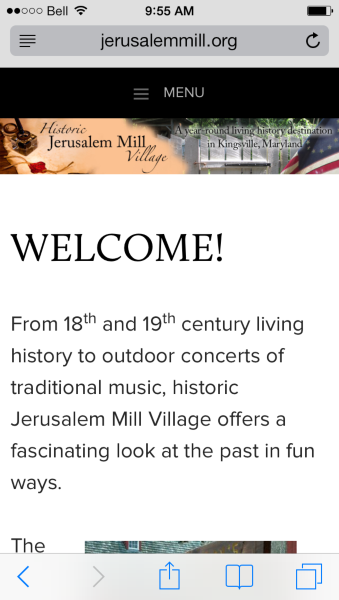
Regarding your question: your theme comes with an alter-ego version specially designed to be friendly to mobile users, which means that the layout has been adapted for better viewing on a tiny, narrow screen. It also means the text size has been bumped up a bit for easier reading on a small screen. I personally think it’s a good size, easy on the eyes and especially handy for big fingers trying to tap on text links. ;) But take a look and see for yourself.
Here’s a screenshot from my phone:
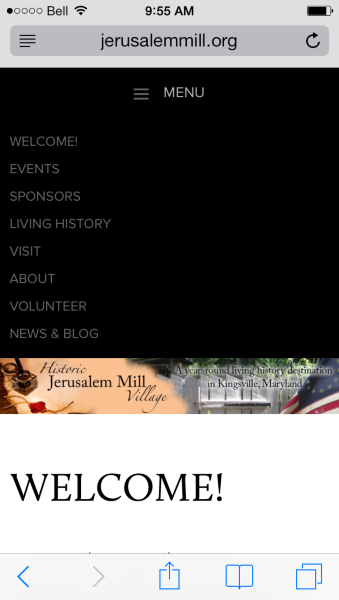
And another screenshot with the menu bar open:
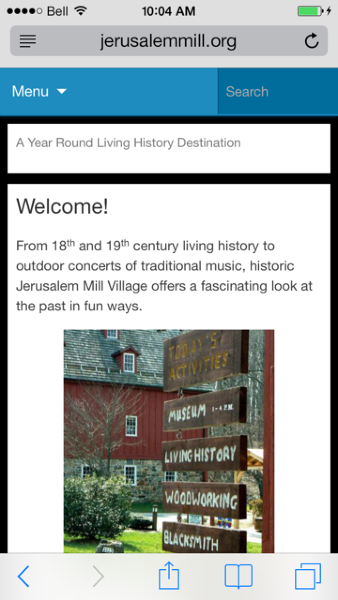
If you decide you don’t like it, you could try enabling the default WordPress mobile view instead (go to Appearance > Mobile and click ‘Yes’ beside ‘Enable mobile theme’) — the text will be a bit smaller but the style will be different. Here’s some more info about the options:
http://en.support.wordpress.com/themes/mobile-themes/
I enabled it for a moment to show you a screenshot of that as well:
The only other option is to keep the current view and try adjusting your custom css to reduce the text size just for mobile. Let me know if you want to try that, and I’ll see what I can dig up for you!
-
One again Denise, you help us out again! You just never let us down! Thank you.
I will speak with my client and ask her what option she would like to take and get back to you concerning the CSS text size.
Until then, I am attempting to change our “News & Blog” page into a post. I have no problems posting a post, I just am not able to seem to find where it is posting to and how to link that to the “News & Blog” page.
As always, you are the best! You need to be added to our Christmas list!
-
Hi Denise,
ANOTHER question for you… at the bottom of the site, it reads: “Blog at WordPress.com. Customized Untitled Theme.” Are we able to change that at all? I know that my personal site, CJFYStudio.com has this at the bottom: “© 2013 CJFY Studio – All Right Reserved”. I didn’t know if we were able to write something about the mill and also put that it was designed by CJFY Studio? If so, of course, how?
Once again, thanks a million!
-
Oh, sure. As part of the terms of service, it’s required you leave the WordPress credit as is in the footer. You can’t remove the text that says ‘Blog at WordPress.com. Customized Untitled Theme’ but you can add text after that area, no problem.
I added some custom css for your site that places some copyright text to the bottom, underneath the WordPress text.
You can change it by going to Appearance > Customize and selecting the CSS option on the right side, then editing the text between the quotation marks below. Here’s the code:
.site-info:after {
   content: "© 2014 Jerusalem Mill Village - All Right Reserved";
}
Change it to whatever you like, if you need to! Let me know if you have questions.
-
Thank you again Denise!
Were you able to take a look at the blog post I created? I cannot tell if it is linked to the News & Blog page or is that just the News & Blog page and the actual blog post is floating out in cyber space somewhere.
thank you, Thank You, THANK YOU!!!
-
Good morning Denise,
How are you today? Could it be possible to go a day without hearing from me? Not yet, I suppose!
We are having issues with our “Follow or Blog” option. If you click on the “Follow +” button, you are taken to a screen where you can enter your email address and sign up to follow our blog. However, if you click on the word “Follow” in the widgets’ side bar, you do not get this same screen, you are directed to a Word Press sign in page.
Do you know why this would be happening?
As always, thank you very much!! -
Morning!
Ahh, I see what you’re trying to do. Right now, the blog post is floating in cyberspace, you’re right. :)
a) To make the blog a section on your site with a menu item, you need to do the following steps:
1. Create a category called ‘news’ or ‘blog,’ whatever you want to call it.
2. Assign that category to your post. Go to your post edit page and find the ‘Category’ box in the right-hand sidebar. Select the right category, then click ‘Update.’
3. Go to Appearance > Menus and make sure you’re editing your ‘Main Menu.’ Remove the page called ‘News & Blog’ (open it in the list and click ‘Remove’ to remove it), and add a category item to your menu instead. You can find the ‘Categories’ box over on the left the same way you found the ‘Pages’ box to add pages. Here’s some specific info:
Once those steps are done, then clicking on the new menu item is going to show an archive of all posts with that selected category assigned to them!
Take a stab at it and let me know if you have questions. I can take a look when you’re done!
b) I wanted to point out that you’re not using your Site Title field here: https://jerusalemmill.wordpress.com/wp-admin/options-general.php
Search engines are very interested in the title of your site, it’s a big part of how they index. I figured that you might have taken it out because you have your title in your header graphic. I did a little workaround for you — I added your title back to your settings page, but then I added a little custom css to hide it from your menu bar. That way, it is still registered as your site title, but it doesn’t conflict with your header graphic. For future reference, here is the css I added:
#logo .site-title { display: none; }
c) I took a look at the Follow item in your sidebar. Turns out it was working fine, but the field that users would enter their email address in was missing its border, so nobody could see where to add their info! Clicking the ‘Follow’ button without adding an email address brought users to the WordPress.com page you saw.
I’ve added a border around the input area in your css, so that should fix the problem.
Let me know if you have any questions!
-
Once again Denise, you are a saint! Thank you!!!
I worked through the process of making the changes you suggested to the categories area of the blog. When I deleted the page “News & Blog” out of the menu, of course it was deleted off the navigation bar as well. Can you please tell me how to get that back on?
-
If you want the menu item to show all the posts in the blog category, then you definitely wanted to delete the ‘News & Blog’ page from the menu.
Now that it’s gone, you just needed to add the category menu item, instead of the page menu item. For future reference, these are the step-by-step instructions to do that:
But in the meantime, I pulled the right one over for you, and it’s now working in your menu bar. You can follow this link and see your properly-categorized post displaying!
http://jerusalemmill.org/category/news-blog/
Hope that sorts it for you. If you have questions, just ask. :)
-
-


- The topic ‘Text Wrapping Images’ is closed to new replies.
 WordPress.com Forums