

Trying to add links and ways to view scanned articles
-
Hi Guys: On my left sidebar, I have a list of recently published articles in magazines. I would like to have the links to those magazines be active. Right now, people have to cut-and-paste. There are a couple of articles that are not on-line. I have scanned them and would like to post them on the side so that people can click on them and go to the scans. Is there a way to do this? My landing page is static, so I can’t set this up as new posts. At least, I don’t think I can. THANKS
The blog I need help with is: (visible only to logged in users)
-
Hi Fran,
So what you can do is upload the scanned file to your Media > Library (here is a list of accepted Image and Document filetypes). Then you will be provided a link to that file. Then you can hyperlink the text on the left sidebar so that readers would have access to those uploaded files.
Here’s a step by step guide to uploading these files:
I see that you added those articles in a Text Widget. So in order to add links in a text widget, you can use this guide:
http://en.support.wordpress.com/links/text-widget-links/
If you need any help with this please let me know and I’d be happy to see what I can do!
-
This is super; very close to what I need! Too cool!
I uploaded everything and got it into the widget sidebar. The entire article is there; it was several pages that I had to upload to the library. That takes up a lot of space on the sidebar. Is there a way I can show the first page and when readers click on that, have a “read more” link to the other pages?
Thanks!!!
Fran Severn
Writing and Editorial Services
fran
http://www.severnwriter.com
443-260-2390 -
Hi Fran!
Since the images for 4 different files, I think the best way would be to add a gallery to that widget instead. This will essentially shrink the four images, but if you click on them it will bring up each image to full size. It will look something like this:
So instead of the text you added in the text widget, you can add the shortcode for the gallery. Try adding this:
[gallery link="file" columns="4" ids="953,954,955,960"]In order to get that gallery shortcode, I created a new draft post (you won’t publish this, but to just get the gallery shortcode, this is a fast and easy way to do this). Then I selected, Add Media. I switched to add a gallery tab on the left hand side. Then I selected the images I wanted, switched the order to my desire, changed the columns to 4 since you have 4 images, and clicked Insert. Then I switched my editor to the Text Editor. When I am there, I am able to get the Gallery shortcode. I copied this and then pasted that into my text widget.
Let me know if you have any questions with this!
-
WOW!!! This works! And you explained it so kindly and well that I was even able to figure it out. (I do NOT think like a computer person). THANK YOU THANK YOU!! Whatever they pay you, it is not enough!!!
Fran Severn
Writing and Editorial Services
fran
http://www.severnwriter.com
443-260-2390 -
Hmmm… there is a problem. When the images come up, they are not full-page sized. They can’t be read. Is there a way to have them open full-sized? Like in the magazine?
Fran Severn
Writing and Editorial Services
fran
http://www.severnwriter.com
443-260-2390 -
Hi Fran!
I’m glad it worked out! So when I open it up the image is a smaller size; however, I am able to zoom into full size as seen here:
So here’s what I get when I first open up the image:
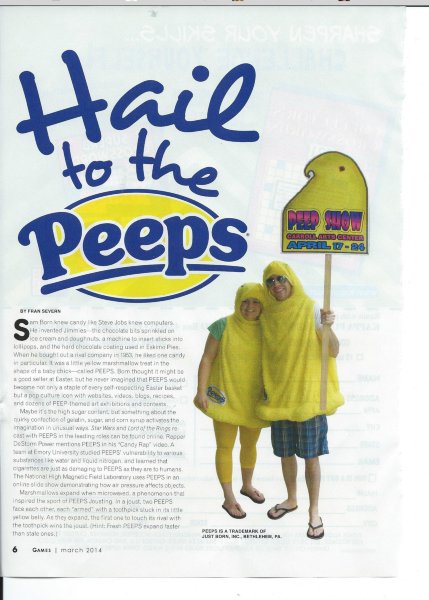
This is the zoomed in version:
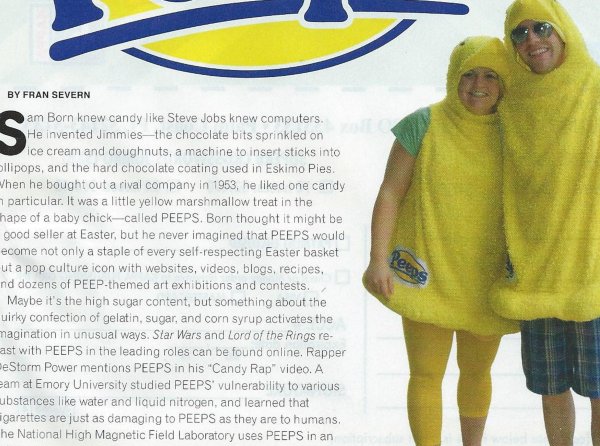
-
I’m not getting the zoom. I get a slide show version of the gallery. I can click on each image, and the image is larger than the thumbnail, but I don’t get the magnifying glass or can find any other way of enlarging the photo.
Is there a way to put the first page in the widget sidebar which takes people to the first, full-sized page, and then have a “read more” that takes readers to the other pages which will also be full-sized? Kind of like posts which have a couple of paragraphs and then “read more” link to the rest of the story?
My problem is that I want to post several articles in the widget sidebar, but to have the full-pages for the entire article gets cumbersome.
Fran Severn
Writing and Editorial Services
fran
http://www.severnwriter.com
443-260-2390 -
Is there a way to make this into a post, and then have the thumbnail in the widget which, when clicked, takes the reader to the post?
Fran Severn
Writing and Editorial Services
fran
http://www.severnwriter.com
443-260-2390 -
Hi Fran,
So there’s a link at the bottom to view full size as seen here:
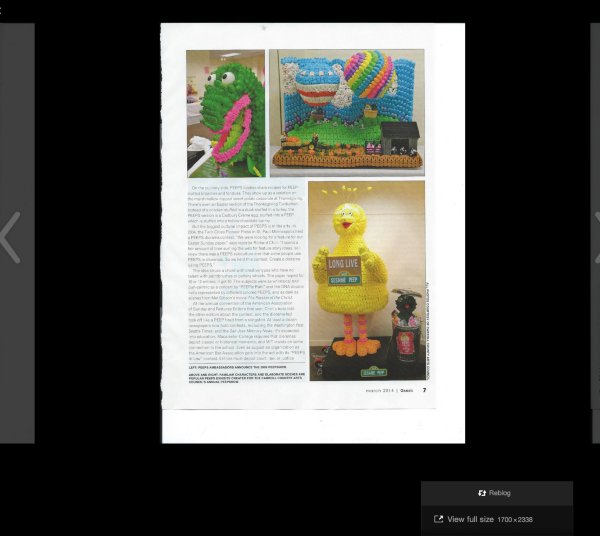
Is there a way to make this into a post, and then have the thumbnail in the widget which, when clicked, takes the reader to the post?
Sure! What you can do is put all 4 images in a post (full size). Then, in your text widget, just add the first image and link it to that post. So it should look something like this:
<a href="POST URL"><img src="https://severnwriter.files.wordpress.com/2014/06/scan0010.jpg"></a>So where is says POST URL, please paste in the URL to the post with all four images.
Let me know if you have any questions with this!
-
OK, I’d already made the 4 images into a post. I copied the coding you gave and that shows up in the sidebar as a thumbnail for the first page. When I click on that, all I get is a larger copy of the page. I’m not sure about “where is says POST URL.” Nothing like that on the widget text edit area. I followed the instructions for the LINKS support you sent earlier. Specifically #4 “if you want to link to one of your existing posts or pages.” When I put that into the widget text edit area and save it all, what I see in the sidebar is the thumbnail for the first image. When I click on that, I get an error message: Ooops that page can’t be found.
Here’s what I’m putting into the widget text edit:
;
Oy!
Fran Severn
Writing and Editorial Services
fran
http://www.severnwriter.com
443-260-2390 -
This is making no sense.
I have put the 4 pages as a post, no problem. (The URL for that is http://severnwriter.com/2014/07/02/hail-to-the-peeps-2/)
I have put the first page, that first image, as a widget sidebar.
I’m not sure where the “POST URL” instruction is found. It’s part of the new post instructions, I think that’s where you want me to go, but I’ve not been able to get it to link to the first image.
I am adding the URL of the post with all 4 pages to the widget text, placing it after the image. When I click on the image, I get an error message of “Page not found,” although in the list of articles that appears below that message, the article is listed.
I’ve tried every variation of this I can think of, with no better results.
Ok, coach, what’s next?
Fran Severn
Writing and Editorial Services
fran
http://www.severnwriter.com
443-260-2390 -
Hi there,
Try adding this to a text widget:
<a href="http://severnwriter.com/2014/07/02/hail-to-the-peeps-2/"><img src="https://severnwriter.files.wordpress.com/2014/06/scan0010.jpg"></a>That should do it. Let me know how this works out!
-
ah HA! It worketh. It appears I was putting the two links backwards to the way they need to be.
Let me try it with one of the other stories I want to link and see if I have it right.Fran Severn
Writing and Editorial Services
fran
http://www.severnwriter.com
443-260-2390 -
OK, I need a step=by=step set of directions, ’cause I;m just not getting this to work!
1) Create a new post using all images full-sized. DONEI have developed coding that looks like what you developed for the PEEPS story, but when I put it into the text widget, nothing shows up in the sidebar.
I know I must appear pretty slow, but can you please give me very simple steps #2 forward?
I’ve downloaded the “Links” directions and the “Text Widget Links” directions. But I’m still getting confused.
I’m not finding the URLs that I need, nor can I figure out how to “ADD URL.” Where does that come from? The URLs I’m getting when I open the page don’t work.
And do I then copy and paste in the text widget? I’ve tried that, but nothing appears in the sidebar.This is for the Bela Basci story.
Fran Severn
Writing and Editorial Services
fran
http://www.severnwriter.com
443-260-2390 -
Hi there,
So it looks like you want to create image links – this means you are linking an image. So, for the text widget I see that you created the link, but did not link the image. This is what you actually need for the Bela Basci story:
<a href="http://severnwriter.com/2014/07/06/988/"><img src="http://severnwriter.files.wordpress.com/2014/07/scan-page-1.jpg"></a>So for the a href – that is the link to the actual post, and the img src is the link to the actual image you want in your sidebar.
So if you were to do this again, you need two link: one to the post, and one to the actual image (remember that it has to end with an image extension like .jpg. Then when you have those two links you just paste them in the respective places:
<a href="POST URL"><img src="IMAGE URL"></a>Here are further instructions if you need it:
-
Hi Graceji:
I think I have it. I did a couple more entries to try and lock the process into my feeble brain. Took several tries, but they are up and apparently working. Not to say I’m not going to goof up again and come back for more help!Many thanks for your patience! This is really helping me get a good-looking page.
Tell WordPress they don’t pay you nearly enough!
Fran Severn
Writing and Editorial Services
fran
http://www.severnwriter.com
443-260-2390 -
Hi Fran!
I just took a look at your site and it looks great! Thank you for the kind words!
Let me know if you have any other questions!


- The topic ‘Trying to add links and ways to view scanned articles’ is closed to new replies.
 WordPress.com Forums