

Visiblity
-
Hi,
This morning, I made my blog visible in settings.
I have five pages.
Only one of the pages (Reviews) is visible when I click on the link on the sidebar.
The other pages have an error message: Nothing Found
In addition, I have to links on the sidebar; they work.URL: diannemarieandre.com
The blog I need help with is: (visible only to logged in users)
-
Sorry, Book Club is the one that is visible.
The title of pages NOT visible: Home; Bio; Dianne’s World; Reviews
URL: diannemarieandre.com -
I’m not clear on what you are reporting. Are you reporting that you have p[ages that do have content however when clicking the links in the custom menu you find the content is not displayed on them? If so that’s extremely odd and may indicate you have more than one version of the page(s) in question.
-
I’ll tag this thread for a Staff follow-up. Please subscribe to the thread so you are notified when they respond and please be patient while waiting.
-
Perhaps this is a custom menu issue and you are not clear on the fact that only dynamic category pages, archives pages and tags pages automatically update when we publish posts. Static pages cannot automatically update.
You may want to create a custom menu and add the dynamic categories pages into it. Then every post you assign the categories to will appear under the relevant category page after the post is published.
Creating a Custom Menu http://en.support.wordpress.com/menus/#creating-a-custom-menu
Adding dynamic Category Pages
http://en.support.wordpress.com/menus/#adding-category-pages
Changing the Order & Creating Sub-Menus http://en.support.wordpress.com/menus/#changing-the-order-creating-sub-menusIf you want a step by step approach with lots of explanation then see here > http://onecoolsitebloggingtips.com/2013/07/25/create-a-wordpress-website-step-by-step/
There are many common errors, misunderstandings and misconceptions when creating custom menus and there are some tweaks you can use to improve your custom menu as well.
-
-
In the sidebar click the subscribe to topic link.
Or below each comment box note __ Notify me of followup posts via e-mail -
Perhaps this will help the Staff:
When I type in the URL (diannemarieandre.com) in Firefox and Goggle, the Home/front page’s content DOES appear. However, when:
I click on the page titles on the sidebar, the Book Club page is the only one that shows content.
Then when I click on the Home/front page the content does NOT appear as it did when I had typed in my URL in Firefox and Goggle.
For now, I am using this WP URL as a website presence; not going to blog at this time.
Meanwhile, Timethief, I am reading though the links you provided. Thank you.
-
Hi there!
Sorry to hear about the problems you’ve had with this. I do see that some items on the menu aren’t properly linked to the correct pages. To resolve this, I created a new custom menu for you via Appearance -> Menus in your admin panel:
http://dandre2014.wordpress.com/wp-admin/nav-menus.php
Can you kindly activate that menu by checking the box beside “Primary Menu” and pressing the “Save Menu” button?
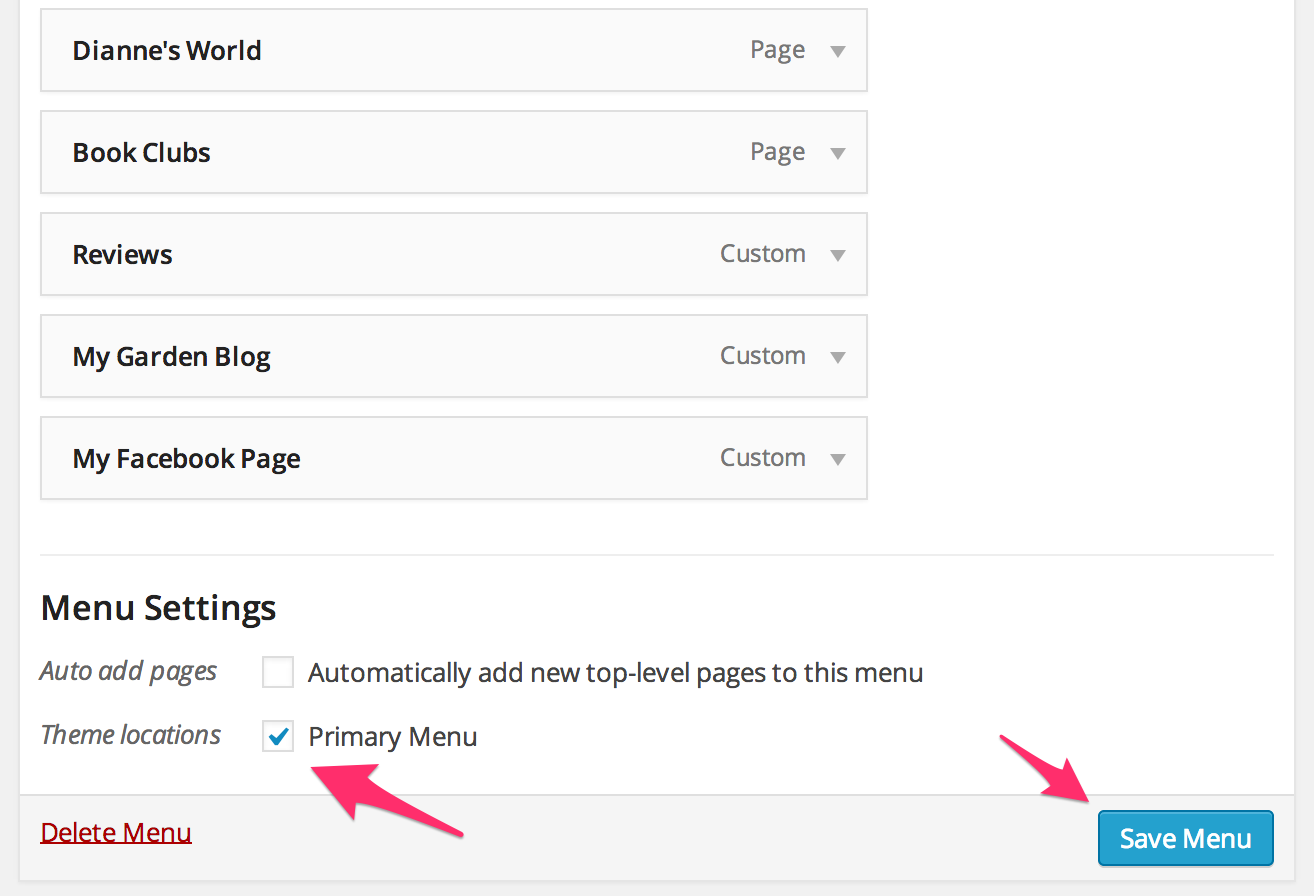
To learn more on how to edit your custom menu, please see this support page: http://en.support.wordpress.com/menus/
Let me know if you run into problems or have any follow-up questions. Thanks!
-
Using Firefox to log in, I did as you instructed in Appearance / Menus and the problem is not resolved.
Also, when I type my URL in Goggle browser I get this error message:
There is a problem with this website’s security certificate.
-
I noticed when I clicked on “Blog” on the sidebar my home page’s content appears and when I click on “home” there’s no content as previously expressed.
Thanks -
Hi there,
Sorry about that. Can you please click here:
https://dandre2014.wordpress.com/wp-admin/nav-menus.php?action=edit&menu=2821
And activate that one as your Primary menu? Let me know if you encounter problems. Thanks!
-
The Bio page says this: Oops! That page can’t be found.
The Review page has my home page content.
When I type my URL in Goggle browser I still get this error message:
There is a problem with this website’s security certificate.
Thank you
-
ALSO,
How do I get rid of the round circle that says, download menu on Dianne’s World page? It appears when I am logged out and view my blog as a visitor.
-
Hi!
The Bio page says this: Oops! That page can’t be found.
The Review page has my home page content.I’ve fixed the links to those pages. :)
When I type my URL in Goggle browser I still get this error message:
There is a problem with this website’s security certificate.Most likely, you visited your site at:
If you noticed, there’s an “s” after the “http”. That means you’re accessing your site securely, and it’s normal for your browser to bring up a warning. The warning should go away if you visit your site at plain “http://”:
How do I get rid of the round circle that says, download menu on Dianne’s World page? It appears when I am logged out and view my blog as a visitor.
That image appears because of the Download Menu image you uploaded in Appearance -> Customize -> Theme Options. I went ahead and removed it, and the circle image no longer appears on the page.
Let me know if there’s anything else I can do for you. Thanks!
-
-
The “Bio” page says NOTHING FOUND.
Hey there! Your Bio page was working after my last edit of the menu. The reason why it’s now showing a “Nothing Found” message is because you’ve set it as your Posts page in Settings -> Reading:
https://dandre2014.wordpress.com/wp-admin/options-reading.php
And currently, you don’t have any blog posts published. If you create a new page and set it as your Posts page, your Bio should show up correctly. Can you please do that? Thanks.
-
-
I am sorry to bother you again.
I am trying to disable “leave a reply” on the ‘home’ and ‘reviews’ pages.
I have read the instructions on ‘enable and disable comments’ and I cannot find the option to disable ‘leave a reply.’
-
Hi there,
The “leave a reply” section is the comments section, so disabling comments will remove that section. If you run into trouble disabling comments on those pages, I’d recommend using this approach:
- Go to the Pages > All Pages screen in your site’s dashboard.
- Select the pages you would like to modify or check the box next to “Title” column at the top to select all pages on that screen.
- Select Edit from the Bulk Actions drop down menu.
- Click the Apply button.
- Change the options for Comments and Pings to Do not allow.
- Click the Update button.
Please let me know if you have any questions about that. :)


- The topic ‘Visiblity’ is closed to new replies.
 WordPress.com Forums