

Websites changed without warning
-
My pages no longer show a gallery and do not allow editing the gallery. I have 2 websites, bobcurrul.com and putnamphotos.com and have used circular galleries on all the pages.
The blog I need help with is: (visible only to logged in users)
-
Hi there!
First off, I want to say that I love your pictures! They’re amazing.
It looks like your circular galleries are displaying correctly on my side. For example, the gallery here is displaying correctly:
Are you still having trouble? If so, can you point me to a page where you’re seeing an issue?
-
The galleries no longer show up on the pages under the dashboard and when I add a photo it comes up as a square rendition which attaches at the bottom of the circular gallery. I’ve made recent additions to “Birds” on B&B and Sandhill Cranes on Putnam Photos. Thanks for the comments on the pictures.
-
Hey Bob!
Please see my answers below.
The galleries no longer show up on the pages under the dashboard
I’m not sure exactly where you’re referring to. Currently, all your pages appear to be showing correctly under Dashboard -> Pages. Additionally, the pages are in your main menu as shown here:
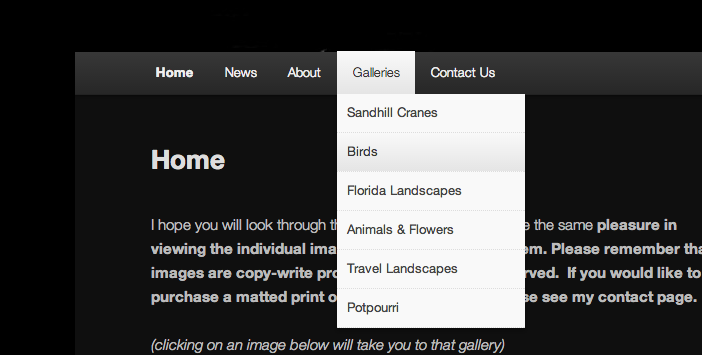
If you’re still having trouble, could you explain a bit more where you’re not seeing the new pages?
When I add a photo it comes up as a square rendition which attaches at the bottom of the circular gallery
It looks like you may be adding the image as a standalone image, not as part of the gallery. For example, please check out the post from Birds.

Notice the bottom image being separate from the gallery in that example?
To fix this, delete the image from your post. Then, follow these steps:
- Click on an image in your gallery. This will highlight the entire gallery, not just the individual image. Example:
- At the top of the gallery, click the pencil icon to edit the gallery
- On the left-hand side of the next window, click “Add to Gallery”
- Select the image from your Media Library that you would like to add (the one you deleted)
- Click “Add to Gallery”
That should add the image and keep the traditional gallery formatting!
-
-


- The topic ‘Websites changed without warning’ is closed to new replies.
 WordPress.com Forums