


If you’re searching for a way to accept payments on your WordPress site, you’ve probably come across the name WP Simple Pay.
This popular plugin makes it easy to accept payments using Stripe (or some of the other payment options that Stripe supports, such as Apple Pay or Google Pay).
But is it the best way to accept payments for your specific situation? Well, that depends.
WP Simple Pay can be a great option for some people, especially people who are looking to accept more complex types of subscription payments and are happy to use Stripe.
However, there are also some situations in which it might not make sense for you to use WP Simple Pay, either because of the features that you need (e.g. its lack of PayPal support) or its pricing compared to other solutions.
In our WP Simple Pay review, we’ll take a detailed look at this plugin to help you decide if it’s the best way to accept payments on your WordPress site.
What Does WP Simple Pay Do?
The core functionality in WP Simple Pay is that it lets you accept payments via your WordPress site.
To process these payments, WP Simple Pay exclusively integrates with Stripe. That is, there’s no option to use PayPal via the plugin.
With that being said, Stripe does unlock a lot of payment options that go beyond just credit or debit cards. Here are some examples of the different payment methods that you can accept via Stripe (and therefore via WP Simple Pay):
- Apple Pay
- Google Pay
- Microsoft Pay
- AliPay
- Direct bank transfers via ACH (in the USA) or SEPA (in Europe)
- Klarna
- Afterpay
- Some other options such as Bancontact, Przelewy24, giropay, FPX, and so on
So while “only” having access to Stripe might sound like a limitation, you actually get a lot of flexibility (as long as you don’t need PayPal!).
Where the magic happens, so to speak, is in how WP Simple Pay lets you configure your payment forms.
One-Time or Recurring Payments
WP Simple Pay lets you accept both one-time payments and automatic recurring subscription payments.
In terms of subscription payments, you can set up your own frequency – e.g. monthly, annually, and so on.
One of WP Simple Pay’s strongest features is its advanced subscription functionality. Beyond “straightforward” subscriptions that bill the same amount on the schedule that you set, you can also get a little more creative:
- Free trials – offer a customizable free trial period before the subscription plan starts.
- One-time signup fee – charge a one-time signup fee that only applies to the first payment. For example, “$100 to get started and then $20 per month”.
- Installment plans – automatically stop a subscription after a certain number of billing periods to create payment plans. For example, “Just three payments of $199”.
You can also give users the option to manage their own subscriptions, including canceling a subscription or changing their payment methods.
Preset or Custom Amounts
In terms of the payment amounts, WP Simple Pay lets you offer one or more preset amounts. Or, you can also let users enter their own custom amounts, which is especially useful if you want to accept donations using WP Simple Pay.
You can also give users the option to choose between a one-time or recurring payment, which is another feature that’s really handy for donations, especially if you have a non-profit website.
For example, you could let people choose between donating $10 one-time or setting up an automatic donation of $10 every month.
Coupons
You can offer percentage or fixed-rate coupons that give a discount to the amounts on the form, which is something a lot of other WordPress Stripe plugins don’t offer. You’re also able to add limits such as expiration dates or a certain number of uses.
For subscriptions, you can also choose whether the coupon should apply to every single payment, just the first one, or a certain number of payments.
For example, the difference between “Get 10% off your first month” and “Get 10% off for the life of your subscription”.
Can You Use WP Simple Pay on WordPress.com?
Yes! If you’re on the WordPress.com plugin-enabled plan, you can install your own custom plugins, including WP Simple Pay.
Do You Need WP Simple Pay on WordPress.com?
It depends.
If you’re on the WordPress.com plugin-enabled plan, you already get access to the Payments blocks to accept payments via Stripe at no extra cost.
You can use the Payments blocks to accept one-time or recurring payments. You can also choose between entering fixed prices or letting people enter their own amounts.
If you just want to accept straightforward one-time or recurring payments via credit or debit cards, you probably don’t need WP Simple Pay if you’re on the WordPress.com plugin-enabled plan.
However, you might still want WP Simple Pay if you need some of the more “niche” features that it offers that go beyond the WordPress.com Payments blocks. Here are some examples:
- Offering coupon codes to give people discounts.
- Using some of the other payment methods that Stripe supports, such as Google Pay, Apple Pay, bank transfers, Klarna, Afterpay, etc.
- Offering free trials or charging one-time signup fees.
- Creating payment plans where the automatic payments stop after a certain amount of time.
How to Start Accepting Payments With WP Simple Pay
Now that you know what WP Simple Pay does, let’s look at what it’s like to create a payment form and start accepting payments with WP Simple Pay.
For this tutorial, we’re using the cheapest premium plugin, which unlocks some, but not all, of the premium features.
1. Create a New Payment Form
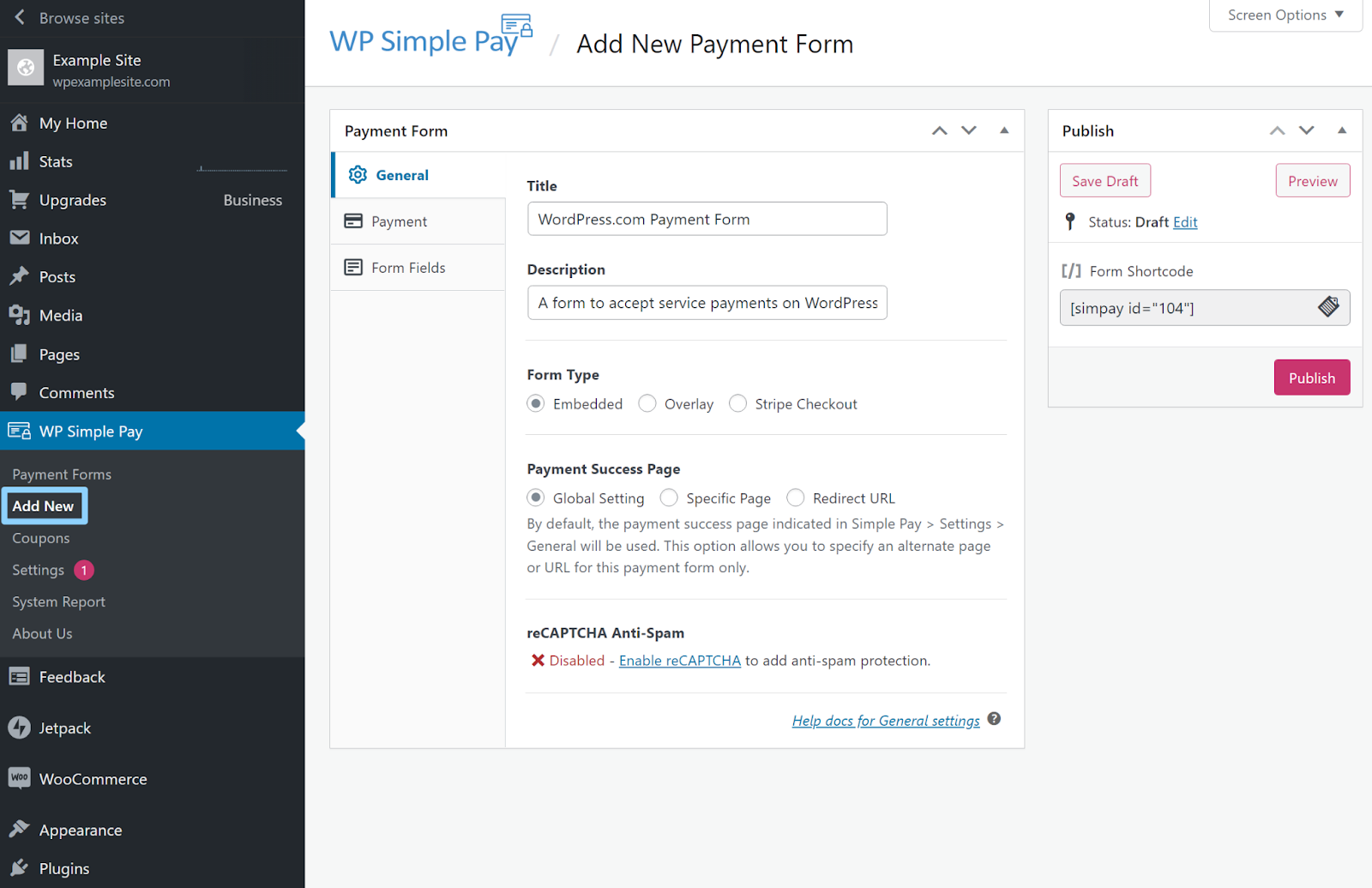
To begin, go to WP Simple Pay → Add New in your WP Admin to create a new payment form.
WP Simple Pay lets you create unlimited payment forms and each form can have its own unique settings and payment options.
On the first page of the settings area, you can add a title and description and choose your form type. For example, you can choose between using an embedded form, showing the form in a popup, or using Stripe Checkout.
You can see some demos of these different form types here.
2. Set Up Payment Options
Next, you can go to the Payment tab in the settings area to configure the payment options that are available to people.
You can add as many options as needed to each form – all you need to do is click the Add Price button.
This version of the plugin doesn’t support recurring payments. However, if you had that license tier (more on pricing later), you would also get options to adjust the billing term for recurring payments:

3. Configure Payment Form Fields
If you want to customize the form fields on your payment form, you can next head to the Form Fields tab.
Some of the adjustments that you can make here are as follows:
- Include additional payment options such as buttons for Apple Pay or Google Pay.
- Add non-payment form fields to collect custom information from subscribers.
- Remove non-required form fields to streamline your form.

If you add a custom field, you’ll get new options to control its behavior:

4. Embed Your Form
Once you’re happy with your payment form, you can click the Publish button to make it live.
Then, you can embed it anywhere on your WordPress site using the provided shortcode:

For example, here’s what it might look like in the editor to create a payment page:

Here are some tips for using WordPress shortcodes, if you’re not sure how they work.
5. Configure Other Settings
To configure other settings, such as payment confirmation pages and the emails that people receive after their payments, you can go to WP Simple Pay → Settings in your WP Admin:

6. Create Coupons As Needed
If you want to create coupons to give people discounts on some or all of your payment forms, you can go to WP Simple Pay → Coupons → Add New in your WP Admin.
You can enter the code and the discount, as well as any optional redemption restrictions that you want to add:

WP Simple Pay Pricing
WP Simple Pay has both a free version that’s listed at the WordPress.org plugin directory as well as multiple premium versions that offer different features and/or site activation limits.
In general, the free version can work if all you need to do is accept simple one-time payments via credit card or debit card.
However, you’ll need one of the premium versions to access most features beyond that, including the following:
- Recurring subscriptions.
- Coupons.
- More payment options such as ACH or SEPA direct debits, Apple Pay, and so on.
- Custom user-entered payment amounts.
- More advanced subscription features such as free trials and one-time signup fees.
In terms of feature differences, there are three different plans:
- Personal – $49.50 ($99 upon renewal) for access to custom amounts, coupon codes, and more payment methods. Use on a single site.
- Plus – $99.50 ($199 upon renewal) for everything in Personal plus basic subscription payments. Use on up to three sites.
- Professional – $199.50 ($399 upon renewal) for everything in Plus plus more advanced subscription options including free trials, one-time setup fees, and installment plans. Use on up to ten sites.
There’s also an Elite license that offers use of all the Professional features on unlimited sites. It costs $299.50 and then $599 if you want to renew your license.
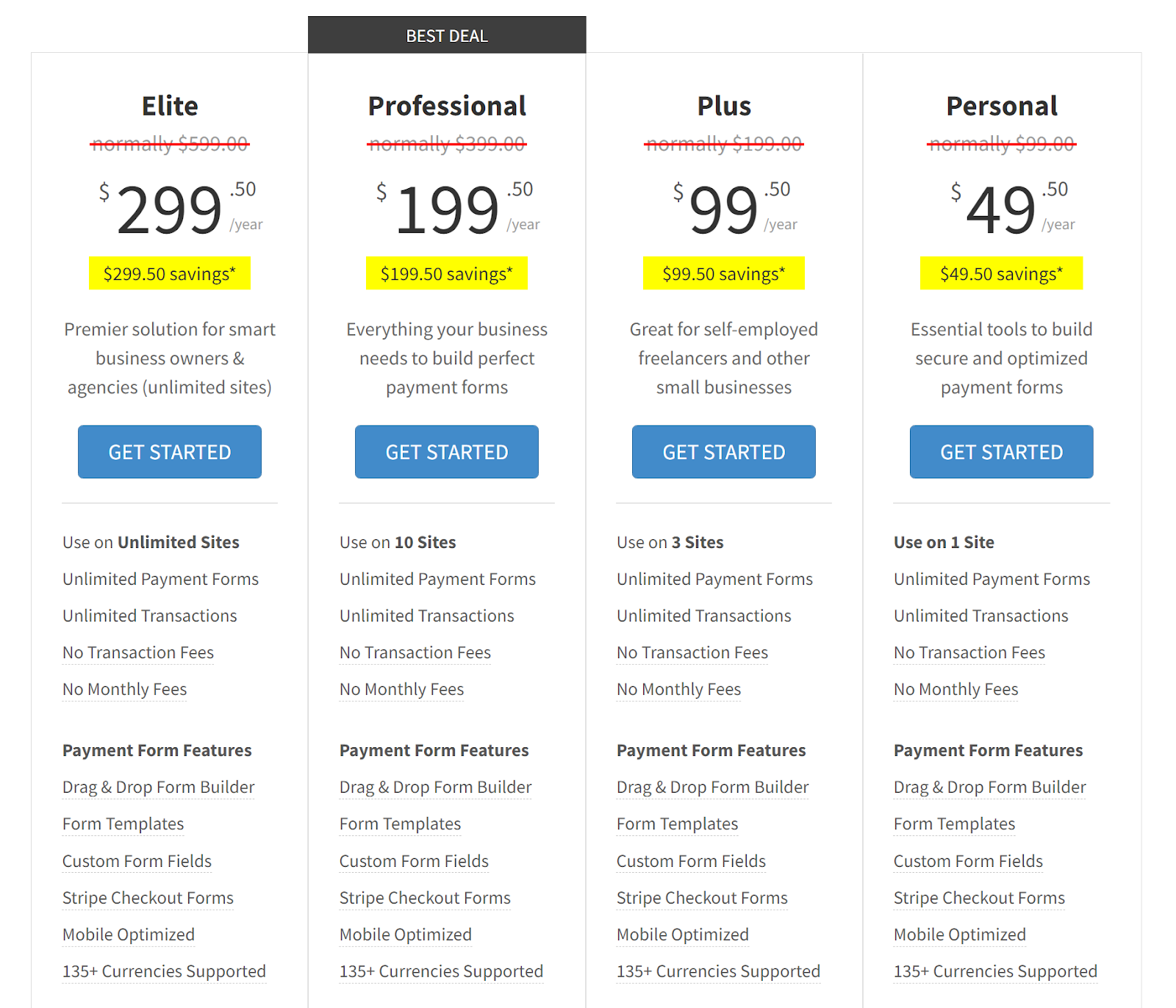
If you plan to renew your license to continue receiving support and updates after the first year, make sure to pay attention to the regular price, which is marked as the “normally” price on the pricing page. The large price that you see on the pricing page is a discounted price that only applies to your first year of support and updates.
WP Simple Pay Review: Pros and Cons
As we near the end of our WP Simple Pay review, let’s discuss some of its most notable pros and cons.
Pros:
- Easy to use. You can be accepting payments within minutes. The most time-consuming part of the setup process is creating your Stripe account.
- Flexible payment options. You can choose between one-time or recurring payments, preset or custom amounts, etc.
- Added payment payments. While WP Simple Pay only supports Stripe, you do still get access to lots of other payment methods via Stripe.
- Adjustable subscriptions. You can tweak your subscriptions with adjustments such as free trials, one-time signup fees, and installment plans.
- Customizable form fields. You can add more form fields to collect additional information from customers if needed.
- Coupon codes. You can use coupon codes to offer discounts and boost your marketing efforts.
Cons:
- Only supports Stripe. If you want to also offer PayPal as an option, this might be a potential dealbreaker. There are other payments tools that support both Stripe and PayPal.
- The premium version can be expensive. While there is a free version of WP Simple Pay, most of the unique features are only available if you pay for at least the Plus plan, which is more expensive than some other payments plugins. Even the entry-level plugin-enabled plan is limited in comparison to some other options because it doesn’t include subscriptions.
How to Install WP Simple Pay on WordPress.com
If you want to use WP Simple Pay on your WordPress.com site, you’ll need to make sure that you’re on the WordPress.com plugin-enabled plan so that you have the ability to install custom WordPress plugins.
If you haven’t upgraded yet, you can head here to upgrade your account.
Once you’re sure you’re on the right plan, you can install WP Simple Pay by going to Plugins → Add New in your WP Admin.
From here, it depends on whether you want to install the free version of WP Simple Pay or the premium version:
- Free version – you can use the search box to search for “WP Simple Pay”. Then, select it from the results and click the Install and activate button on the next page.
- Premium version – purchase WP Simple Pay from the official website and download the .zip file that the developer gives you. Then, click the Upload button in the top-right corner of your WP Admin and upload that .zip file.

Once you’ve installed either version of the plugin, it should automatically launch a setup wizard to help you connect to Stripe and configure some important basics:

You can then access all of the plugin’s features and settings from the new WP Simple Pay area in your WP Admin.
Is WP Simple Pay the Best WordPress Payments Plugin?
Whether or not WP Simple Pay is the best WordPress payments plugin really depends on your specific needs and situation.
For example, if you’re a WordPress.com plugin-enabled plan user and you just need to accept simple one-time or recurring payments via credit or debit card, there’s no need to purchase WP Simple Pay – you can just use the built-in Payment blocks. Self-hosted WordPress users can also access these payment blocks via Jetpack.
On the other hand, if you want features like coupons, free trials, one-time signup fees, and so on, then it might be worth paying for WP Simple Pay because it handles those advanced use cases really well.
The other important question would be whether you’re ok with using Stripe exclusively or you also want the ability to offer PayPal as a payment option. If you want to use both, you might prefer a different plugin.
Depending on how complex your needs are, it might even make sense to use WooCommerce as you would be able to mix and match both Stripe and PayPal (as well as dozens of other gateways).
Overall, though, WP Simple Pay is one of the top options for Stripe payments where you need more advanced customizability. You can test it out with the free version and then upgrade if you need more functionality.
If you want to get started with WP Simple Pay on WordPress.com, upgrade to the WordPress.com plugin-enabled plan today.
ABOUT THE AUTHOR


 Go WordPress