

This guide will show you how to connect (or “point”) a domain name to your WordPress.com site by manually copying and adding our A and CNAME records to your domain name’s DNS records. Use this method only if you can’t use the recommended method to connect a domain name from another provider to your WordPress.com site.
This method is suitable if you need to keep an existing email service running, if your domain name registrar doesn’t allow name server changes, or if you use external services that require different name servers (such as Cloudflare).
Using this method means:
- Your domain name will show the site you created on WordPress.com without the ‘WordPress’ name in the address. Instead of a site address like
yourgroovysite.wordpress.com, visitors can reach your site with an address likeyourgroovydomain.com. The old.wordpress.comaddress will redirect to the new domain name you add. - You will continue to renew the domain name through the company you purchased it from (also known as your domain registrar).
- You will continue to manage and edit your DNS with your domain name provider, not in your WordPress.com account. If you have an existing email or other connected services that require DNS records, those will not be interrupted.
Connecting a domain name (also known as “mapping” or “pointing”) is free with any paid WordPress.com plan.
- Starting from your site’s dashboard, navigate to Upgrades → Domains.
- Click “Add a domain” and select “Use a domain I own” from the drop-down menu.
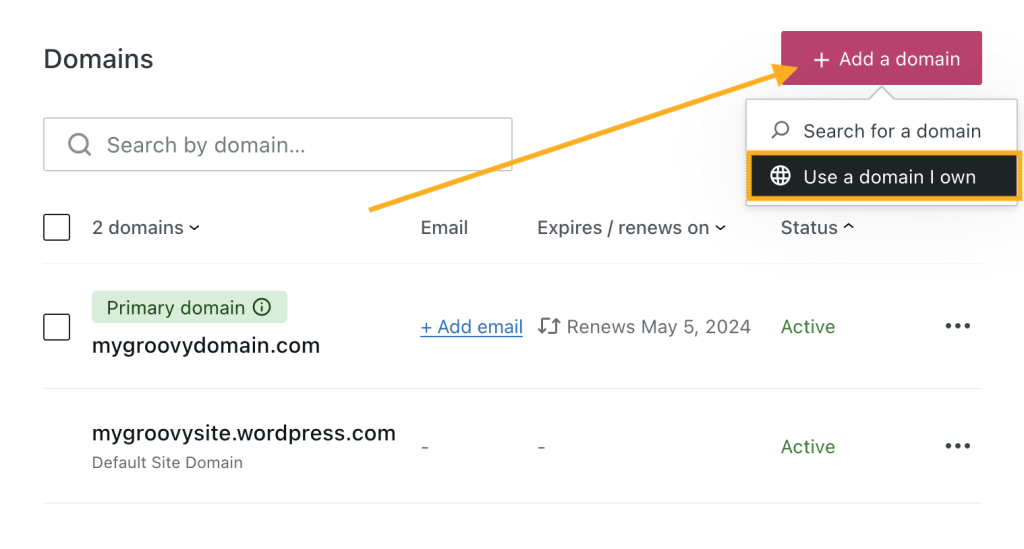
- Type the domain name you own and click the “Next” button.
- On the next screen, you will have two options: transfer or connect. Click the “Select” button next to “Connect your domain“. It may take a few moments to be redirected to the next screen.

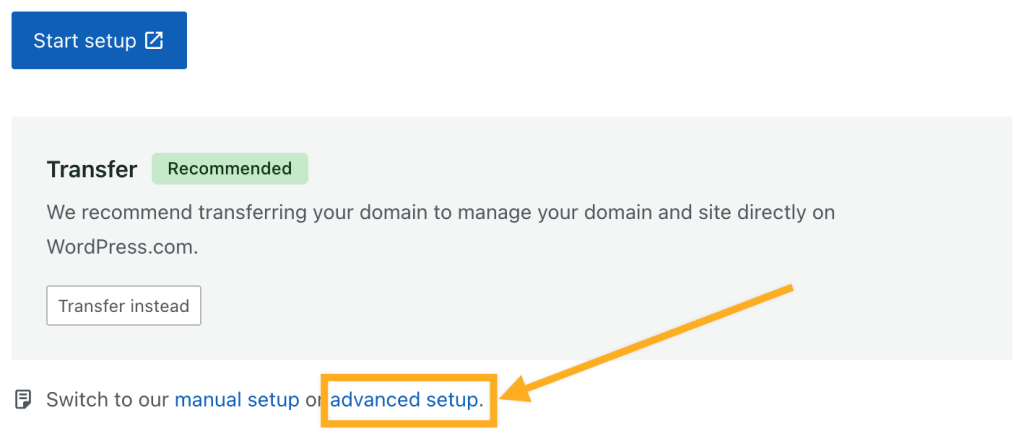
- The next screen will contain information about the changes to make at your current DNS provider. To use A and CNAME records, click the link for “advanced setup.“
- Click the “Start Setup” button.
If you have connected multiple domain names to your WordPress.com site, you may be prompted to verify that you own the domain name before starting the setup process.
- Open a new tab in your browser, log into your domain provider account, and locate the DNS records settings.
- Back in your WordPress.com account, click “I found the domain’s settings page” to see the DNS records you need for your domain name:
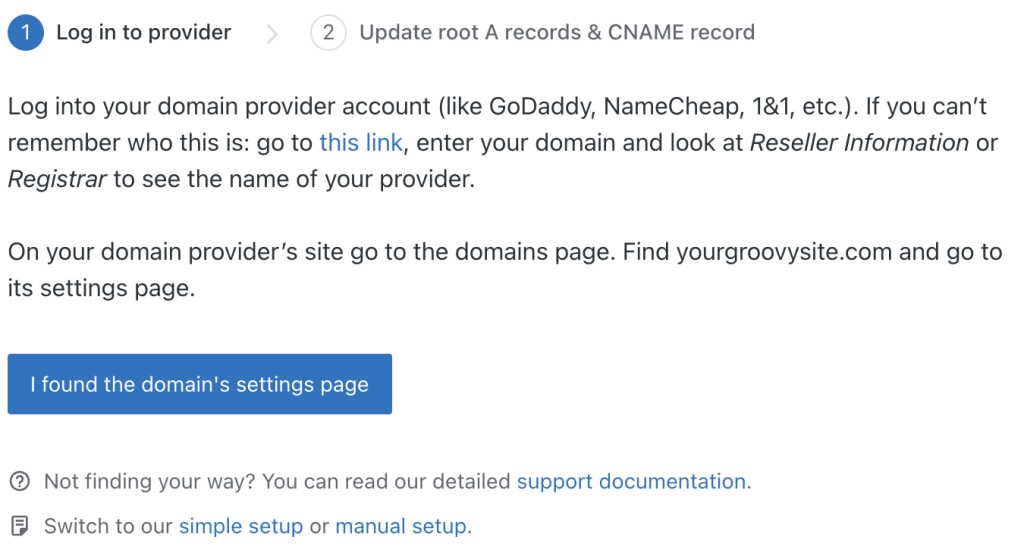
After taking the steps described in the previous section, you will receive the DNS records required for your site. The DNS records are:
- Two A records (IP addresses). You will replace your existing root A records with the ones we provide here for your site.
- One CNAME record you will replace or add to ensure the ‘www‘ part of your site address correctly redirects to your WordPress.com site.
Check your domain name’s DNS for any existing AAAA records (IPv6) and delete them before moving to the next step.
If you are unsure how to find the DNS record settings, contact your domain provider’s customer support to help you with how to make the changes.
Once you have made these changes, return to WordPress.com and click the “Verify Connection” button.
If you navigated away from the screen that shows your site’s DNS records, here’s how to find it again:
- In your site’s dashboard, navigate to Upgrades → Domains.
- Click the connected domain name and look for “complete setup” or “setup instructions.”
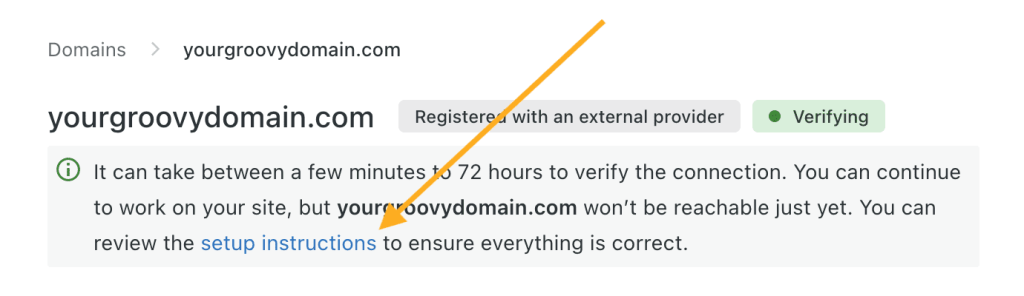
- Click the “Advanced Setup” link as shown in the following screenshot:
- Click “Start Setup” and then “I found the domain’s settings page” to see the DNS records for your site.
- Log in to your account with your domain registrar.
- Paste the records from Step 4 into your DNS settings.
- Return to WordPress.com and click the “Verify Connection” button:
After adding the DNS records, allow some time for the DNS changes to take effect. The domain name might not load right away. It is usually up and running within a few hours, but it can take up to 72 hours for the DNS to fully update across global servers and internet service providers.
To confirm the domain name is connected to your site, try visiting the domain name in a new tab in your browser. If it loads your WordPress.com website, then it’s working! You can also visit your Domains in your account and look under the Status column to the right of your domain. It should say Active, like this:

If it still says Verifying, try waiting a few hours before taking the next step. Once you see the status change to Active, then your domain name is connected. If the domain is still not loading the correct site, you may need to clear your browser’s cache to see the changes.
The final step is to go to Upgrades → Domains in your site’s dashboard and select your newly-connected domain name as the primary site address. See Set a Primary Address for more.
💡
Transfer your domain name to WordPress.com
Want to manage your domain name and website all in one place, instead of with two separate companies? Transfer your domain’s registration to your WordPress.com account, which you can do before or after connecting the domain name. You would no longer pay any domain registration fees to your current domain provider, and would instead renew both your domain and website plan here at WordPress.com.
