

Forwarding a domain or subdomain to another website or webpage URL will redirect visitors to the new content. This guide will show you how to set up domain and subdomain forwarding.
Domain forwarding is a web server function that automatically redirects visitors from one domain URL to another.
You can use domain forwarding to forward a registered domain to another website or webpage URL. For example, yourgroovydomain.com → mygreatnewblog.com.
Some examples where a domain forwarding may be used include:
- Pointing your domain to a website that is hosted on another platform.
- Pointing your domain to a specific page on your own WordPress.com website.
- Using your domain to direct traffic to a social media profile or channel.
- Using your domain to direct traffic to a product or affiliate link.
You can use subdomain forwarding to:
- Point a subdomain to another URL, for example, when people visit
blog.yourgroovydomain.comthey are forwarded tomygreatnewblog.com. - Use a subdomain for a specific page on the same website, for example
members.yourgroovydomain.com→yourgroovydomain.com/members. - Point a subdomain to a specific page on a separate website, for example
members.yourgroovydomain.com→mygreatnewblog.com/members. - Use a subdomain like
venmo.yourgroovydomain.comto redirect your visitors to a payment page, orcalendly.yourgroovydomain.comto your Calendly scheduler page.
After setting up a subdomain forwarding address to the same domain, traffic to the subdomain will land successfully on the specified page. However, the URL shown in the visitor’s browser address bar will still be the site’s primary address.
Domain forwarding is often confused with other, more common domain-related actions. Here are some cases where you would not use forwarding and what to do instead:
- If you want to use your domain from another provider to show your entire WordPress.com website, connect or transfer the domain to your website instead.
- If you want to move your domain from one site on WordPress.com to another, you can move the domain.
- If you want to direct traffic from a WordPress.com site address (for example:
yourgroovyblog.wordpress.com→mygreatnewblog.com), use a Site Redirect instead.
The steps to set up forwarding for a domain and a subdomain are very similar. To successfully set up domain forwarding, the domain must use WordPress.com’s default name servers and A records.
To set up a domain or subdomain forwarding:
- Visit your site’s dashboard.
- Navigate to Upgrades → Domains.
- If the domain you wish to forward is currently the site’s primary address, change the site’s primary address to another address on your site.
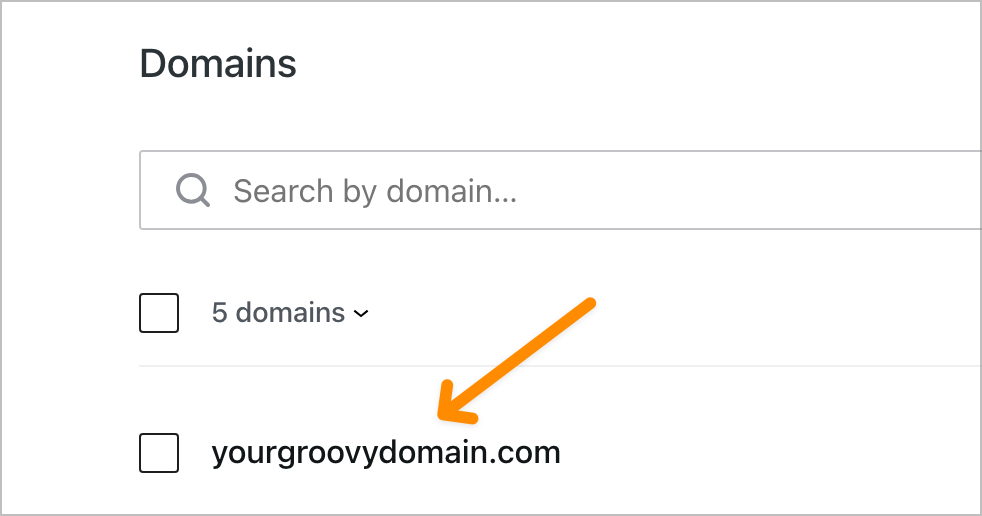
- Click on the domain for which you would like to set domain or subdomain forwarding:
- Select “Domain forwarding” to open the panel options.
- In the “Source URL” section, select the Domain or Subdomain option in the drop-down box.
- For subdomains, an extra box will appear for you to type the subdomain name.
- In the “Destination URL” box, add the URL to forward your domain to.
- Once you’ve entered your destination URL, click the “Create” button.
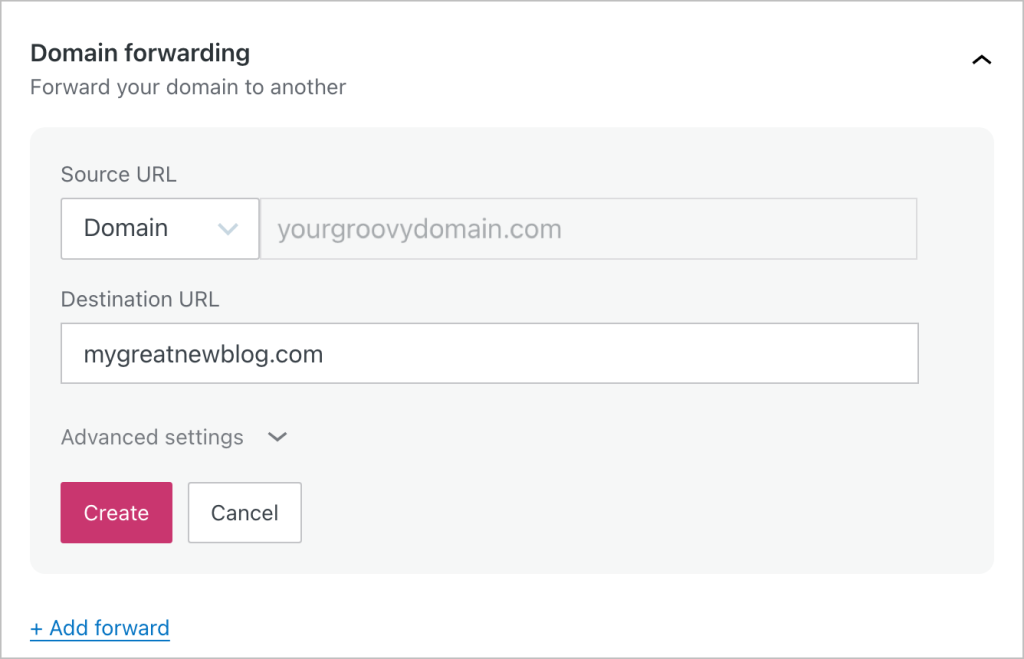
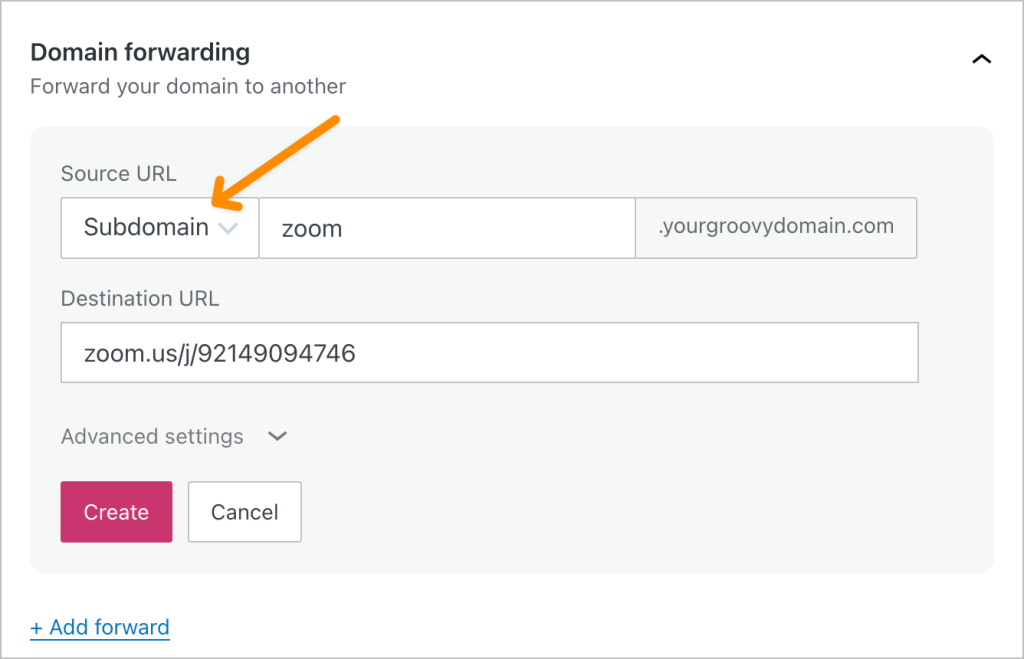
(Click to enlarge images)
You can click the “Add forward” button to add multiple domain or subdomain forwards.
There are optional advanced settings you can configure when setting up your domain forwarding.
Redirect type: an HTTP redirect is used to notify browsers and search engine crawlers what type of redirect your site is using. By default, the redirect type is 307 Temporary Redirect. In advanced settings, you can change the redirect type to 301 Moved Permanently.
Supported Redirect Types:
Temporary redirect (307)
Enables quick propagation of changes to your forwarding address.
Permanent redirect (301)
Enables browser caching of the forwarding address for quicker resolution. Note that changes might take longer to fully propagate.
Path forwarding: This setting allows you to forward your visitors to the full path of the new domain. For example, if you have a page called somepage.html and set up the option to forward the path, the forward will look for the same page name on the new domain. By default, the setting is “Do not forward.”
Follow these steps to set up the redirect type and path forwarding for your domain forwarding:
- Follow the existing steps for creating domain forwarding.
- Before you click the “Create” button, click the “Advanced Settings” section.
- Change your redirect type and/or path forwarding.
- Click “Create” to create the domain forwarding.

To update the destination URL or the advanced settings of an existing domain forwarding record, follow these steps:
- Visit your site’s dashboard.
- Navigate to Upgrades → Domains.
- Select “Domain forwarding”
- Click the “Edit” link next to the domain forwarding you want to update.
- Update the details, including the destination URL and advanced settings.
- Click the “Save” button to save your changes.
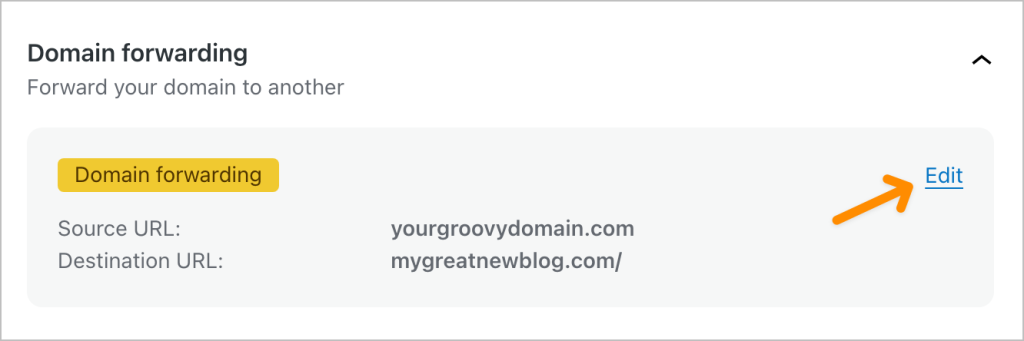
To remove the domain forwarding, follow these steps:
- Visit your site’s dashboard.
- Navigate to Upgrades → Domains.
- Select “Domain forwarding”
- Click the “Edit” link next to the domain forwarding you want to update.
- Click the “Remove forward” link.
After saving or updating the domain forwarding, allow some time for the change to take effect. While you can save the change immediately, the domain may not forward right away and can sometimes take a few hours to fully update across servers and internet service providers around the globe.
