

This guide explains how you can add pixel tracking codes for services like Meta (Facebook) and TikTok to your WordPress website.
In this guide
Have a question?
Ask our AI assistantThe Meta pixel allows you to measure the effectiveness of your Facebook advertising by understanding the actions people take on your website.
Meta (the parent company of Facebook) provides some code to integrate into your site. The code will look something like this:

Once you have the pixel code, you can add it to your WordPress.com website. The steps you take will be different depending on the type of site you have.
If you have a plugin-enabled site, you can add the full pixel code to a plugin-enabled site using any plugin that allows you to insert code into your website’s headers and footers. Here, we’ll share the steps for one such plugin called Insert Headers and Footers.
To add the code to your website header or footer, take the following steps:
- Install and activate the free Insert Headers and Footers plugin by WPCode.
- On the side of your dashboard, navigate to Code Snippets → Header & Footer.
- Paste the code into the Header box and click the “Save Changes” button:

If you have a site that doesn’t support plugins, you can still add the Meta pixel to your site by taking some additional steps to modify the pixel code. However, the modified Pixel verification steps above won’t support certain Facebook features such as the Event Setup Tool, Auto Events, and Auto Advanced Matching. If these are features you want to use, upgrade to a plugin-enabled plan to use the full Meta pixel code.
To modify the Meta pixel code, copy the portion of the code that starts with <img and ends in /> as shown here:
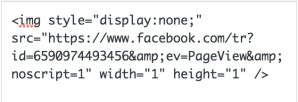
Then, add this code using one of the methods described below. To determine which section of this guide to follow, visit your dashboard and check under Appearance on the left side. If you see Editor, use the Site Editor section of this guide. Otherwise, use the Widgets instructions.
Add the modified Facebook pixel by following these steps:
- Visit your site’s dashboard.
- Navigate to Appearance → Editor.
- Click on Patterns.
- Click on “All template parts”.
- Select your site’s active header or footer to edit it.
- Click the + block inserter and search for the Custom HTML block. Click to add it to the site.
- Paste the modified pixel code in the Custom HTML block.
- Click the “Save” button.
Once added, it can take up to 20 minutes for the Meta Pixel status to get updated on the Facebook dashboard.
TikTok Ads Manager includes a pixel that you can place on your website to share website events with TikTok. Learn more about TikTok Pixel.
To obtain a TikTok pixel, follow the steps in this guide from TikTok and make sure to select the “Manual Setup” connection method. TikTok will provide you with a code that starts something like this:

Obtain your unique pixel code and take the following steps to add it to your website header:
- Install and activate the free Insert Headers and Footers plugin by WPCode.
- On the side of your dashboard, navigate to Code Snippets → Header & Footer.
- Paste the code into the “Header” box and click the “Save Changes” button:
