

This guide will show you how to arrange your menu items in the exact order that you want them to appear.
In this guide
Have a question?
Ask our AI assistantFollow the instructions below to change the order in which items appear in your navigation menu.
Your site’s theme type determines which instructions to follow. Go to Appearance in your site’s dashboard: if you see Editor, follow the Site Editor tab instructions. Otherwise, follow the WP Admin or Customizer tab instructions.
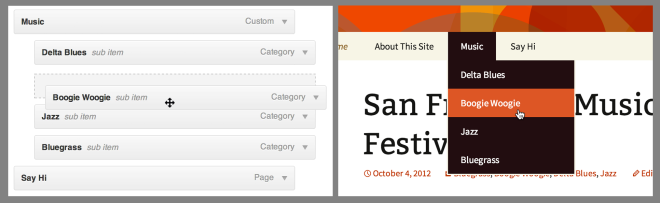
In the Site Editor, your menu comes from the Navigation block. You can reorder the menu links or nest them to create submenus or drop-down menus.
Follow these steps to reorder the items in your menu:
- Visit your dashboard.
- Go to Appearance → Editor.
- Select the template or template part you want to edit, or click on the site preview on the side of the screen to open the homepage editor.
- Open List View in the top-left corner of your screen (it’s the icon that looks like three horizontal lines above each other.)
- Select the Navigation block, which may be nested inside other blocks like Header, Group, and Row.
- You can then move a menu item using one of several methods:
- Click and drag the menu item in List View.
- Use the move option in the menu item’s toolbar.
- Click and drag the menu item using the block settings in the right sidebar.
- Click the Save button to save your changes.
All three methods are demonstrated in the following video:

This section applies to sites created with the AI Website Builder (all paid plans) or sites that have enabled the AI assistant (Business and Commerce plans). Open the AI assistant by clicking the AI icon (a four-pointed star) at the bottom of the screen.
The AI assistant can rearrange your menu items and restructure your navigation directly. Here are some things you can ask it to do:
- “Reorder the menu so Home is first, then Training, then Schedule, then Contact.”
- “Move the Contact menu item into a submenu under About.”
- “Make Training a dropdown with three submenu items: Skills, Film Room, and Conditioning.”
- “Hide the Training item from the footer menu but keep it in the header.”
