

This guide will show you how to securely share access to your site using SSH, so that you can migrate your site from Hostinger to WordPress.com.
In this guide
Have a question?
Ask our AI assistant📌
SSH access requires one of the following Hostinger plans: Web Premium, Web Business, and Cloud hosting
Secure Shell (SSH) is a secure way for us to connect to your current host and copy your site safely. We use it to transfer a copy of your site’s content, media, plugins, themes, and database over an encrypted connection. Your existing site will stay online and unchanged during the migration, so visitors won’t notice any disruption until you’re ready to update your domain name to the newly-migrated site.
First, make sure that exec is not listed among the disabled PHP functions. To do that:
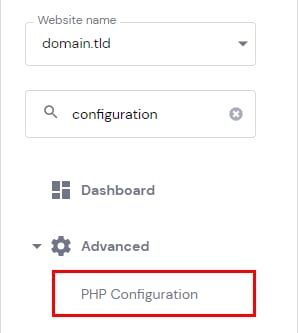
- Go to Websites → Manage, search for PHP Configuration in the sidebar, and click it.
- In the PHP options tab, scroll down to the disableFunctions section.
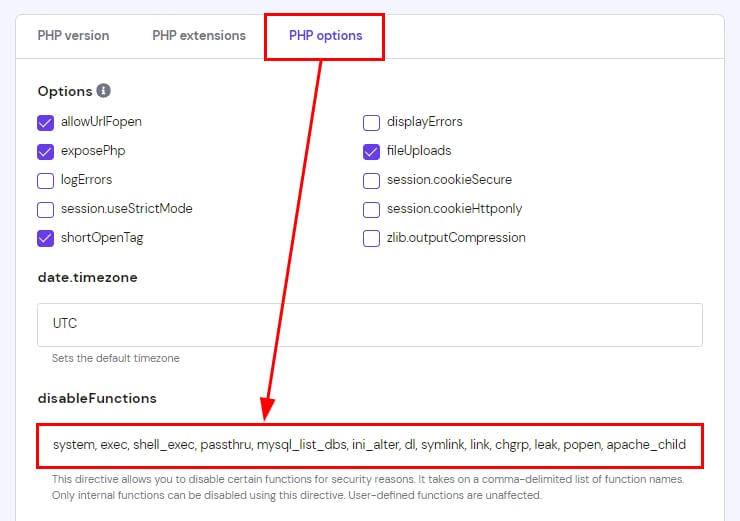
- Look for
execin the comma-separated list. If it’s present, remove it, then save changes
To find the SSH details for your site, take the following steps:
- In your Hostinger account, navigate to Websites.
- Click on the Dashboard button for the site you want to migrate.
- Navigate to Advanced → SSH Access:

- If SSH Status is shown as inactive, click the Enable button to activate SSH for your site:

- Copy the following details from the SSH Details panel and paste onto WordPress.com:
- IP into the Server address field.
- Port into the Port field.

- Click the “Verify server address” button.
In a few moments, we’ll validate if the details are correct for what we need to migrate a copy of your site to WordPress.com. If the details cannot be validated, please double check you have pasted the correct information or contact your host for support in obtaining the correct details.
Next, you’ll need to share your SSH details to grant WordPress.com secure access to your site to begin the migration:
- Return to where you left off in your Hostinger account’s SSH Access page.
- Copy your username from the SSH Details panel and paste it into the SSH username field on WordPress.com.
- Click the Change button next to your password in Hostinger to set a new password, and then paste that into the SSH password field on WordPress.com.
- Click Continue:

