

You can pay for your purchases on WordPress.com using a PayPal account. This guide will show you how.
In this guide
Have a question?
Ask our AI assistantYou can connect your PayPal account while making a purchase, such as a plan or domain name, on WordPress.com. You can also add PayPal to an existing subscription from the subscription’s settings page.
Because payments for WordPress.com subscriptions are recurring, you will need a backup funding source—a verified credit card or bank account—connected to your PayPal account, even if you have funds in the PayPal account. That backup funding source must also be from a country PayPal supports. If your card’s billing address is in an unsupported country, the payment will fail even if your PayPal account is based elsewhere. See PayPal’s list of supported countries and regions for details.
Additionally, PayPal does not support payments in the following currencies: BRL (Brazilian Real), IDR (Indonesian Rupiah), INR (Indian Rupee), or TRY (Turkish Lira). If you’re paying in one of these currencies, you’ll need to use a credit or debit card directly instead.
If PayPal is available in your area, a PayPal option will be shown under the “Pick a payment method” step in the checkout process:

Select PayPal during checkout and click the “PayPal” button at the bottom of the screen to complete your purchase with PayPal:

To use PayPal for upcoming renewals of an existing purchase, take the following steps:
- Click on your profile at https://wordpress.com/me.
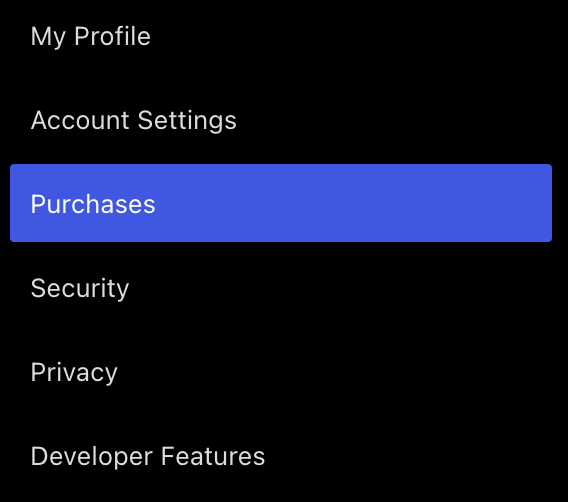
- On the side, select the Purchases menu option:
- Select the upgrade you wish to update the payment method of.
- Below the information, click on the “Change Payment Method” button.
- This button will not appear if you are not the owner of the subscription. Contact the user on your site who made the purchase to ask them to update the payment method.
- If PayPal is available in your area, a “PayPal” option will be shown under the “Credit or debit card” fields. Click the radio button next to PayPal to select it:
- Click the PayPal button at the bottom of the screen. You will be redirected to PayPal to confirm your account and assign it as your subscription’s payment method.
After adding a PayPal account, you will see it listed under the purchase’s “Payment method” field:

