

WordPress.com supports login verification with passkeys and security keys using the WebAuthn standard. Passkeys — sometimes called “security keys” in your WordPress.com account settings — include browser- and device-stored credentials like iCloud Keychain, 1Password, Google Password Manager, and Windows Hello, plus physical USB keys like YubiKey. This guide shows you how to add and remove them.
After entering your password, you can add an extra layer of security with two-step authentication by inputting a code sent via SMS or an app like Google Authenticator. Instead of that code, you can use a passkey or security key. These come in two forms:
- Passkey (virtual): Approve sign-in via your device’s fingerprint, face recognition, screen unlock, or a credential stored by your browser or password manager (such as iCloud Keychain, 1Password, Google Password Manager, or Windows Hello).
- Physical security key: Plug in a USB key like a YubiKey and press its button to complete the verification and log in.
Passkeys and security keys are more secure than codes alone because no one can log into your account without your device or your physical key, even if they know your password. Your passkey or key is tied to the website it was created for (in this case WordPress.com), so you cannot be “phished” into using it on a fake site.
Before you get started, set up two-step authentication with SMS or an authenticator app.
After setting up two-step authentication with an app or SMS, take the following steps to add a passkey or security key:
- Hover over your name at the top right corner of any screen while logged into WordPress.com.
- Select the “My WordPress.com account” button:

- On the side, select the Security menu option:

- Click on “Two-Step Authentication“.
- Under “Security Key,” click on the “Register key” button.
- Type in a unique name for your passkey or key and click the “Add key” button:

- If you use a password manager with your browser, such as 1Password or Google Chrome, you’ll be shown a prompt to save the passkey. If you do not wish to save the passkey here, dismiss the prompt from your password manager to choose another option, such as iCloud Keychain (for Apple users), phone/tablet/security key, or a USB Security Key:

- Upon successful registration, your passkey or key will be listed in the “Security Key” section of your Two-Step Authentication settings.
💡
Consider adding a second passkey or key as a backup option and keep it somewhere you can find it should something happen to your primary one. To add additional passkeys or keys, click the “Register Key” button again.
After choosing the iCloud Keychain method above, continue by signing in with your Apple ID credentials to save your passkey to Apple’s iCloud Keychain.
After choosing the phone, tablet, or security key method above, you can save your passkey to another device, such as your phone or tablet. The device will store the passkey and use its screen unlock — fingerprint, face recognition, or PIN — to verify you the next time you log in.
To add a physical security key to your account, you will need:
- A computer with a USB port and the latest compatible browser version like Chrome, Firefox, Opera, or Edge.
(Note: Currently, Chrome and Firefox have the best overall support for this, so we recommend using these browsers for the most consistent experience.) - A key that plugs into a USB port and works with FIDO2, like Yubico’s YubiKey or Google’s Titan Key. Please check your specific key’s support documentation for more information on the types of devices and browsers your key supports.
After choosing the USB security key method above, continue with the following steps:
- Plug your key into a USB port on your computer and, depending on the type of key, either press the button or tap the gold disc on the key.
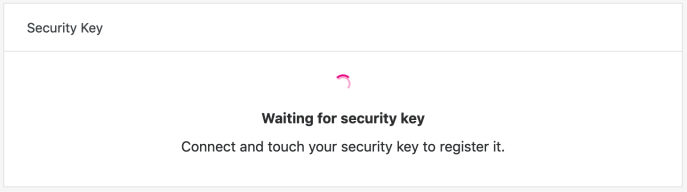
- Upon successful registration of the key, it will now be listed in the “Security Key” section of your Two-Step Authentication settings:

Once this is set up, you won’t be able to access your account without your key, so treat it the same way you would the keys to your home or your car — keep it safe!
If you want to remove a passkey or security key you added before — for example, if a key was lost or no longer works, or you want to switch back to logging in with your password and a two-step verification code — you can disconnect it from your account.
Navigate back to the Two-Step Authentication settings page, as explained in the previous section, and click the Remove button next to the passkey or key.

