

The Media Settings found at Settings → Media contain some extra options to control how your site’s media is displayed. This guide will explain each setting.
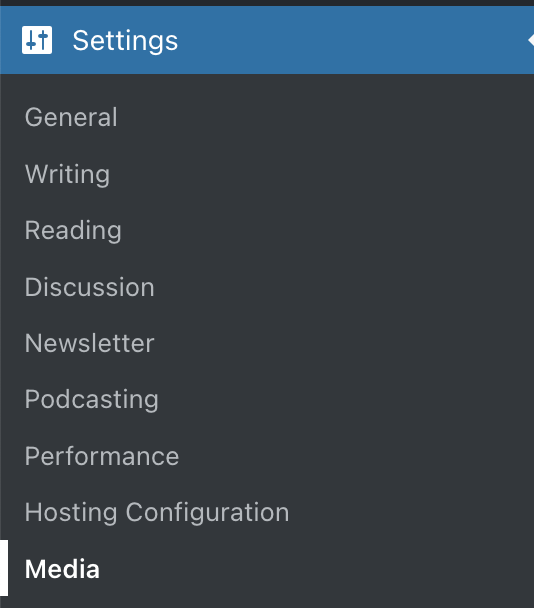
To visit the Media settings:
- Visit your site’s dashboard.
- On the left side, hover your mouse over Settings near the bottom.
- Select Media.
Each setting found here is explained below.
Here, you can change the maximum dimensions of images displayed on posts and pages. When setting a thumbnail size, the image will be cropped and resized to the setting. Medium and large images will keep the dimension proportions, taking the maximum width and height into account.

An image carousel is an interactive slideshow or lightbox that users can navigate by clicking forward or backward arrows to cycle through the images. The “Enable carousel” option allows you to adjust settings for images displayed in a carousel (primarily the Gallery block.)
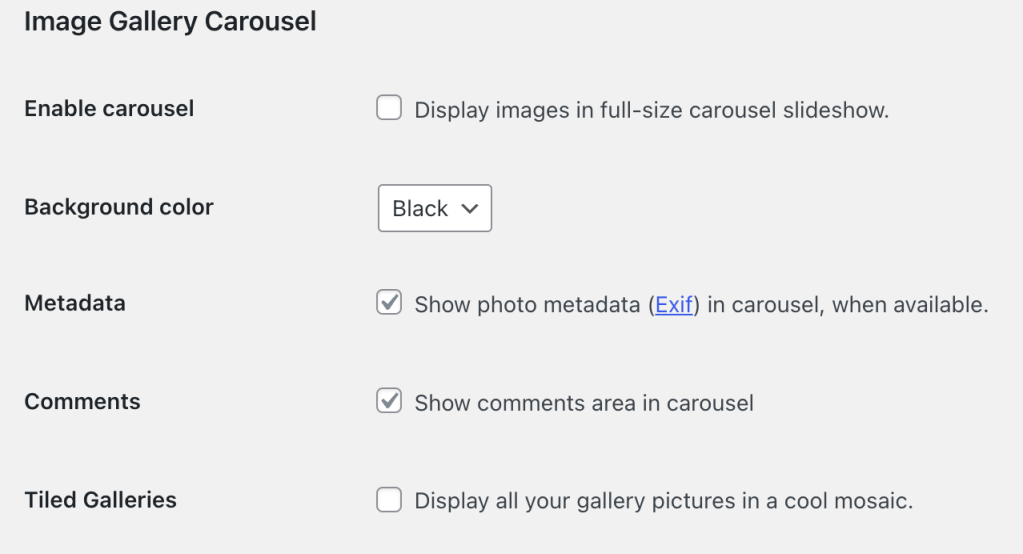
The Background color option allows you to switch your site’s carousel to a white or black background (defaults to black).
Metadata refers to photo details like the aperture, camera model, focal length, and shutter speed. If an image file contains this photo metadata, it can be shown in the carousel by ticking this checkbox.
For image titles to show on the carousel, make sure the name itself contains spaces in between words. Titles that contain only underscores in between words will not show on the carousel.
Use the Comments option to enable or disable a commenting box on gallery images. You can check or uncheck the box next to “Show comments area in carousel”.
You can use the Tiled Galleries option to select whether you’d like to use a tiled mosaic-style layout (a thumbnail grid layout is the default).
You can turn off the carousel on your site:
- Sites without plugins: Leave the Enable carousel option unchecked, as shown in the screenshot above.
- Business and Commerce plan sites: Visit your dashboard and navigate to Jetpack → Settings. Click on the Writing tab and turn off the option to Display images in a full-screen carousel gallery.
Attachment pages are individual pages that your site creates for each media file you upload, such as an image or video. Each attachment page displays a single media file on its own URL.
The “Enable attachment pages” option controls whether these pages are available on your site. To turn attachment pages on, check the box. To turn them off, uncheck the box.
The Integrations section is where you can connect your site to Google Photos. Once connected, you can browse and add photos from your Google Photos library while you edit a post or page.
To connect Google Photos, follow these steps:
- Click Connect next to Google Photos.
- Follow the prompts to allow access to your Google Photos library.
