Uploading videos to WordPress works best when the files are prepared with the right specifications. In this guide, you’ll learn the recommended settings for video uploads, as well as how to convert your files if they don’t already meet those requirements.
For best results, and highest compatibility with other WordPress editor blocks (other than the Video or VideoPress block) such as the Cover or Story blocks, we recommend uploading a video with the following specifications:
| Resolution | 1920×1080 (1080p) |
| Max Resolution | 3840×2160 (4k) larger is OK, but this is the largest size currently available in the player |
| Format | h.264 |
| Bit Rate | 8mbps for 1080p30, 12mbps for 1080p60, recommended, but other values are OK |
| Audio | AAC minimum 160kbps |
| Other Settings | Fast Start / Web Optimized / progressive download (so the whole file doesn’t need to be downloaded before playback can begin) |
If you are uploading a video that will only be played in the Video block or shared via VideoPress links, videos encoded with the h.265 or VP9 codecs can be uploaded if desired.
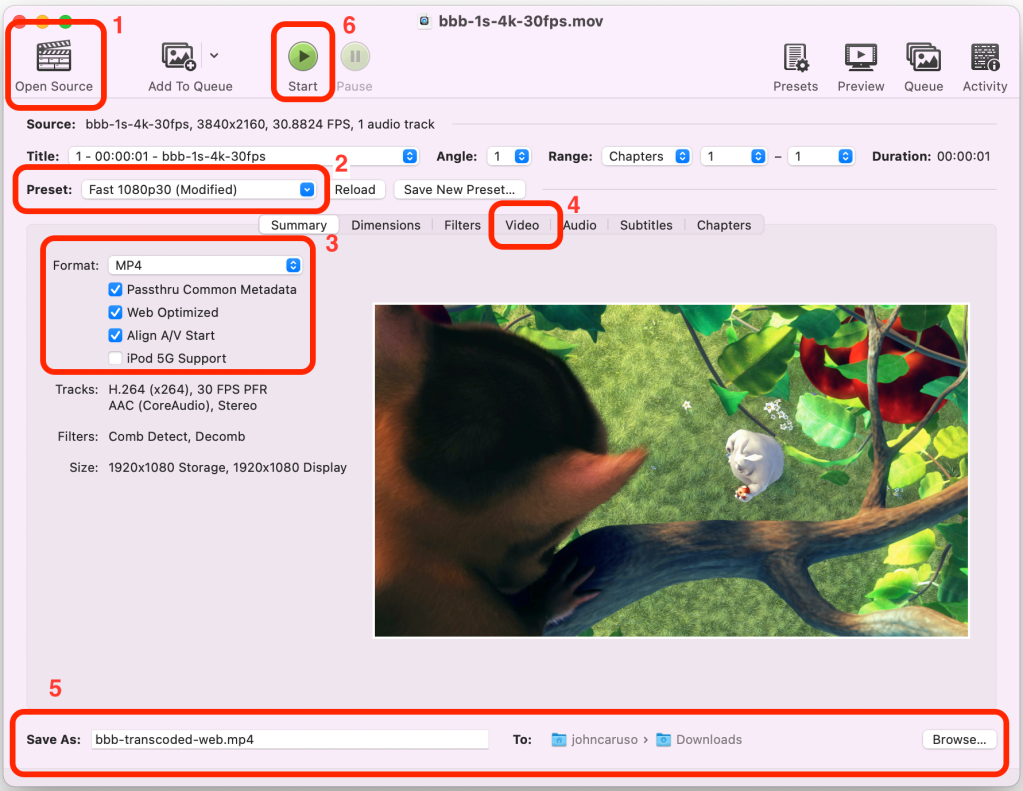
If your source video doesn’t meet the above specifications, a tool like HandBrake can be used to convert it before you upload it to the Media Library. To convert your video:
- Open HandBrake, and when prompted, select your source video.
- Select a “Preset” (e.g., Fast 1080p30 or HQ 1080p30: HQ presets will be slower but will produce better results).
- Ensure “MP4” is selected in the “Format” dropdown, and “Web Optimized” is checked.
- If your video has a higher resolution than 1080p, you can adjust the “Resolution Limit” in the “Dimensions” section under the “Video” menu to preserve the original resolution.
- If you want to change the default name and location for your new file, you can change it at the bottom of the window.
- Then press “Start” and your video conversion will begin. Once completed, upload the new file to your Media Library.