

You can use the Calendar block to show your posts in a calendar format. When you publish a new post, it is automatically added to the Calendar block. If you click on a date, it will open the archive of posts published on that date.
In this guide
Have a question?
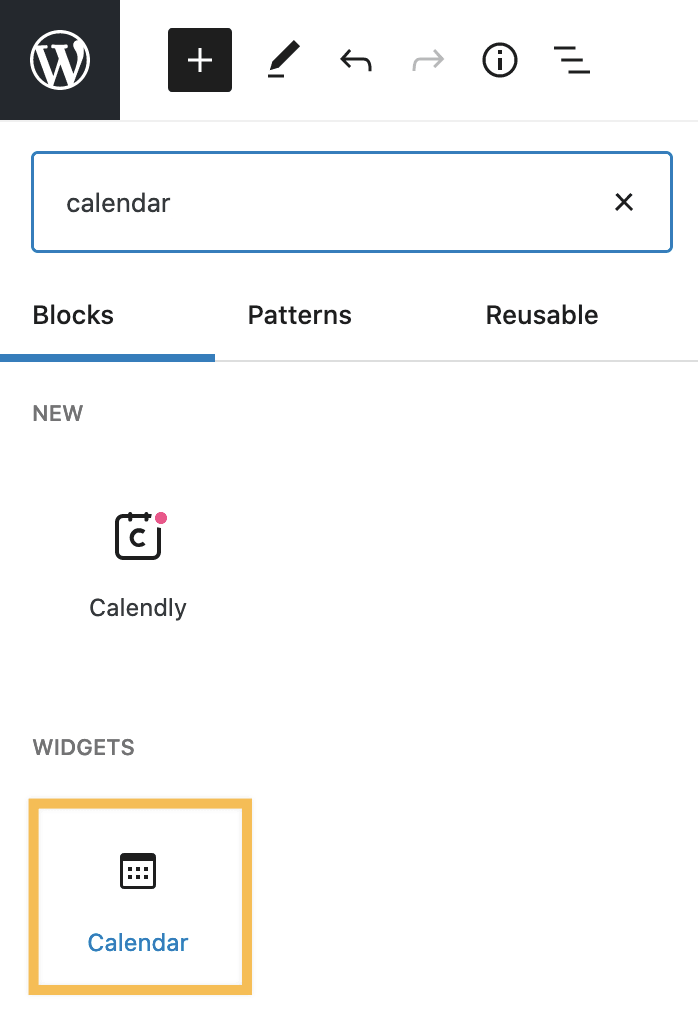
Ask our AI assistantTo add a Calendar block, click on the + block inserter icon to search for the Calendar block:
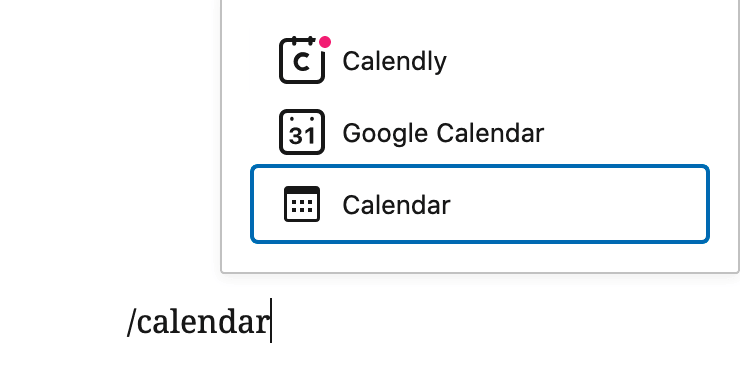
Alternatively, you can type /calendar on a new line and press enter:
Once you’ve added the Calendar block, it will display a calendar of your site’s posts. It will automatically update every time you publish a new post. Your visitors can then use it to quickly find a post by date.

When you select a block, you will find additional block settings in the right sidebar. If you do not see the sidebar, you may need to click the Settings icon in the top-right corner to bring up the settings. This icon looks like a square with two uneven columns:

The Calendar block includes the following settings:
