

The Flickr widget allows you to show thumbnails of your latest Flickr photos in any of your widget areas.
💡
Themes that support the Site Editor do not use widgets, so you won’t find Appearance → Widgets in your dashboard. Instead, you can edit all of your site in one place at Appearance → Editor. Click here to learn how to use the Site Editor.
In this guide
Have a question?
Ask our AI assistantHere’s an example of what it looks like as a sidebar:

To add the widget to your site:
- In your dashboard, click on Appearance → Widgets.
- Choose the location where you’d like to place the widget on your site. Standard options include the Footer and Sidebar, but this may differ depending on your theme.
- Click either of the + block inserter buttons (see right) to see a list of all the available blocks and widgets.
- Scroll down to the Widgets section and search for the widget you want to add. Click on it to add it to your site.
For more general information, see this guide on working with widgets.
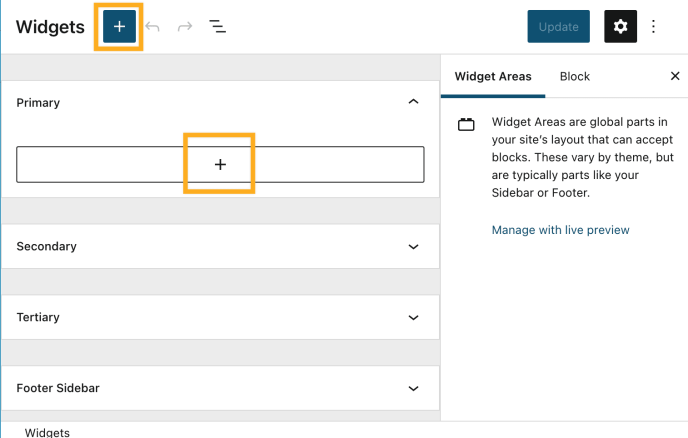
⚠️
Your photos must be viewable by the public for the widget to work on your blog. Be sure to check your Flickr privacy settings before activating this widget.
- To add the widget to your site, go to Appearance → Widgets.
- Select the location you’d like to place the widget on your site (either a footer or sidebar location).
- Click on the “Add a Widget” button.
- Type “Flickr” into the search bar and click on the Flickr widget to add it to your site.
You’ll then see the widget settings:
- Title: Sets the title to be shown above the photos (e.g., My Flickr Photos, Recent Snapshots).
- Flickr RSS URL: The RSS feed link that will display your photos. See the section below for steps on how to acquire the Flickr RSS link.
- How many photos would you like to display?: You can display anywhere from 1 to 10 photos.
- What size photos would you like to display?: Choose between Thumbnail (smallest), Medium, or Large.

To get the Flickr RSS URL that will display your photos:
- Go to your Flickr Photostream
- Note the Photostream’s URL at the top of your browser. Add
?details=1to the URL and press enter on your keyboard to load the page. - On the bottom of the next page, find where it says “Subscribe to [your username’s] photostream” and select Latest.

- A new page should load showing the XML file for your RSS feed (it looks like a lot of text). Copy the URL from your browser window.
- This is your Flickr RSS URL. Paste this URL into the Flickr RSS URL section in the widget to display your photos.
- Make sure to select Publish in the customizer to save the changes.
📌
It is not possible to use a feed for a particular tag or album at this time.
