

The Latest Comments block displays the most recent comments readers have left on your blog.
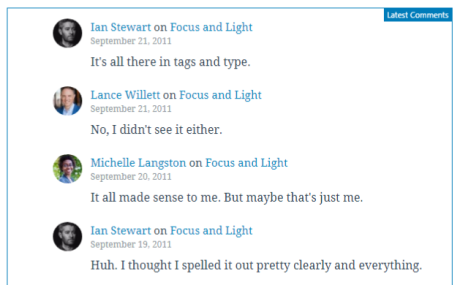
Here’s what it looks like when it’s embedded in the Editor.
In this guide
Have a question?
Ask our AI assistantThe Latest Comments block can be added to a page by clicking the plus + icon top left and searching for the block. Alternatively, you can type /latest on a new line and click on Latest Comments.

Add latest comments with a slash command.
For more information, visit our detailed instructions on adding blocks.
Every block has a toolbar of block-specific controls that lets you manipulate the block.
The block toolbar for the Latest Comments block has options for alignment. To align the categories, first click on them, then choose from left, center, and right alignment. They will be left aligned by default.

When you select a block, you will find additional block settings in the right sidebar. If you do not see the sidebar, you may need to click the Settings icon in the top-right corner to bring up the settings. This icon looks like a square with two uneven columns:

The latest comments settings allow you to choose whether to display the avatar, the date, and/or the excerpt. They are all on by default. You may also choose the number of comments to display within the block.

For more, visit our detailed instructions on Advanced block settings.
Click on the Styles icon to access additional design settings for the block.
Block Styles include the following settings:
