

X (formerly known as Twitter) is a service for exchanging brief messages between users. Use the Twitter block to embed a single X Post into your posts and pages on WordPress.com.
To embed a post from X (formerly known as a tweet) means that you can display an individual post on your site that includes:
- The post’s text, images, and links.
- Action buttons for X users to re-share and favorite posts without leaving your site.
- Links to hashtag pages, usernames, and a follow button.
The quickest way to embed a post from X is to paste the URL of the post on an empty line in the editor. Follow these steps to embed a post from X to your WordPress.com page or post.
- Visit X and click the timestamp of an individual post that you want to share.

- You will be taken to the page for that specific post on X. Copy the URL from your browser’s address bar.
- Note, it is not possible to use this option to embed an entire feed or timeline. It will only work for a single X post.

- Navigate to editor for the page or post that you want the embedded X Post to appear on your site.
- Paste the URL you copied on an empty line in the WordPress editor. It will automatically become a Twitter block, and the post will become embedded on your site.
Here’s an example of an embedded X Post:
⚠️
X also has an ‘Embed’ option that will generate code for a post or a profile. This method is not supported. You will need to embed an X Post using the link method we describe in this doc. Embedding a profile or feed will not work.
Another way to embed a post from X is to first insert the Twitter block into your post or page. This option will only work with a single post from X, not a profile or feed.
To add the Twitter block, click on the + Block Inserter icon and search for “Twitter”. Click it to add the block to the post or page.
💡
Using your keyboard, you can also type /twitter on a new line and press enter to quickly add a new Twitter block.
For more information, visit our detailed instructions on adding blocks.
When you add the block, there is a box to enter the URL (i.e., link) to the post/tweet you want to embed. Paste that link into the box and click Embed.
When you click on the block, a toolbar of options will appear above it:
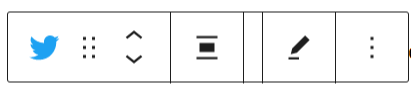
The Twitter block has the following options in its toolbar:
- Change block type.
- Drag the block.
- Move the block up or down.
- Change the alignment (left, right, or center, plus wide and full-width if supported by your theme.)
- Edit the URL of the post
- More options
When you select a block, you will find additional block settings in the right sidebar. If you do not see the sidebar, you may need to click the Settings icon in the top-right corner to bring up the settings. This icon looks like a square with two uneven columns:

Keep the option “Resize for smaller devices” enabled if you’d like to preserve the aspect ratio on different browser sizes.

For more information, visit our detailed instructions on Advanced Settings.
