

Automated card-testing bots can flood your checkout with failed payment attempts, spam emails, and wasted resources. WooCommerce PayPal Payments includes built-in bot protection that guards PayPal payment endpoints without adding friction for legitimate customers. In this guide, you will learn how to enable and configure CAPTCHA protection for your store.
This content is relevant if you see notices like “Activate PayPal fraud management” or “PayPal detected increased suspicious card activity in market. Please enable fraud protection in your PayPal Payment settings by enabling CAPTCHA for PayPal Payments.” in your dashboard. You can click “Setup Instructions” on the notice or follow the steps on this page to enable CAPTCHA for PayPal Payments.
This notice can appear on any WooCommerce admin page, including those from extensions like Pinterest, Google for WooCommerce, and others.
Warning:
Card-testing attacks have become increasingly common across ecommerce platforms. We recommend enabling CAPTCHA protection immediately to safeguard your checkout.
Before you begin, ensure you have:
- A Google account.
- Google reCAPTCHA v2 and v3 keys (Site Key and Secret Key for each).
- WooCommerce PayPal Payments version 3.3.0 or newer.
To enable CAPTCHA protection for PayPal Payments, follow these steps:
- Install or update WooCommerce PayPal Payments to the latest version.
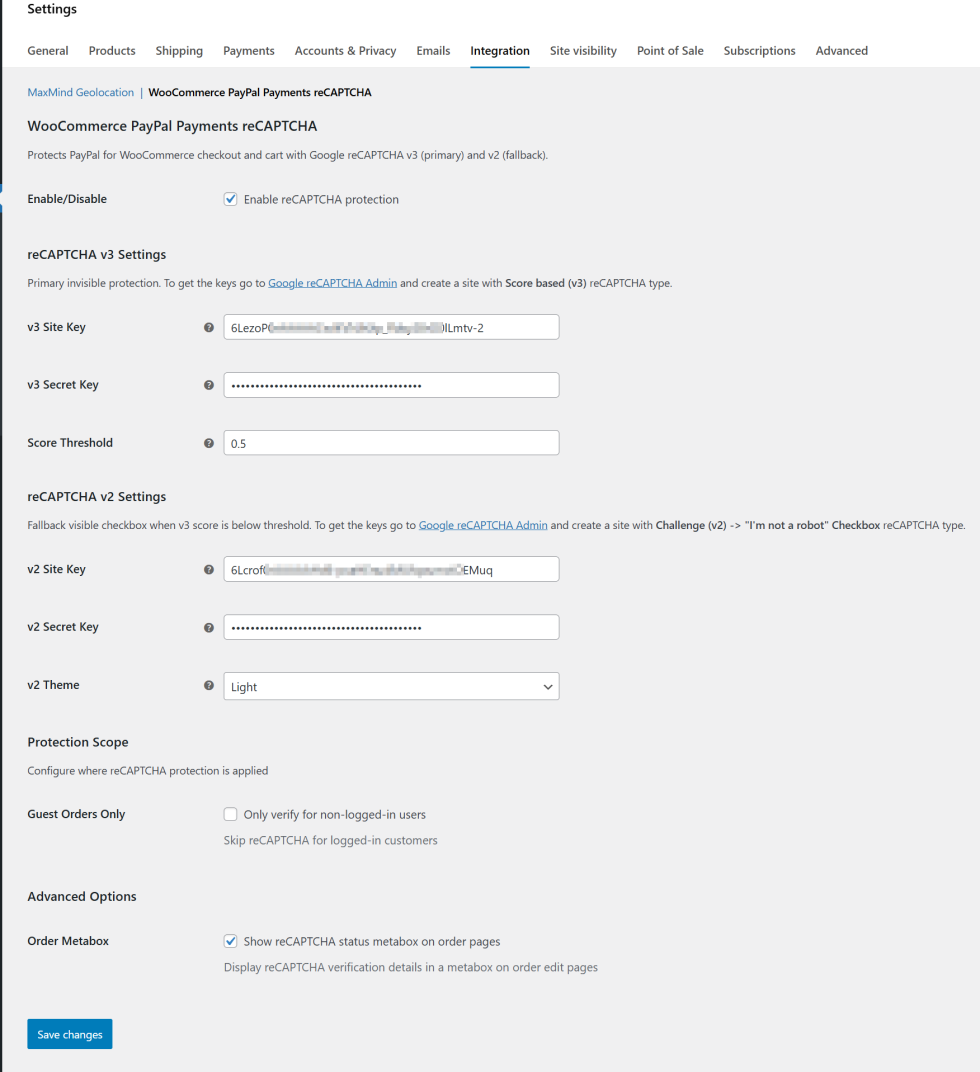
- In your WordPress dashboard, go to WooCommerce → Settings → Integration → WooCommerce PayPal Payments reCAPTCHA.
- Check Enable reCAPTCHA protection.
- Open the Google reCAPTCHA admin console.
- Create a reCAPTCHA v3 key pair for your domain, then paste the Site Key and Secret Key into the corresponding v3 fields.
- Set the Score Threshold to 0.5 (recommended starting point).
- Create a reCAPTCHA v2 key pair for your domain, then paste the Site Key and Secret Key into the corresponding v2 fields.
- Click Save changes.
Warning:
CAPTCHA protection activates only when both v2 and v3 keys are configured.
Once enabled:
- The reCAPTCHA v3 runs silently in the background.
- A reCAPTCHA badge appears in the bottom-right corner of your site.
- The reCAPTCHA v2 challenge checkbox appears only when a visitor’s score falls below the threshold.
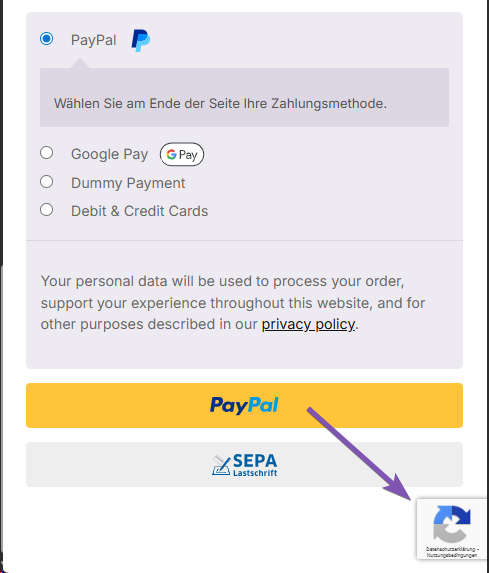
WooCommerce PayPal Payments uses a layered CAPTCHA system that combines two versions of Google reCAPTCHA:
reCAPTCHA v3 (invisible check):
- Runs silently and evaluates visitor behavior.
- Assigns each visitor a score between 0.0 (likely bot) and 1.0 (likely human).
- Visitors scoring above the threshold pass without interruption.
reCAPTCHA v2 (visible challenge):
- Activates only when a visitor’s v3 score falls below the threshold.
- Presents a checkbox or image challenge to confirm the visitor is human.
The score threshold determines when visitors see a v2 challenge:
- Default threshold: 0.5
- Scores above threshold: Treated as human (no challenge).
- Scores below threshold: v2 challenge appears.
Raise the threshold for stricter protection (more challenges) or lower it for a more permissive experience (fewer challenges).
General CAPTCHA plugins often don’t protect the specific PayPal payment routes where automated attacks occur. This integration targets those exact endpoints, reducing false positives while guarding the most critical parts of checkout.
Optional settings let you customize CAPTCHA behavior:
| Setting | Description |
|---|---|
| Guest Orders Only | Verify only non-logged-in users. Enable this when user registration is protected by a separate CAPTCHA integration. |
| Order Metabox | Display reCAPTCHA status on order edit pages, including v3 scores and metadata. Useful for developers. |
Legitimate customers challenged too often
Raise the v3 score threshold slightly and test again.
Bots still getting through
Lower the v3 score threshold incrementally. Confirm the v2 fallback triggers via your reCAPTCHA dashboard. Consider adding hosting or WAF rate-limiting for extra protection.
No change after enabling protection
Confirm both v2 and v3 keys are valid for your exact domain. Clear server, CDN, and browser caches.
Unclear reCAPTCHA activity
Review v3 scoring and v2 challenge activity in the reCAPTCHA dashboard.
