

You can use the Blogroll block to share a list of blogs you follow with your website visitors. This guide will show you how to add and edit your blogroll.
To add the Blogroll block, click the + block inserter icon and search for “blogroll”. Click to add the block to the post or page.
💡
Using your keyboard, you can also type /blogroll on a new line and press enter to quickly add a new Blogroll block.
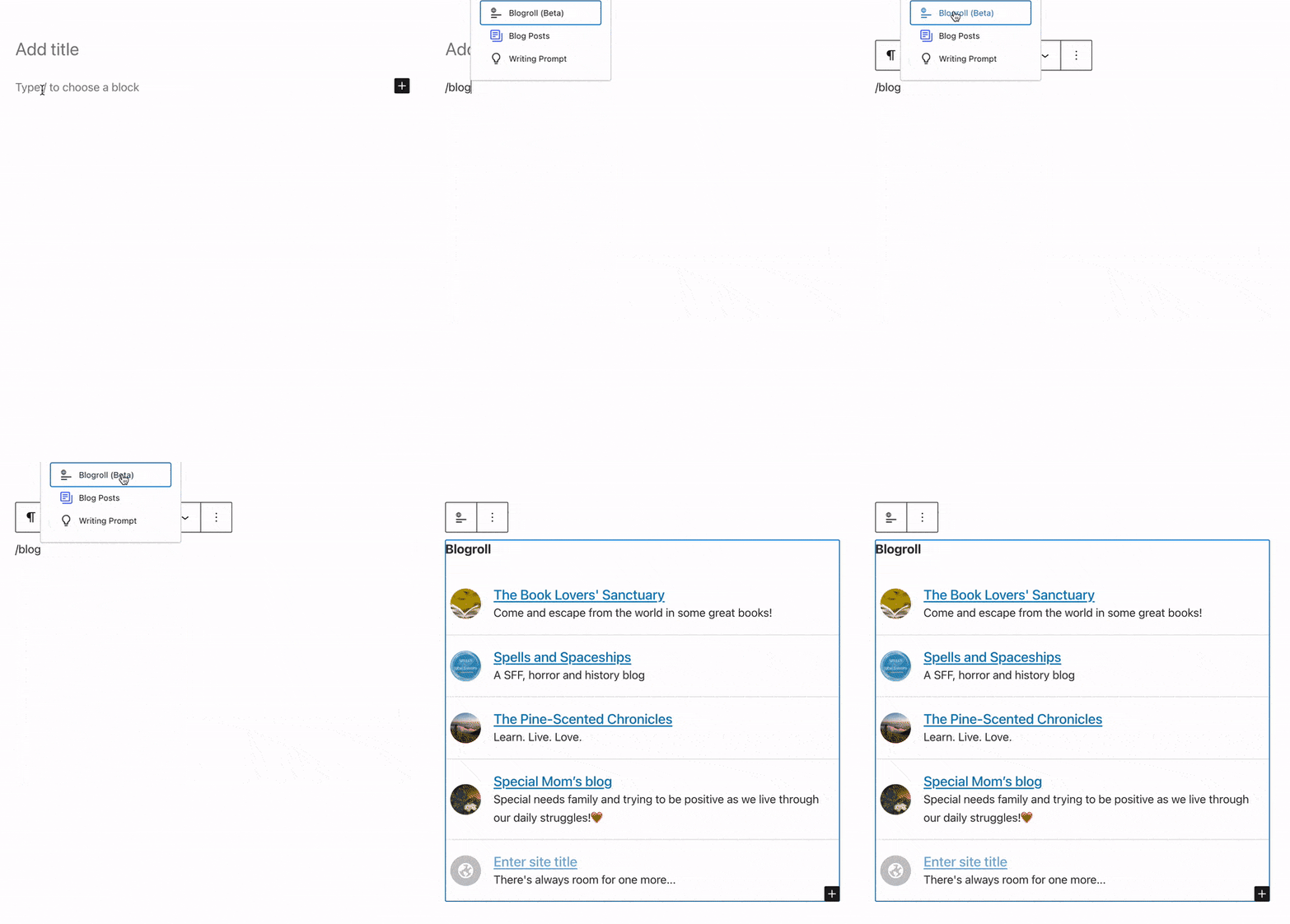
For more information, visit our detailed instructions on adding blocks.
When you first add the Blogroll block to your site, it will look something like this:
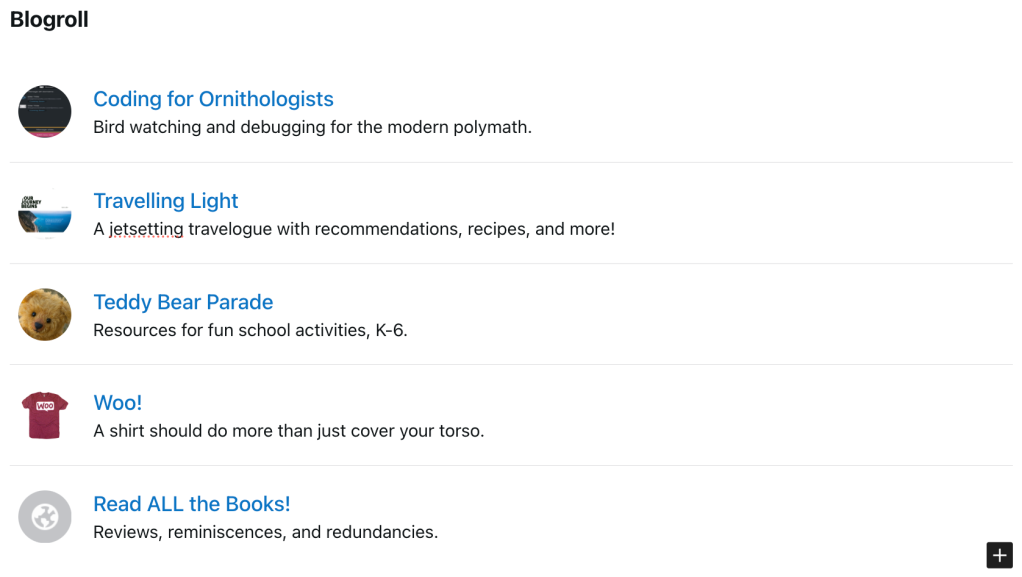
You can select each item in your blogroll and make changes:
- Edit an item’s avatar by clicking on the image.
- Edit an item’s title and description by clicking on the text and typing new text.
- Delete an item from the blogroll in the same way as you would delete any other block.
You can edit the default heading used — “Blogroll” — to say whatever you’d like.
You can also click the + block inserter icon at the bottom right of the block to add a new blogroll item from the list of sites you follow.
At the moment, this block will only display WordPress.com sites to which you’re subscribed. We plan to add support for custom URLs as this feature develops.
When you click on the block, a toolbar of options will appear above or below it:
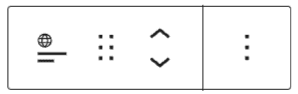
The Blogroll block has the following options in its toolbar:
- Change block type.
- Drag the block.
- Move the block up or down.
- More options.
When you select a block, you will find additional block settings in the right sidebar. If you do not see the sidebar, you may need to click the Settings icon in the top-right corner to bring up the settings. This icon looks like a square with two uneven columns:

The Settings toggle switches for the Blogroll block are:
- Show avatar
- Show description
- Open links in a new window
- Hide my own sites
In the block settings sidebar, click on the Styles icon to access the design settings for the block. The Styles icon is in the shape of a circle, with half of the circle filled in:

The Styles options for the Blogroll block are:
