

Use the GIF block to search for and embed an animated GIF image from Giphy directly into a post or page on your WordPress.com site. This guide will show you how to use the GIF block.
In this guide
Have a question?
Ask our AI assistantTo add the GIF block, click the + Block Inserter icon and search for “gif”. Click to add the block to a page, post, or template.
💡
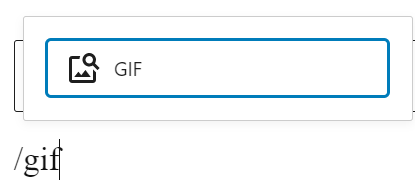
Using your keyboard, you can also type /gif on a new line and press enter to quickly add a new GIF block.
For more information, visit our detailed instructions on adding blocks.
💡
If you’re missing the GIF block, it’s likely you are running a WordPress.org website. Install the free Jetpack plugin to add the GIF block to your site.
After adding a new GIF block, type a search term into the box provided and click the “Search” button.
The results will show one large GIF and a row of 10 thumbnail images. The large GIF is the GIF that will be displayed on your site.
Click the smaller GIFs at the top to choose a different GIF. If you want to find a different GIF, enter a new search term in the search bar and click on the “Search” button again.

Optionally, you can type a caption that will display below the GIF.
If you know the exact URL of the GIF you want from giphy.com, you can paste that URL into the search box to display that specific GIF.
When you click on the GIF block, a toolbar of options will appear above or below it with the following options:
- Change block type.
- Drag the block.
- Move the block up or down.
- Align the GIF to the left, right, or center (plus wide and full width options if supported by the theme.)
- More options.

When you select a block, you will find additional block settings in the right sidebar. If you do not see the sidebar, you may need to click the Settings icon in the top-right corner to bring up the settings. This icon looks like a square with two uneven columns:

The GIF block contains Advanced settings.
