Guides/Create content/Text/Quote block

Quote block

Last reviewed on December 15, 2025

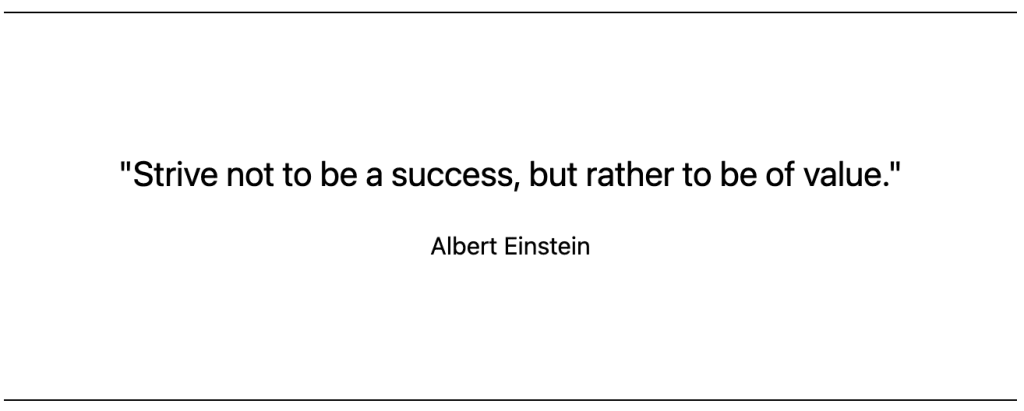
The Quote block adds a visual emphasis to text that you can use for a variety of purposes, including inspirational quotes, reviews from your audience, customer testimonials, and more. This guide will show you how to add it to your site.

Add the Quote block

To add a Quote block to your site, follow these steps:

  1. Go to your site’s dashboard.
  2. Depending on where you want to add the image, navigate to a pagepost, or template and edit or create a new:
    • Page: Navigate to the Pages section of your menu.
    • Post: Navigate to the Posts section of your menu.
    • Template: Navigate to Appearance → Editor and select the template.
  3. Click the + block inserter (plus icon) and search for “Image”.
    • Or, type /image wherever you see “Type / to choose a block” to use a shortcut.
  4. Click the quote icon to insert the Quote block.
The block inserter open with the word "quote" searched for and a box drawn around the Quote block icon.

Alternatively, you can quickly start a quote by typing > and then a space on a new line. It will automatically create a Quote block.

💡

Using your keyboard, you can also type /quote on a new line and press enter to quickly add a new Quote block.

For more information, visit our detailed instructions on adding blocks.

Insert your quote

Once you add the Quote block to your page/post, it will contain a Paragraph block where you enter the text of the quote. You can also add other blocks inside the Quote block.

Add a citation

Add a citation to give credit to the original author or source of the quote. To add a citation, follow these steps:

  1. Open List View in the top-left corner of your screen (it’s the icon that looks like three horizontal lines above each other.)
  2. Select the Quote block.
  3. In the block toolbar that appears, click the citation icon to activate the citation option.
The Quote block toolbar with the citation icon highlighted.
  1. Place your cursor where you see the text “Add citation”.
  2. Type your citation for the quote.

Quote block toolbar

When you click on the block, a toolbar of options will appear above or below it:

The toolbar that appears when the Quote block is selected.

The Quote block has the following options in its toolbar:

  • Change block type.
  • Drag the block.
  • Move the block up or down.
  • Align the text to the left, center, or right.
  • Add citation.
  • More options.

Quote block settings

When you select a block, you will find additional block settings in the right sidebar. If you do not see the sidebar, you may need to click the Settings icon in the top-right corner to bring up the settings. This icon looks like a square with two uneven columns:

An arrow pointing to the "Settings" icon in the top right of the WordPress Editor.
Click the Settings icon to open the block settings

Styles

The Quote block has different styles for you to choose from, including Default, which uses your theme’s styles for quotes, and a Plain style. Note that block styles may be added or modified by your theme.

Other settings

More details for these standard block settings can be found in the following guides:

Add a background image to all quotes

You can set a background image for all quote blocks across your site with the following steps:

  1. Visit your site’s dashboard.
  2. Go to Appearance → Editor.
  3. Select Styles from the left-side menu.
    • On certain themes, you may be prompted to pick from different style combinations. Click the pencil icon to then open the full Styles settings.
  4. Click on the Blocks option.
  5. Select the Quote block.
  6. Scroll down to the “Background image” section and click the “Add background image” button.
  7. Upload a background image or select an existing image from your media library.
  8. Optionally, click on the selected image to configure the settings for focal point, position, size, and more.
  9. Click the Save button to apply your changes to all quote blocks across the site.

Learn more about applying styles across your site.

Was this guide helpful for you?

Not quite what you're looking for? Get Help!

Copied to clipboard!